> ## Documentation Index
> Fetch the complete documentation index at: https://docs.5x.co/llms.txt
> Use this file to discover all available pages before exploring further.
# App connections
> Configure Business Intelligence app connections to securely connect to your data warehouse and metrics layer
**Focus:** Learn how to set up and manage Business Intelligence app connections that enable 5X BI to access your data warehouse and metrics layer securely.
## App connections overview
App Connections are 5X's integrated approach to data source management. Unlike traditional BI tools where database connections are managed within the BI interface, 5X Business Intelligence uses App Connections for centralized, secure data access.
### **Why App Connections matter**
**Unified control**
Manage all data connections from one place across your entire 5X platform.
**Consistent security**
Apply consistent security policies and access controls across all platform capabilities.
**Easy configuration**
Pre-configured connection templates make setup faster and more reliable.
**Seamless integration**
App Connections work seamlessly with ingestion, IDE, orchestration, and other 5X capabilities.
## Understanding BI app connections
### **What are Business Intelligence app connections?**
Business Intelligence app connections define how 5X BI accesses your data warehouse. They contain all the technical details needed for BI to query your data, including:
* **Authentication credentials** - Username, password, or key pair authentication
* **Connection parameters** - Database, schema, warehouse, and role settings
* **Security settings** - Access permissions and row-level security policies
* **Performance configuration** - Timeout settings, connection pooling, and optimization
### **Two connection options**
5X Business Intelligence supports two types of data connections:
**Direct warehouse access:**
* Connect directly to your Snowflake, BigQuery, or other warehouse
* Full SQL capabilities with complete access to all data and SQL functions
* Real-time queries that access data as it exists in your warehouse
* Custom transformations using custom SQL for complex analysis
**Direct Metrics Store project access:**
* Connect 5X BI directly to your 5X Metrics Store projects
* Unified metrics with access to pre-defined business metrics and KPIs
* Consistent definitions using standardized metric definitions across all tools
* Simplified queries for business metrics without complex SQL
* Governance through centralized metric management and approval processes
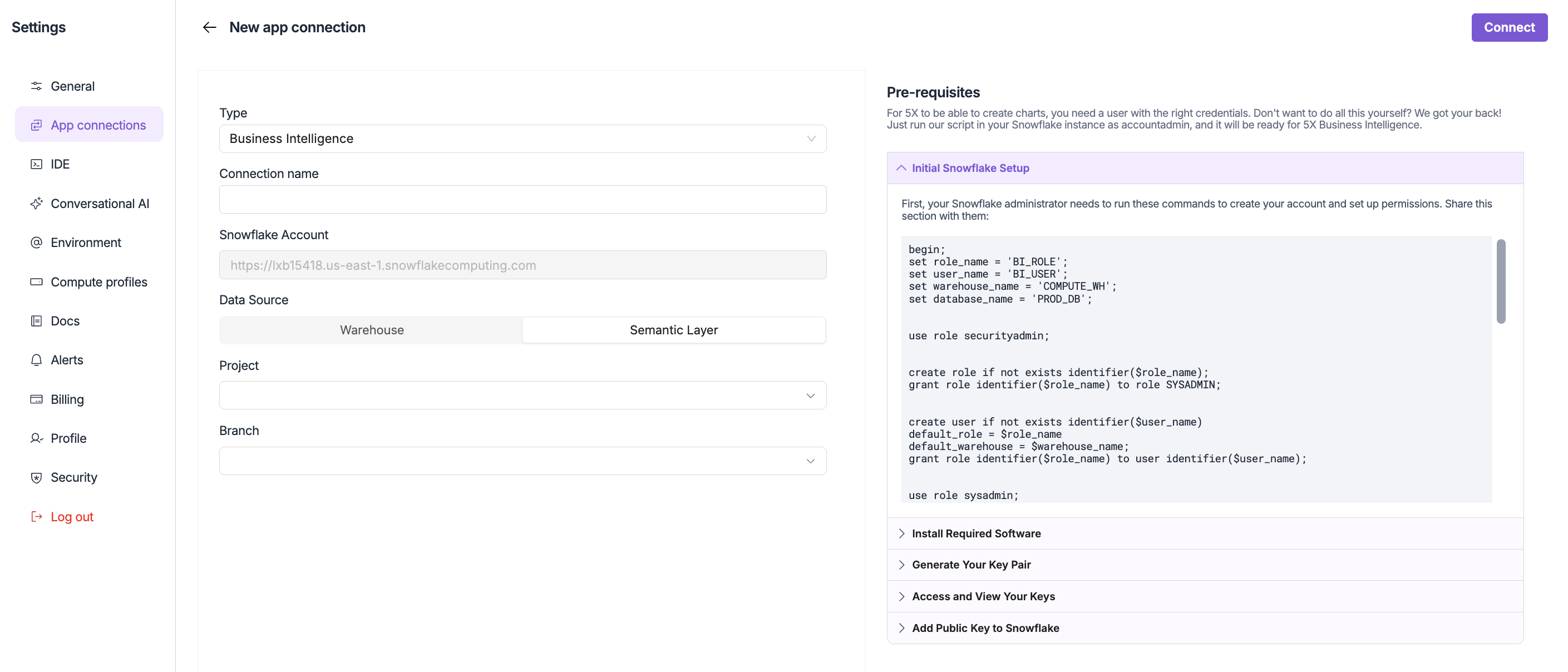 ## Creating BI app connections
### **Step 1: Access app connections**
1. **Navigate to Settings**
* From your workspace, click **"Settings"** in the left sidebar
* Select **"App connections"** from the settings menu
2. **Create new connection**
* Click **"+ New connection"**
* Select **"Business Intelligence"** as the connection type
### **Step 2: Configure connection details**
Set connection name, description, and tags for easy identification and management.
Choose between "Warehouse" for direct access or "Metrics Store" for unified metrics.
Configure authentication method (username/password or key pair) with appropriate credentials.
Set database, schema, warehouse, and role settings based on your data architecture.
### **Step 3: Test and save connection**
1. **Test connection** - Verify credentials and access permissions
2. **Review settings** - Confirm all configuration details are correct
3. **Save connection** - Create the app connection for use in BI
## Connection management
### **Troubleshooting common issues**
**Possible causes:**
* Incorrect username or password
* Expired or invalid credentials
* Wrong authentication method
* Account locked or disabled
**Solutions:**
* Verify credentials with database administrator
* Check account status and permissions
* Confirm authentication method configuration
* Reset credentials if necessary
**Possible causes:**
* Insufficient database permissions
* Missing role assignments
* Schema or table access restrictions
* Row-level security policies
**Solutions:**
* Review role permissions and assignments
* Check schema and table access rights
* Verify row-level security configuration
* Contact database administrator for access
**Possible causes:**
* Network connectivity issues
* Database server overload
* Firewall or proxy restrictions
* Incorrect connection parameters
**Solutions:**
* Test network connectivity
* Check database server status
* Verify firewall and proxy settings
* Review connection timeout configurations
### **Updating connections**
**When to update:**
* **Credential rotation** - Regular security credential updates
* **Permission changes** - Modified access requirements
* **Infrastructure changes** - Database or network modifications
* **Performance optimization** - Improved connection settings
**Update process:**
1. **Access connection settings** - Navigate to app connections
2. **Edit connection** - Modify necessary settings
3. **Test changes** - Verify updated configuration
4. **Save updates** - Apply changes to the connection
## Security best practices
### **Access control**
**Minimal permissions**
Grant only the minimum permissions necessary for BI functionality.
**Dedicated roles**
Use dedicated database roles specifically for BI access.
**Access reviews**
Regularly review and audit access permissions and usage patterns.
**Credential management**
Use secure credential storage and rotation practices.
## Next steps
With your Business Intelligence app connection configured, you're ready to start building dashboards and exploring your data:
**Next: Create dashboards**
Once your app connection is set up, learn how to build interactive dashboards.
**Explore your data**
Learn how to explore datasets and write custom SQL queries.
## Creating BI app connections
### **Step 1: Access app connections**
1. **Navigate to Settings**
* From your workspace, click **"Settings"** in the left sidebar
* Select **"App connections"** from the settings menu
2. **Create new connection**
* Click **"+ New connection"**
* Select **"Business Intelligence"** as the connection type
### **Step 2: Configure connection details**
Set connection name, description, and tags for easy identification and management.
Choose between "Warehouse" for direct access or "Metrics Store" for unified metrics.
Configure authentication method (username/password or key pair) with appropriate credentials.
Set database, schema, warehouse, and role settings based on your data architecture.
### **Step 3: Test and save connection**
1. **Test connection** - Verify credentials and access permissions
2. **Review settings** - Confirm all configuration details are correct
3. **Save connection** - Create the app connection for use in BI
## Connection management
### **Troubleshooting common issues**
**Possible causes:**
* Incorrect username or password
* Expired or invalid credentials
* Wrong authentication method
* Account locked or disabled
**Solutions:**
* Verify credentials with database administrator
* Check account status and permissions
* Confirm authentication method configuration
* Reset credentials if necessary
**Possible causes:**
* Insufficient database permissions
* Missing role assignments
* Schema or table access restrictions
* Row-level security policies
**Solutions:**
* Review role permissions and assignments
* Check schema and table access rights
* Verify row-level security configuration
* Contact database administrator for access
**Possible causes:**
* Network connectivity issues
* Database server overload
* Firewall or proxy restrictions
* Incorrect connection parameters
**Solutions:**
* Test network connectivity
* Check database server status
* Verify firewall and proxy settings
* Review connection timeout configurations
### **Updating connections**
**When to update:**
* **Credential rotation** - Regular security credential updates
* **Permission changes** - Modified access requirements
* **Infrastructure changes** - Database or network modifications
* **Performance optimization** - Improved connection settings
**Update process:**
1. **Access connection settings** - Navigate to app connections
2. **Edit connection** - Modify necessary settings
3. **Test changes** - Verify updated configuration
4. **Save updates** - Apply changes to the connection
## Security best practices
### **Access control**
**Minimal permissions**
Grant only the minimum permissions necessary for BI functionality.
**Dedicated roles**
Use dedicated database roles specifically for BI access.
**Access reviews**
Regularly review and audit access permissions and usage patterns.
**Credential management**
Use secure credential storage and rotation practices.
## Next steps
With your Business Intelligence app connection configured, you're ready to start building dashboards and exploring your data:
**Next: Create dashboards**
Once your app connection is set up, learn how to build interactive dashboards.
**Explore your data**
Learn how to explore datasets and write custom SQL queries.