> ## Documentation Index
> Fetch the complete documentation index at: https://docs.5x.co/llms.txt
> Use this file to discover all available pages before exploring further.
# Creating Data & AI Apps
> Learn how to create new Streamlit applications using 5X managed repositories or import existing ones from GitHub
**Focus:** Master the app creation process, understand repository options, and set up your first Data & AI App for development.
Creating Data & AI Apps in 5X is straightforward and flexible. You can either start with a fresh Streamlit application using 5X's managed repository, or import an existing Streamlit app from your GitHub repository.
## App creation workflow
### **Step 1: Access Manage Apps**
Navigate to the **Data & AI Apps** section in your 5X platform and click on **Manage Apps** to access the application management interface.
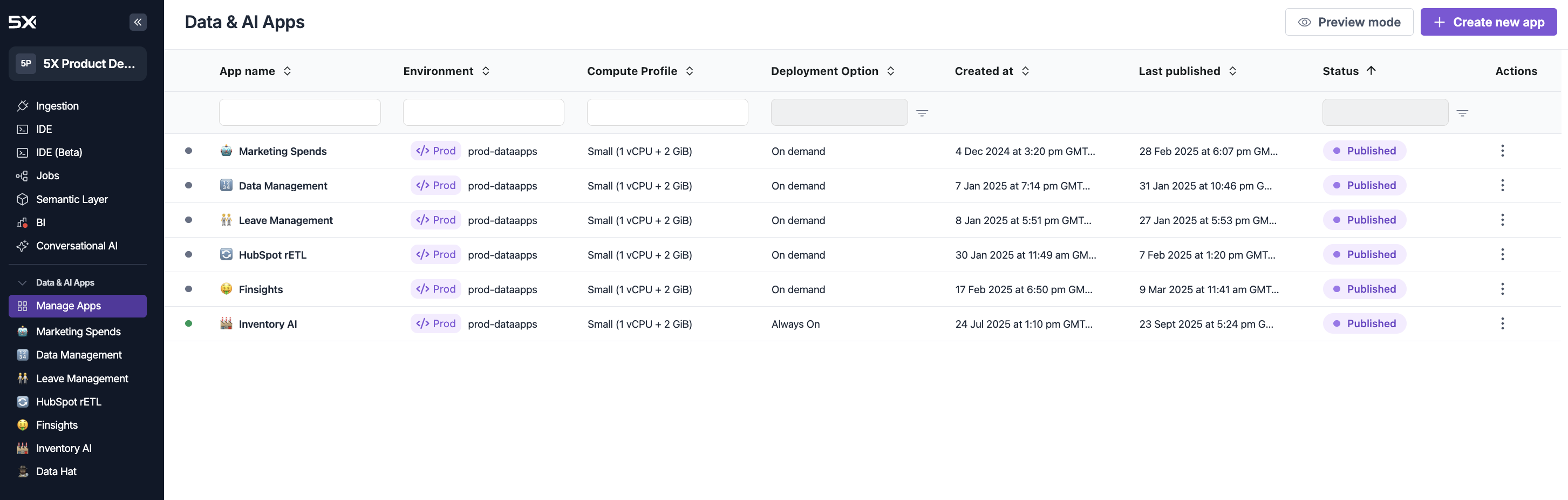 The Manage Apps interface shows all your applications with their current status, deployment options, and management controls.
### **Step 2: Create new app**
Click the **+ Create new app** button to open the app creation modal.
## Repository options
Choose how you want to create your Streamlit application:
Choose **5X Managed** when you want to create a new Streamlit application from scratch:
The Manage Apps interface shows all your applications with their current status, deployment options, and management controls.
### **Step 2: Create new app**
Click the **+ Create new app** button to open the app creation modal.
## Repository options
Choose how you want to create your Streamlit application:
Choose **5X Managed** when you want to create a new Streamlit application from scratch:
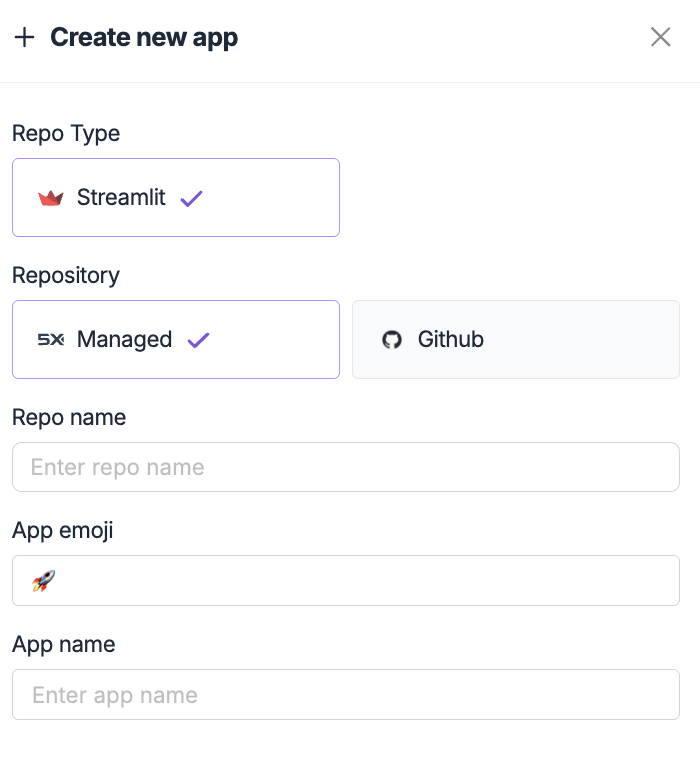 **When to use 5X Managed:**
* Creating a new application from scratch
* Learning Streamlit development
* Quick prototyping and experimentation
* Applications that don't require complex Git workflows
**What you get:**
* Pre-configured Streamlit environment
* Basic app structure and dependencies
* Ready-to-use development environment
* Automatic repository management
Choose **GitHub** when you have an existing Streamlit application or want to maintain your own repository:
**When to use 5X Managed:**
* Creating a new application from scratch
* Learning Streamlit development
* Quick prototyping and experimentation
* Applications that don't require complex Git workflows
**What you get:**
* Pre-configured Streamlit environment
* Basic app structure and dependencies
* Ready-to-use development environment
* Automatic repository management
Choose **GitHub** when you have an existing Streamlit application or want to maintain your own repository:
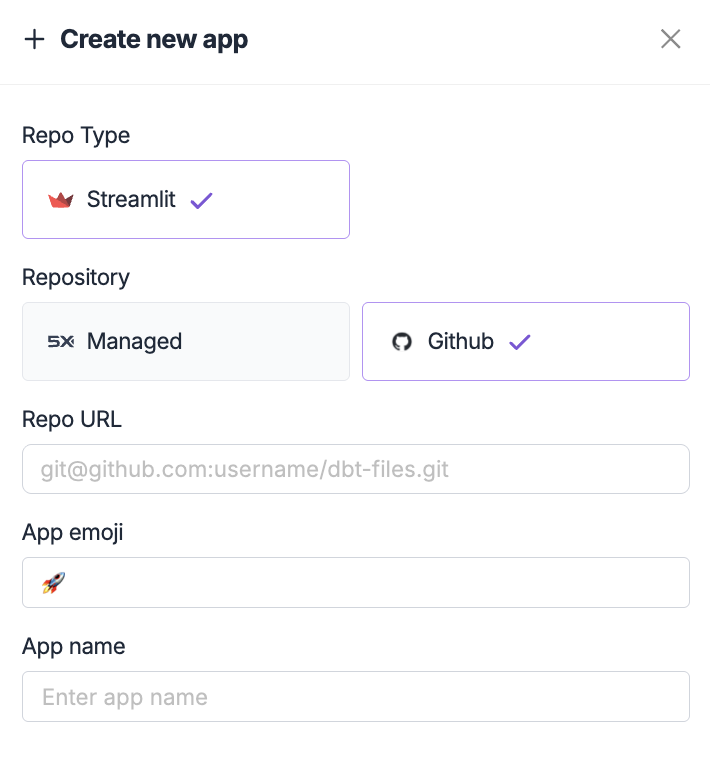 **When to use GitHub:**
* Importing existing Streamlit applications
* Maintaining version control with your team
* Complex applications with custom dependencies
* Applications that need to be shared across multiple environments
**Requirements:**
* Public or accessible private GitHub repository
* Repository must contain a valid Streamlit application
* Proper `requirements.txt` file for dependencies
## Next steps
After creating your app, you're ready to start development:
**Start developing**
Learn how to develop and test your application using the 5X IDE.
**Deploy your app**
Understand how to publish and configure deployment options for your application.
## Troubleshooting
### **Common issues**
**Issue:** Cannot access GitHub repository
**Solutions:**
* Verify the repository URL is correct
* Ensure the repository is public or you have proper access permissions
* Check that the repository contains a valid Streamlit application
* Confirm the repository has a `requirements.txt` file
**Issue:** App creation fails due to repository structure
**Solutions:**
* Ensure your repository has a main Streamlit file (usually `app.py` or `main.py`)
* Verify the `requirements.txt` file includes Streamlit and other dependencies
* Check that the repository structure follows Streamlit conventions
* Make sure there are no conflicting files or configurations
**Issue:** App configuration validation fails
**Solutions:**
* Use valid characters in repository and app names
* Ensure app names are descriptive and unique
* Verify emoji selection is working properly
* Check that all required fields are filled out
***
**Develop your app**
Learn how to build and test your Streamlit application using the 5X IDE.
**IDE configuration**
Set up your development environment for efficient app development.
**When to use GitHub:**
* Importing existing Streamlit applications
* Maintaining version control with your team
* Complex applications with custom dependencies
* Applications that need to be shared across multiple environments
**Requirements:**
* Public or accessible private GitHub repository
* Repository must contain a valid Streamlit application
* Proper `requirements.txt` file for dependencies
## Next steps
After creating your app, you're ready to start development:
**Start developing**
Learn how to develop and test your application using the 5X IDE.
**Deploy your app**
Understand how to publish and configure deployment options for your application.
## Troubleshooting
### **Common issues**
**Issue:** Cannot access GitHub repository
**Solutions:**
* Verify the repository URL is correct
* Ensure the repository is public or you have proper access permissions
* Check that the repository contains a valid Streamlit application
* Confirm the repository has a `requirements.txt` file
**Issue:** App creation fails due to repository structure
**Solutions:**
* Ensure your repository has a main Streamlit file (usually `app.py` or `main.py`)
* Verify the `requirements.txt` file includes Streamlit and other dependencies
* Check that the repository structure follows Streamlit conventions
* Make sure there are no conflicting files or configurations
**Issue:** App configuration validation fails
**Solutions:**
* Use valid characters in repository and app names
* Ensure app names are descriptive and unique
* Verify emoji selection is working properly
* Check that all required fields are filled out
***
**Develop your app**
Learn how to build and test your Streamlit application using the 5X IDE.
**IDE configuration**
Set up your development environment for efficient app development.