> ## Documentation Index
> Fetch the complete documentation index at: https://docs.5x.co/llms.txt
> Use this file to discover all available pages before exploring further.
# Publishing & Deployment
> Publish your applications and configure deployment options for different use cases and environments
**Focus:** Learn how to publish your Data & AI Apps, configure deployment options, and manage access controls for different user groups.
Publishing your Data & AI App makes it available to users and configures how it runs in production. You can choose from multiple deployment options and set up access controls to ensure your application is available to the right users at the right time.
## Publishing workflow
### **Access the publish dialog**
To publish your app, navigate to the **Manage Apps** section and click the three-dots menu next to your application, then select **Publish**:
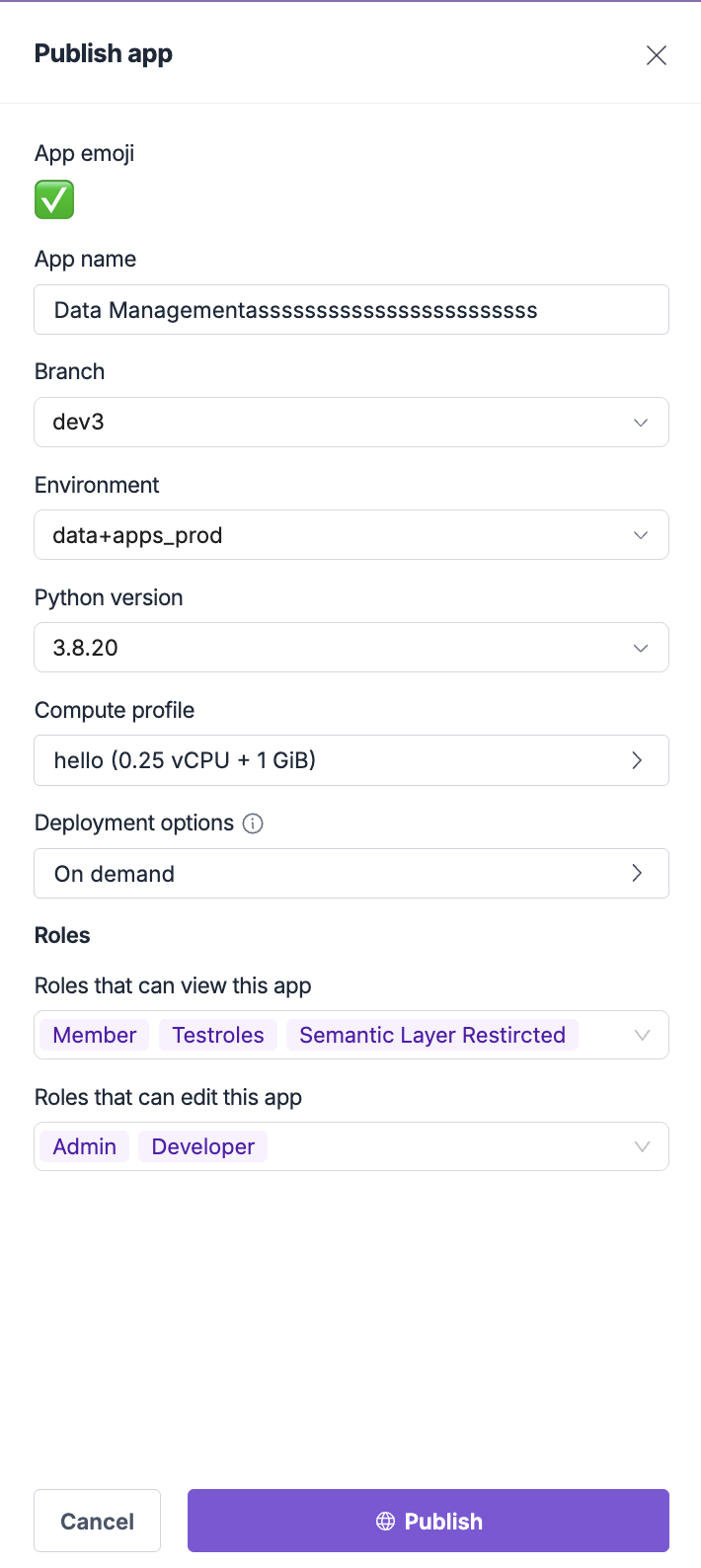
 This opens the **Publish app** dialog where you can configure all deployment settings:
 ## App configuration
### **Basic app settings**
Configure the essential settings for your published application:
**App emoji:**
* Select an emoji that represents your application
* This appears in the navigation and app listings
* Choose something that users will easily recognize
**App name:**
* Enter the display name for your application
* This is what users will see in the navigation
* Use clear, descriptive names that indicate the app's purpose
**Branch:**
* Select which Git branch to deploy from
* Typically `main` or `master` for production deployments
* You can use different branches for different environments
### **Technical configuration**
**Python version:**
* Select the Python version for your application
* Choose based on your app's requirements and dependencies
* Common options include Python 3.8.20, 3.9.23, 3.10.18, 3.11.13, 3.12.11, and 3.13.4
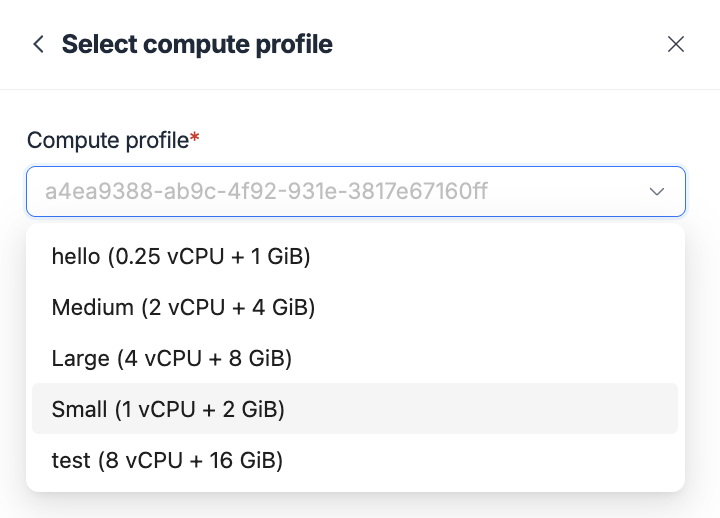
**Compute profile:**
* Configure the compute resources for your application
* Options range from basic to high-performance configurations
* Choose based on your app's computational needs and expected usage
* **Custom profiles**: Create and manage custom compute profiles from **Settings → Compute Profiles** in the platform
## App configuration
### **Basic app settings**
Configure the essential settings for your published application:
**App emoji:**
* Select an emoji that represents your application
* This appears in the navigation and app listings
* Choose something that users will easily recognize
**App name:**
* Enter the display name for your application
* This is what users will see in the navigation
* Use clear, descriptive names that indicate the app's purpose
**Branch:**
* Select which Git branch to deploy from
* Typically `main` or `master` for production deployments
* You can use different branches for different environments
### **Technical configuration**
**Python version:**
* Select the Python version for your application
* Choose based on your app's requirements and dependencies
* Common options include Python 3.8.20, 3.9.23, 3.10.18, 3.11.13, 3.12.11, and 3.13.4
**Compute profile:**
* Configure the compute resources for your application
* Options range from basic to high-performance configurations
* Choose based on your app's computational needs and expected usage
* **Custom profiles**: Create and manage custom compute profiles from **Settings → Compute Profiles** in the platform
 ## Deployment options
### **Understanding deployment types**
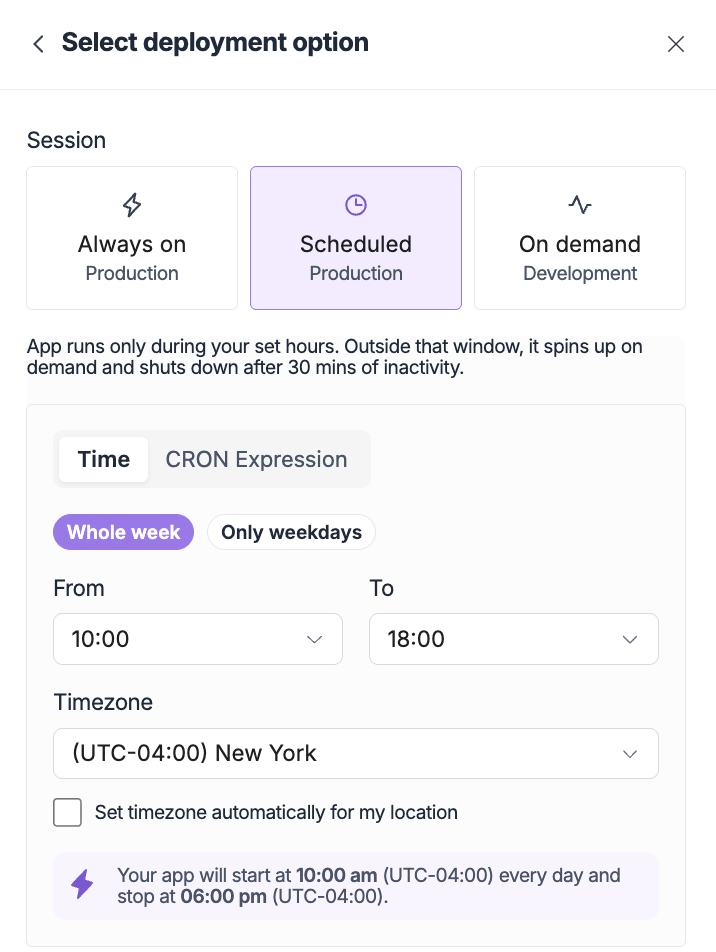
Choose the deployment option that best fits your use case:
## Deployment options
### **Understanding deployment types**
Choose the deployment option that best fits your use case:
 **Best for:** Production applications with consistent usage
**Characteristics:**
* Application runs continuously
* Immediate access for users
* Higher resource costs but better user experience
* Suitable for mission-critical applications
**Use cases:**
* Production dashboards and reports
* Customer-facing applications
* Real-time monitoring tools
* Applications requiring immediate availability
**Best for:** Applications with predictable usage patterns
**Characteristics:**
* App runs only during specified hours
* Outside scheduled hours, starts on-demand
* Balances cost and availability
* Configurable time zones and schedules
**Configuration options:**
* **Time range:** Set start/end time or use CRON Expression
* **Days:** Choose weekdays only or full week
* **Timezone:** Configure for your location
* **Automatic timezone:** Detect user's location
**Use cases:**
* Business hours applications
* Regional applications with specific time zones
* Cost-optimized production deployments
* Applications with predictable usage patterns
**Best for:** Development, testing, and low-frequency usage
**Characteristics:**
* App starts up when a user tries to access it
* It usually takes some time to start
* Automatically shuts down after 30 minutes of inactivity
* Cost-effective for applications with sporadic usage
**Use cases:**
* Development and testing environments
* Internal tools with occasional usage
* Prototype applications
* Applications with unpredictable usage patterns
## Access control and permissions
### **Role-based access control**
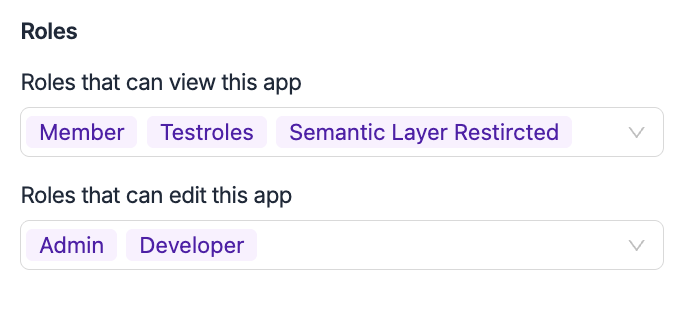
Configure who can access your application using role-based permissions:
**Best for:** Production applications with consistent usage
**Characteristics:**
* Application runs continuously
* Immediate access for users
* Higher resource costs but better user experience
* Suitable for mission-critical applications
**Use cases:**
* Production dashboards and reports
* Customer-facing applications
* Real-time monitoring tools
* Applications requiring immediate availability
**Best for:** Applications with predictable usage patterns
**Characteristics:**
* App runs only during specified hours
* Outside scheduled hours, starts on-demand
* Balances cost and availability
* Configurable time zones and schedules
**Configuration options:**
* **Time range:** Set start/end time or use CRON Expression
* **Days:** Choose weekdays only or full week
* **Timezone:** Configure for your location
* **Automatic timezone:** Detect user's location
**Use cases:**
* Business hours applications
* Regional applications with specific time zones
* Cost-optimized production deployments
* Applications with predictable usage patterns
**Best for:** Development, testing, and low-frequency usage
**Characteristics:**
* App starts up when a user tries to access it
* It usually takes some time to start
* Automatically shuts down after 30 minutes of inactivity
* Cost-effective for applications with sporadic usage
**Use cases:**
* Development and testing environments
* Internal tools with occasional usage
* Prototype applications
* Applications with unpredictable usage patterns
## Access control and permissions
### **Role-based access control**
Configure who can access your application using role-based permissions:
 ### **Permission best practices**
**Minimal access**
Grant only the minimum permissions necessary for users to perform their tasks.
**Access audits**
Regularly review and update access permissions as roles change.
**Permission tracking**
Document who has access to what and why for compliance purposes.
**Verify permissions**
Test access controls to ensure they work as expected.
## Publishing process
### **Step-by-step publishing**
Set your app name, emoji, branch, and environment
Choose appropriate compute resources for your application
Select on-demand, always-on, or scheduled deployment
Set up view and edit permissions for different user roles
Review all settings and click Publish to deploy your application
### **Post-publishing**
After publishing, your application will:
1. **Appear in navigation** - Users with view permissions will see the app in their left navigation
2. **Be accessible** - The app will be available based on your deployment configuration
3. **Show in Manage Apps** - You can monitor and manage the app from the Manage Apps interface
4. **Display status** - The app status will show as "Published" in the apps list
## Managing published apps
### **App status management**
**Published apps:**
* Visible to users with appropriate permissions
* Accessible based on deployment configuration
* Can be managed through the Manage Apps interface
**Unpublished apps:**
* Not visible to regular users
* Still accessible to Admin users and users with Global edit access
* Can be republished at any time
### **Edit app details**
You can modify app settings after publishing by clicking **Edit details** from the three-dots menu.
This opens the same configuration dialog as publishing, allowing you to:
* Update app settings and configuration
* Change deployment options
* Modify access permissions
* Update compute profiles
### **Unpublishing apps**
To unpublish an app:
1. Go to the Manage Apps interface
2. Click the three-dots menu next to your app
3. Select **Unpublish** (this option appears for published apps)
4. Confirm the unpublishing action
Unpublished apps remain accessible to Admin users and users with Global edit access, but are hidden from regular users.
## Troubleshooting
### **Common publishing issues**
**Issue:** App fails to publish
**Solutions:**
* Check that all required fields are filled out
* Verify the selected branch exists and contains valid code
* Ensure compute profile is appropriate for your app
* Check for any configuration errors or conflicts
**Issue:** App takes too long to start
**Solutions:**
* Consider upgrading to a higher compute profile
* Optimize your app's startup time and dependencies
* Use always-on deployment for frequently accessed apps
* Review and optimize your requirements.txt
**Issue:** Users cannot access the published app
**Solutions:**
* Verify user roles and permissions are correctly configured
* Check that users have the appropriate view permissions
* Ensure the app is published and not unpublished
* Verify deployment configuration is correct
***
### **Permission best practices**
**Minimal access**
Grant only the minimum permissions necessary for users to perform their tasks.
**Access audits**
Regularly review and update access permissions as roles change.
**Permission tracking**
Document who has access to what and why for compliance purposes.
**Verify permissions**
Test access controls to ensure they work as expected.
## Publishing process
### **Step-by-step publishing**
Set your app name, emoji, branch, and environment
Choose appropriate compute resources for your application
Select on-demand, always-on, or scheduled deployment
Set up view and edit permissions for different user roles
Review all settings and click Publish to deploy your application
### **Post-publishing**
After publishing, your application will:
1. **Appear in navigation** - Users with view permissions will see the app in their left navigation
2. **Be accessible** - The app will be available based on your deployment configuration
3. **Show in Manage Apps** - You can monitor and manage the app from the Manage Apps interface
4. **Display status** - The app status will show as "Published" in the apps list
## Managing published apps
### **App status management**
**Published apps:**
* Visible to users with appropriate permissions
* Accessible based on deployment configuration
* Can be managed through the Manage Apps interface
**Unpublished apps:**
* Not visible to regular users
* Still accessible to Admin users and users with Global edit access
* Can be republished at any time
### **Edit app details**
You can modify app settings after publishing by clicking **Edit details** from the three-dots menu.
This opens the same configuration dialog as publishing, allowing you to:
* Update app settings and configuration
* Change deployment options
* Modify access permissions
* Update compute profiles
### **Unpublishing apps**
To unpublish an app:
1. Go to the Manage Apps interface
2. Click the three-dots menu next to your app
3. Select **Unpublish** (this option appears for published apps)
4. Confirm the unpublishing action
Unpublished apps remain accessible to Admin users and users with Global edit access, but are hidden from regular users.
## Troubleshooting
### **Common publishing issues**
**Issue:** App fails to publish
**Solutions:**
* Check that all required fields are filled out
* Verify the selected branch exists and contains valid code
* Ensure compute profile is appropriate for your app
* Check for any configuration errors or conflicts
**Issue:** App takes too long to start
**Solutions:**
* Consider upgrading to a higher compute profile
* Optimize your app's startup time and dependencies
* Use always-on deployment for frequently accessed apps
* Review and optimize your requirements.txt
**Issue:** Users cannot access the published app
**Solutions:**
* Verify user roles and permissions are correctly configured
* Check that users have the appropriate view permissions
* Ensure the app is published and not unpublished
* Verify deployment configuration is correct
***