> ## Documentation Index
> Fetch the complete documentation index at: https://docs.5x.co/llms.txt
> Use this file to discover all available pages before exploring further.
# IDE Interface
> Navigate the IDE interface, understand core components, and master the development environment for efficient data development
**Focus:** Learn how to navigate and use the 5X IDE interface effectively, including VS Code features, database explorer, source control, and session management.
The 5X IDE provides a full-featured VS Code experience directly in your browser, with specialized tools for data development. This guide covers all interface components and how to use them effectively for your data projects.
**VS Code Familiarity**
If you're familiar with VS Code, you'll feel right at home. The IDE includes all standard VS Code features plus specialized data development tools.
## Starting IDE sessions
### **Session initialization**
Starting your IDE session is straightforward and takes some time to fully load:
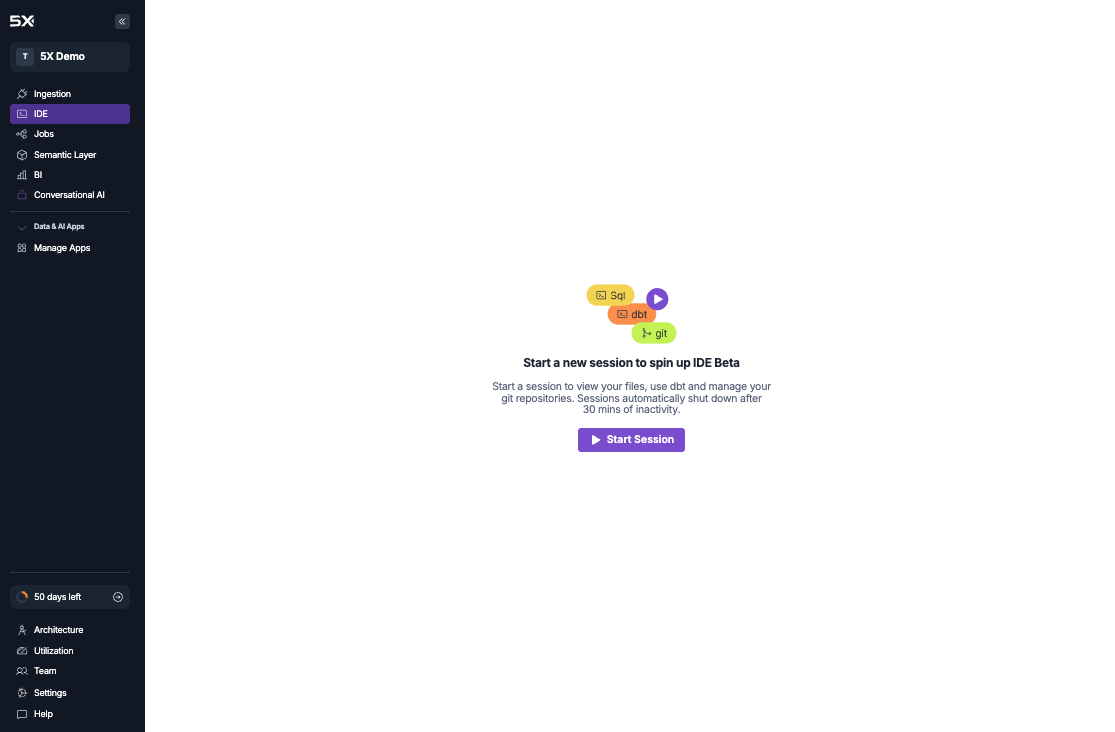 Go to the **IDE** tab in your 5X platform navigation
Click **Start Session** to initialize your development environment
Allow some time for the environment to fully load
Access your repositories and start building in the familiar VS Code interface
### **Session lifecycle management**
Understanding session behavior helps you work efficiently:
**Session characteristics:**
* **Auto-termination**: Sessions end after 30 minutes of inactivity
* **Persistent state**: Environment configurations and saved changes persist between sessions
* **Manual restart**: Use IDE controls to restart or reset when needed
* **Resource management**: Sessions are optimized for data development workloads
## Core interface components
### **File explorer**
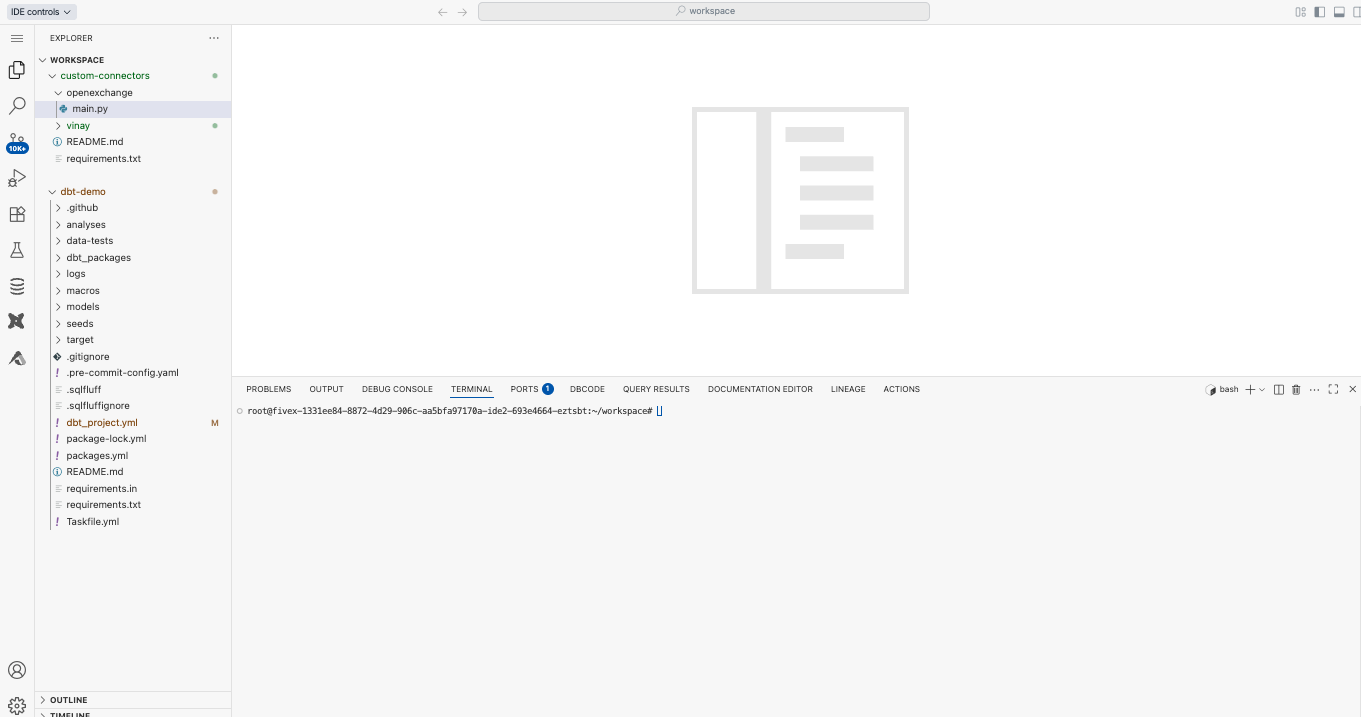
The File Explorer displays all repositories created through the 5X platform, providing intuitive navigation and file management capabilities.
Go to the **IDE** tab in your 5X platform navigation
Click **Start Session** to initialize your development environment
Allow some time for the environment to fully load
Access your repositories and start building in the familiar VS Code interface
### **Session lifecycle management**
Understanding session behavior helps you work efficiently:
**Session characteristics:**
* **Auto-termination**: Sessions end after 30 minutes of inactivity
* **Persistent state**: Environment configurations and saved changes persist between sessions
* **Manual restart**: Use IDE controls to restart or reset when needed
* **Resource management**: Sessions are optimized for data development workloads
## Core interface components
### **File explorer**
The File Explorer displays all repositories created through the 5X platform, providing intuitive navigation and file management capabilities.
 **Key features:**
* **Repository navigation** - Browse file trees and project structures across all integrated repositories
* **File operations** - Create, edit, delete, and organize files with standard operations
* **Project documentation** - Access README files, configuration files, and project documentation
* **Drag-and-drop support** - Organize files and folders within projects
* **Multi-repository view** - Work with multiple projects simultaneously
**File explorer benefits:**
* **Integrated repositories** - All your 5X-managed repositories appear automatically
* **Version control integration** - See Git status indicators for files and folders
* **Search functionality** - Find files quickly across all repositories
* **Context menus** - Right-click for file operations and Git commands
### **Source control integration**
Comprehensive Git workflow management directly within the IDE environment:
**Key features:**
* **Repository navigation** - Browse file trees and project structures across all integrated repositories
* **File operations** - Create, edit, delete, and organize files with standard operations
* **Project documentation** - Access README files, configuration files, and project documentation
* **Drag-and-drop support** - Organize files and folders within projects
* **Multi-repository view** - Work with multiple projects simultaneously
**File explorer benefits:**
* **Integrated repositories** - All your 5X-managed repositories appear automatically
* **Version control integration** - See Git status indicators for files and folders
* **Search functionality** - Find files quickly across all repositories
* **Context menus** - Right-click for file operations and Git commands
### **Source control integration**
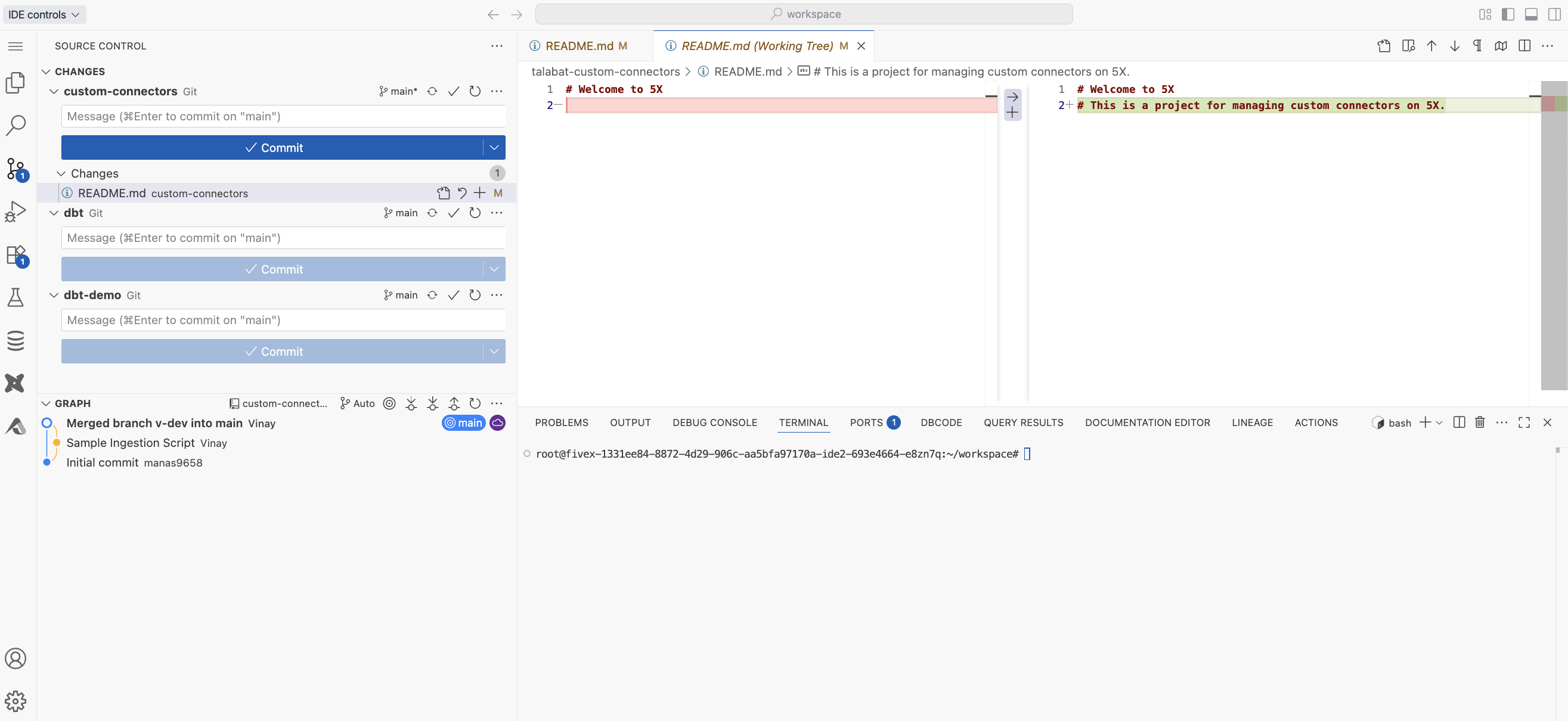
Comprehensive Git workflow management directly within the IDE environment:
 **Available operations:**
* **Commit changes** with descriptive commit messages and staged/unstaged file management
* **Branch management** - Create, switch, and merge branches with visual branch management
* **Remote operations** - Pull and push changes to remote repositories
* **Change tracking** - View file changes, diffs, and commit history with side-by-side comparison
* **Conflict resolution** - Resolve merge conflicts with visual merge tools and guided resolution
**Git workflow features:**
* **Visual diff viewer** - See exactly what changed in each file
* **Commit history** - Browse commit history with detailed commit information
* **Branch visualization** - Understand branch relationships and merge history
* **Staging area** - Stage specific changes or entire files for commit
* **Commit templates** - Use predefined commit message templates for consistency
### **Database explorer**
Automatically connects to your configured data warehouse, providing direct data access and query capabilities:
**Available operations:**
* **Commit changes** with descriptive commit messages and staged/unstaged file management
* **Branch management** - Create, switch, and merge branches with visual branch management
* **Remote operations** - Pull and push changes to remote repositories
* **Change tracking** - View file changes, diffs, and commit history with side-by-side comparison
* **Conflict resolution** - Resolve merge conflicts with visual merge tools and guided resolution
**Git workflow features:**
* **Visual diff viewer** - See exactly what changed in each file
* **Commit history** - Browse commit history with detailed commit information
* **Branch visualization** - Understand branch relationships and merge history
* **Staging area** - Stage specific changes or entire files for commit
* **Commit templates** - Use predefined commit message templates for consistency
### **Database explorer**
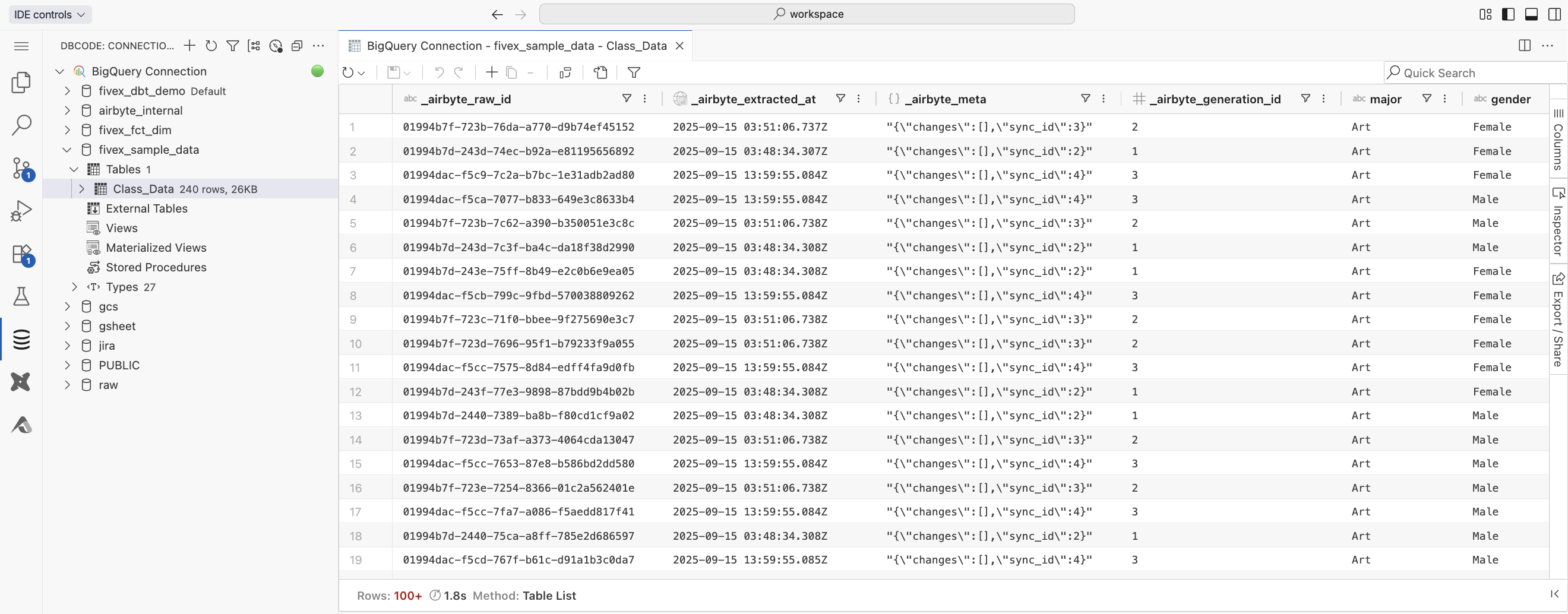
Automatically connects to your configured data warehouse, providing direct data access and query capabilities:
 **Functionality:**
* **Schema browsing** - Browse datasets, schemas, and tables in your data warehouse
* **Query execution** - Execute ad-hoc SQL queries with syntax highlighting and autocomplete
* **Data preview** - Preview table data and examine schema information with pagination
* **Result export** - Export query results in multiple formats (CSV, JSON, Excel)
* **Query management** - Save frequently used queries for reuse and organization
**Database explorer benefits:**
* **Real-time data access** - Query live data during development and testing
* **Schema inspection** - Understand table structures and relationships
* **Data validation** - Verify data quality and transformations during development
### **dbt Power User extension**
Pre-installed extension providing comprehensive dbt development capabilities with seamless integration to your configured dbt environment:
**Functionality:**
* **Schema browsing** - Browse datasets, schemas, and tables in your data warehouse
* **Query execution** - Execute ad-hoc SQL queries with syntax highlighting and autocomplete
* **Data preview** - Preview table data and examine schema information with pagination
* **Result export** - Export query results in multiple formats (CSV, JSON, Excel)
* **Query management** - Save frequently used queries for reuse and organization
**Database explorer benefits:**
* **Real-time data access** - Query live data during development and testing
* **Schema inspection** - Understand table structures and relationships
* **Data validation** - Verify data quality and transformations during development
### **dbt Power User extension**
Pre-installed extension providing comprehensive dbt development capabilities with seamless integration to your configured dbt environment:
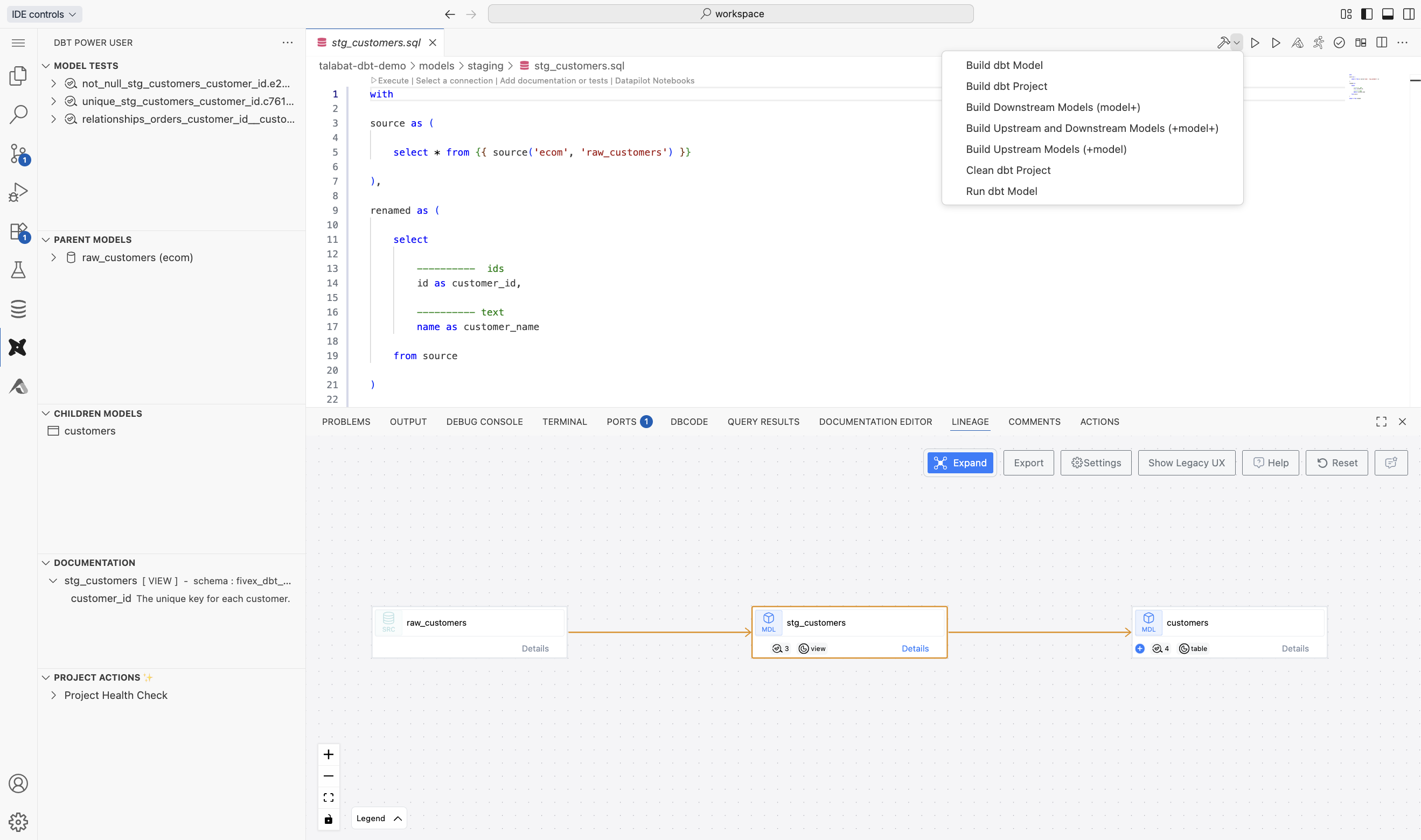 **Core features:**
* **Model execution** - Run individual models, selections, or entire dbt projects with integrated test runner
* **Interactive lineage** - Visualize model dependencies with clickable graphs and impact analysis
* **Documentation generation** - Create and view dbt docs with integrated preview and automatic refresh
* **Test execution** - Run dbt tests with detailed results and error reporting
* **SQL compilation** - Preview compiled SQL queries before execution
**dbt development workflow:**
* **One-click execution** - Run models directly from the file explorer or editor
* **Dependency resolution** - Automatically handle model dependencies and execution order
* **Error handling** - Clear error messages and debugging information
* **Performance monitoring** - Track model execution times and resource usage
## IDE controls and session management
### **Session control options**
Located in the top-left corner, IDE controls provide session management options for maintaining optimal development environment performance:
**Core features:**
* **Model execution** - Run individual models, selections, or entire dbt projects with integrated test runner
* **Interactive lineage** - Visualize model dependencies with clickable graphs and impact analysis
* **Documentation generation** - Create and view dbt docs with integrated preview and automatic refresh
* **Test execution** - Run dbt tests with detailed results and error reporting
* **SQL compilation** - Preview compiled SQL queries before execution
**dbt development workflow:**
* **One-click execution** - Run models directly from the file explorer or editor
* **Dependency resolution** - Automatically handle model dependencies and execution order
* **Error handling** - Clear error messages and debugging information
* **Performance monitoring** - Track model execution times and resource usage
## IDE controls and session management
### **Session control options**
Located in the top-left corner, IDE controls provide session management options for maintaining optimal development environment performance:
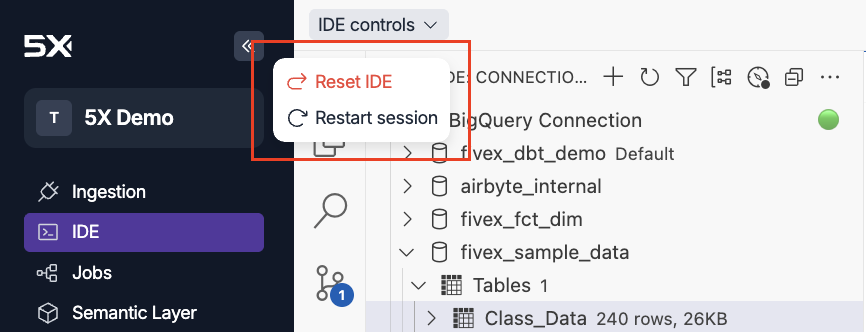 ### **Restart session**
**When to restart:**
* After updating credentials or dbt configuration in Settings
* When IDE becomes unresponsive or feels slower than usual
* To refresh environment variables and connections
**What happens during restart:**
* **Environment refresh** - Reloads all environment variables and configurations
* **Connection re-establishment** - Reconnects to data warehouse and repositories
* **State preservation** - Maintains open files and unsaved changes
### **Reset IDE** ⚠️
**Use with caution:**
* **Complete environment reset** - Returns IDE to default state
* **Data loss warning** - Permanently deletes all custom settings and uncommitted changes
* **Extension removal** - Uninstalls all custom extensions and configurations
**When to consider reset:**
* **Severe environment corruption** - When restart doesn't resolve issues
* **Extension conflicts** - When multiple extensions cause instability
* **Configuration errors** - When settings become corrupted and unrecoverable
* **Clean slate development** - Starting fresh with a new project setup
**Reset IDE Warning**
The Reset IDE option will permanently delete all custom settings, uncommitted changes, and installed extensions. Always try restarting the session first before using the reset option.
## Terminal and command line
### **Terminal access**
The IDE provides full command-line access with some important differences from standard terminals:
**Important terminal shortcuts:**
* **Paste into terminal**: `Cmd + Shift + V` (Mac) or `Ctrl + Shift + V` (Windows/Linux)
* **Copy from terminal**: Select text and `Cmd + C` / `Ctrl + C`
**Terminal capabilities:**
* **Full shell access** - Use bash, zsh, or other available shells
* **Package management** - Install Python packages, system tools, and development utilities
* **Git operations** - Execute Git commands directly from the terminal
* **Environment management** - Activate virtual environments and manage Python versions
## Customization and extensions
### **Extension marketplace**
Install additional VS Code extensions to customize your development environment:
**Popular extensions for data development:**
* **SQL formatters** - Consistent code formatting for SQL queries
* **YAML validators** - Validate dbt configuration files and YAML syntax
* **Language-specific syntax highlighters** - Enhanced syntax support for various file types
* **Git tools** - Enhanced version control workflows and visualizations
* **Python extensions** - Improved Python development experience with IntelliSense
* **Database tools** - Additional database connection and query tools
**Installing extensions:**
1. Open the Extensions panel (Ctrl+Shift+X)
2. Search for the extension you want
3. Click Install to add it to your IDE
4. Restart the session if required by the extension
### **Workspace customization**
**Customizable settings:**
* **Themes and color schemes** - Personalize the visual appearance
* **Editor preferences** - Font size, tab settings, word wrap, and more
* **Keyboard shortcuts** - Customize shortcuts for common operations
* **File associations** - Set default applications for different file types
* **Terminal preferences** - Shell selection, font, and color schemes
**Settings persistence:**
* **User settings** - Apply to all your IDE sessions
* **Workspace settings** - Specific to individual projects
* **Extension settings** - Configure individual extension behavior
## Performance optimization
### **Maintaining IDE responsiveness**
**Best practices for optimal performance:**
* **Close unused files** - Keep only necessary files open to free up memory
* **Limit large query results** - Use pagination in database explorer for large datasets
* **Restart sessions periodically** - Refresh the environment during long development sessions
### **Memory management**
**Signs of memory issues:**
* **Sluggish performance** - IDE becomes slow to respond
* **High memory usage** - Browser shows high memory consumption
* **Extension errors** - Extensions fail to load or function properly
* **Session timeouts** - Frequent session restarts or crashes
**Resolution strategies:**
* **Restart session** - Refresh the environment and clear memory
* **Close unused tabs** - Reduce the number of open files
* **Disable heavy extensions** - Temporarily disable resource-intensive extensions
* **Clear browser cache** - Reset browser data if issues persist
## Next steps
Now that you understand the IDE interface, you're ready to start developing:
**Start coding**
Learn how to build dbt models, Python applications, and Streamlit dashboards.
### **Restart session**
**When to restart:**
* After updating credentials or dbt configuration in Settings
* When IDE becomes unresponsive or feels slower than usual
* To refresh environment variables and connections
**What happens during restart:**
* **Environment refresh** - Reloads all environment variables and configurations
* **Connection re-establishment** - Reconnects to data warehouse and repositories
* **State preservation** - Maintains open files and unsaved changes
### **Reset IDE** ⚠️
**Use with caution:**
* **Complete environment reset** - Returns IDE to default state
* **Data loss warning** - Permanently deletes all custom settings and uncommitted changes
* **Extension removal** - Uninstalls all custom extensions and configurations
**When to consider reset:**
* **Severe environment corruption** - When restart doesn't resolve issues
* **Extension conflicts** - When multiple extensions cause instability
* **Configuration errors** - When settings become corrupted and unrecoverable
* **Clean slate development** - Starting fresh with a new project setup
**Reset IDE Warning**
The Reset IDE option will permanently delete all custom settings, uncommitted changes, and installed extensions. Always try restarting the session first before using the reset option.
## Terminal and command line
### **Terminal access**
The IDE provides full command-line access with some important differences from standard terminals:
**Important terminal shortcuts:**
* **Paste into terminal**: `Cmd + Shift + V` (Mac) or `Ctrl + Shift + V` (Windows/Linux)
* **Copy from terminal**: Select text and `Cmd + C` / `Ctrl + C`
**Terminal capabilities:**
* **Full shell access** - Use bash, zsh, or other available shells
* **Package management** - Install Python packages, system tools, and development utilities
* **Git operations** - Execute Git commands directly from the terminal
* **Environment management** - Activate virtual environments and manage Python versions
## Customization and extensions
### **Extension marketplace**
Install additional VS Code extensions to customize your development environment:
**Popular extensions for data development:**
* **SQL formatters** - Consistent code formatting for SQL queries
* **YAML validators** - Validate dbt configuration files and YAML syntax
* **Language-specific syntax highlighters** - Enhanced syntax support for various file types
* **Git tools** - Enhanced version control workflows and visualizations
* **Python extensions** - Improved Python development experience with IntelliSense
* **Database tools** - Additional database connection and query tools
**Installing extensions:**
1. Open the Extensions panel (Ctrl+Shift+X)
2. Search for the extension you want
3. Click Install to add it to your IDE
4. Restart the session if required by the extension
### **Workspace customization**
**Customizable settings:**
* **Themes and color schemes** - Personalize the visual appearance
* **Editor preferences** - Font size, tab settings, word wrap, and more
* **Keyboard shortcuts** - Customize shortcuts for common operations
* **File associations** - Set default applications for different file types
* **Terminal preferences** - Shell selection, font, and color schemes
**Settings persistence:**
* **User settings** - Apply to all your IDE sessions
* **Workspace settings** - Specific to individual projects
* **Extension settings** - Configure individual extension behavior
## Performance optimization
### **Maintaining IDE responsiveness**
**Best practices for optimal performance:**
* **Close unused files** - Keep only necessary files open to free up memory
* **Limit large query results** - Use pagination in database explorer for large datasets
* **Restart sessions periodically** - Refresh the environment during long development sessions
### **Memory management**
**Signs of memory issues:**
* **Sluggish performance** - IDE becomes slow to respond
* **High memory usage** - Browser shows high memory consumption
* **Extension errors** - Extensions fail to load or function properly
* **Session timeouts** - Frequent session restarts or crashes
**Resolution strategies:**
* **Restart session** - Refresh the environment and clear memory
* **Close unused tabs** - Reduce the number of open files
* **Disable heavy extensions** - Temporarily disable resource-intensive extensions
* **Clear browser cache** - Reset browser data if issues persist
## Next steps
Now that you understand the IDE interface, you're ready to start developing:
**Start coding**
Learn how to build dbt models, Python applications, and Streamlit dashboards.