> ## Documentation Index
> Fetch the complete documentation index at: https://docs.5x.co/llms.txt
> Use this file to discover all available pages before exploring further.
# Migrating to VS code IDE
> A practical guide to migrate smoothly to the 5X VS Code–based IDE with setup, workflows, and best practices
**Welcome to 5X IDE**
The 5X IDE delivers a native VS Code experience directly within your browser, seamlessly integrating with your data warehouse and the broader 5X ecosystem.
Configure access, warehouses, and environment basics.
Connect BigQuery, Snowflake, Redshift, or PostgreSQL securely.
Use 5X-managed or import existing Git repositories.
Learn sessions, panels, and core tools.
Versions, virtualenvs, and dependency management.
Power User extension and terminal workflows.
Performance, extensions, and common fixes.
***
## Prerequisites and setup
Before using the 5X IDE, ensure you have the necessary access and permissions configured. The IDE integrates with your existing data infrastructure but requires initial configuration to establish secure connections.
**Required access**
* **Developer access** to your 5X platform workspace
* **Data warehouse privileges** (BigQuery, Snowflake, Redshift, PostgreSQL)
* **Git repository access** (if importing existing repositories)
The IDE is particularly powerful for dbt development, Python data applications, and Streamlit dashboards. Understanding your primary use cases will help you configure the environment optimally from the start.
***
## Adding credentials
### Setting up data warehouse connections
The 5X IDE establishes secure connections to your data warehouse using user managed service accounts.
Navigate to **Settings → IDE → Credentials**
Click **Add New Credential** against IDE and select your warehouse.
Follow the prompts to provide authentication and dbt configuration.
 ### BigQuery configuration
For BigQuery users, create a service account with appropriate permissions and upload the JSON key file.
Access Google Cloud Console → IAM & Admin → Create service account (e.g., "5x-ide-dev-account").
Assign the **BigQuery Data Editor** role.
Download the JSON key file.
Upload the key file in **Settings → IDE → Credentials**.
**Permission scope options**
* **Project-level**: Provides access across all datasets (recommended for development)
* **Dataset-level**: Granular access control for sensitive data environments
The BigQuery Data Editor role provides the right balance of functionality and security, allowing read, query execution, table creation, and core development operations.
### Dbt development configuration
During credential setup, configure your dbt development environment to ensure commands execute with correct settings.
### BigQuery configuration
For BigQuery users, create a service account with appropriate permissions and upload the JSON key file.
Access Google Cloud Console → IAM & Admin → Create service account (e.g., "5x-ide-dev-account").
Assign the **BigQuery Data Editor** role.
Download the JSON key file.
Upload the key file in **Settings → IDE → Credentials**.
**Permission scope options**
* **Project-level**: Provides access across all datasets (recommended for development)
* **Dataset-level**: Granular access control for sensitive data environments
The BigQuery Data Editor role provides the right balance of functionality and security, allowing read, query execution, table creation, and core development operations.
### Dbt development configuration
During credential setup, configure your dbt development environment to ensure commands execute with correct settings.
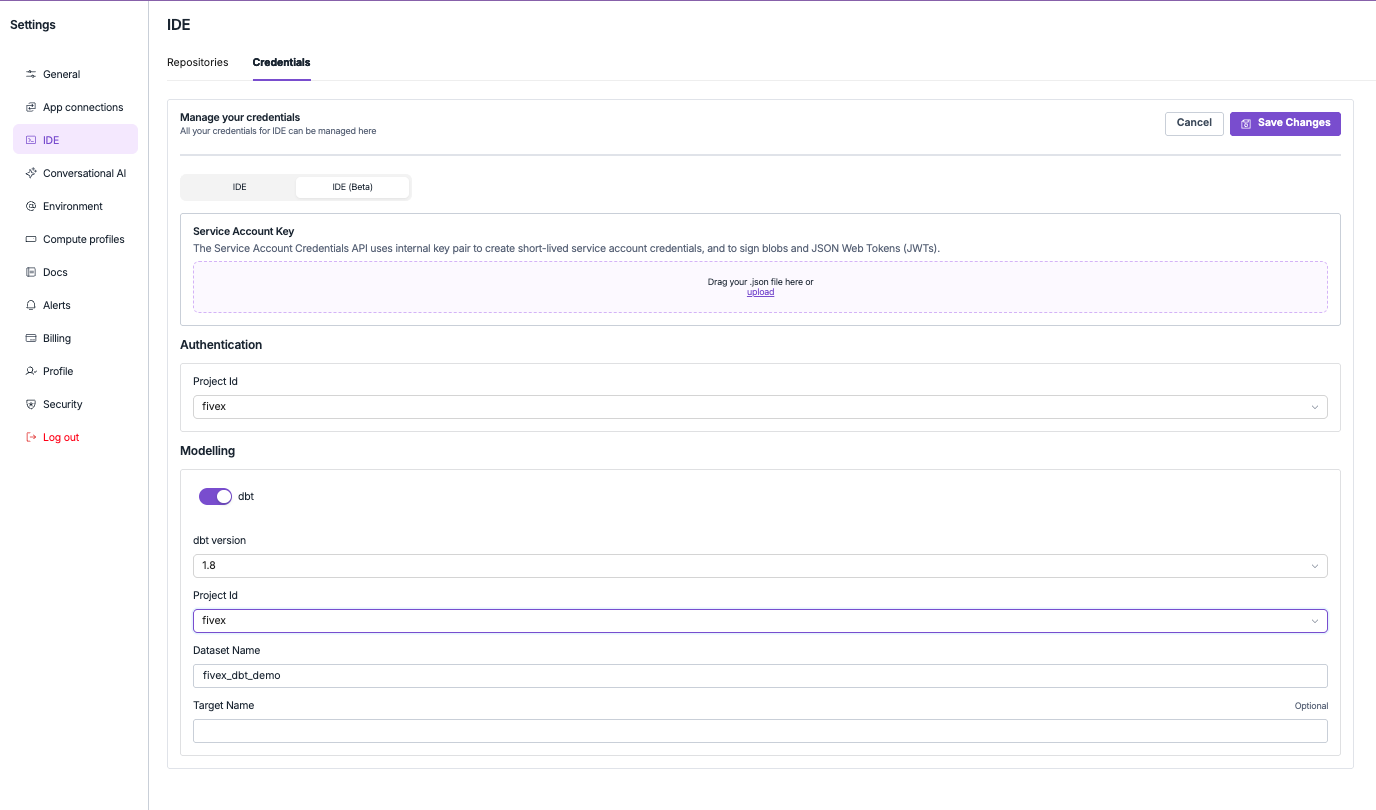 **Configuration fields**
* **dbt version**: 1.6.18, 1.7.19, 1.8.9, or 1.9.10 (use latest stable)
* **project id**: Your warehouse project identifier
* **dataset name**: Target dataset for development workloads (e.g., `dbt_dev_yourname`)
* **target name**: Optional custom target name
Once configured, the system validates your settings and establishes connections. You'll receive confirmation when setup is complete.
***
## Creating git repositories
### Repository integration with 5X platform
The 5X platform maintains a registry of repositories accessible within your IDE environment, enabling automatic lineage tracking, documentation, and deployment workflows.
**Key benefits**
* **Automatic metadata extraction** and dependency tracking
* **Integration with metrics layer** and conversational AI
* **Consistent repository access** across your workspace
### Create new repositories
Navigate to **Settings → IDE → Repositories → New Repository** to open the repository configuration interface.
**Configuration fields**
* **dbt version**: 1.6.18, 1.7.19, 1.8.9, or 1.9.10 (use latest stable)
* **project id**: Your warehouse project identifier
* **dataset name**: Target dataset for development workloads (e.g., `dbt_dev_yourname`)
* **target name**: Optional custom target name
Once configured, the system validates your settings and establishes connections. You'll receive confirmation when setup is complete.
***
## Creating git repositories
### Repository integration with 5X platform
The 5X platform maintains a registry of repositories accessible within your IDE environment, enabling automatic lineage tracking, documentation, and deployment workflows.
**Key benefits**
* **Automatic metadata extraction** and dependency tracking
* **Integration with metrics layer** and conversational AI
* **Consistent repository access** across your workspace
### Create new repositories
Navigate to **Settings → IDE → Repositories → New Repository** to open the repository configuration interface.
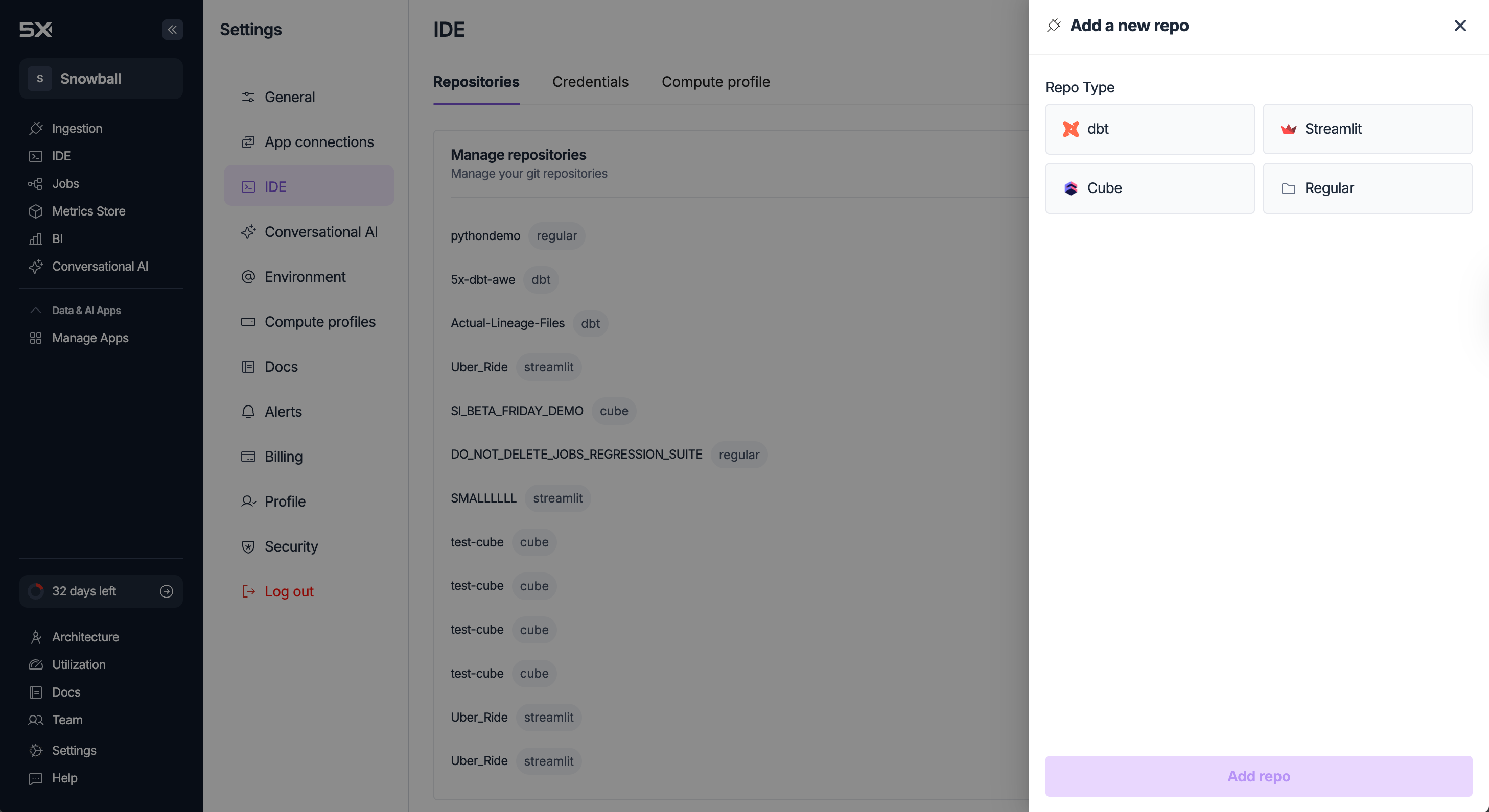 ### Repository types and templates
Complete dbt project template with sample models and tests. Includes a properly configured `dbt_project.yml` and starter macros.
Flexible template for Python applications or mixed projects with full control over structure.
Starter Streamlit app with sample visualizations for interactive data apps.
### Repository management options
Creates a fully managed Git repository within your 5X workspace.
* Automatic backup and integrated version control
* Seamless integration with all 5X platform features
* Platform-managed maintenance and access control
Connect external repositories while maintaining provider relationships.
* Requires SSH URL to the existing repository
* Supports public and private repositories with authentication
* Works with GitHub, GitLab, Bitbucket
**Critical integration note**
Always create repositories through **Settings → IDE → Repositories** rather than using Git commands directly in the IDE terminal. Repositories created directly within the IDE won't appear automatically in your 5X workspace registry.
Properly created repositories will appear in your IDE file explorer automatically when you start new sessions.
***
## Navigating the IDE
### Starting IDE sessions
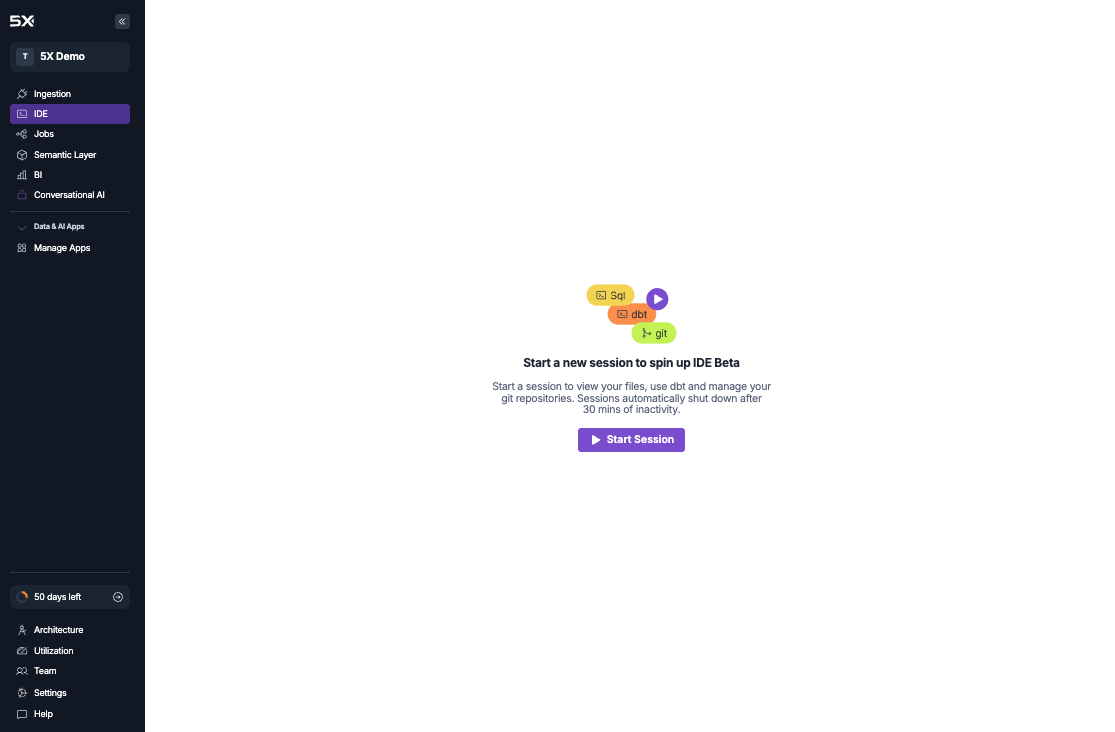
The IDE provides a browser-based VS Code environment that initializes with your configured credentials, repositories, and tools.
Go to the **IDE** tab in your 5X platform.
Click **Start Session** and wait for some time.
Environment configurations, saved changes, and extensions persist between sessions. Sessions auto-terminate after 30 minutes of inactivity.
### Repository types and templates
Complete dbt project template with sample models and tests. Includes a properly configured `dbt_project.yml` and starter macros.
Flexible template for Python applications or mixed projects with full control over structure.
Starter Streamlit app with sample visualizations for interactive data apps.
### Repository management options
Creates a fully managed Git repository within your 5X workspace.
* Automatic backup and integrated version control
* Seamless integration with all 5X platform features
* Platform-managed maintenance and access control
Connect external repositories while maintaining provider relationships.
* Requires SSH URL to the existing repository
* Supports public and private repositories with authentication
* Works with GitHub, GitLab, Bitbucket
**Critical integration note**
Always create repositories through **Settings → IDE → Repositories** rather than using Git commands directly in the IDE terminal. Repositories created directly within the IDE won't appear automatically in your 5X workspace registry.
Properly created repositories will appear in your IDE file explorer automatically when you start new sessions.
***
## Navigating the IDE
### Starting IDE sessions
The IDE provides a browser-based VS Code environment that initializes with your configured credentials, repositories, and tools.
Go to the **IDE** tab in your 5X platform.
Click **Start Session** and wait for some time.
Environment configurations, saved changes, and extensions persist between sessions. Sessions auto-terminate after 30 minutes of inactivity.
 ### IDE interface components
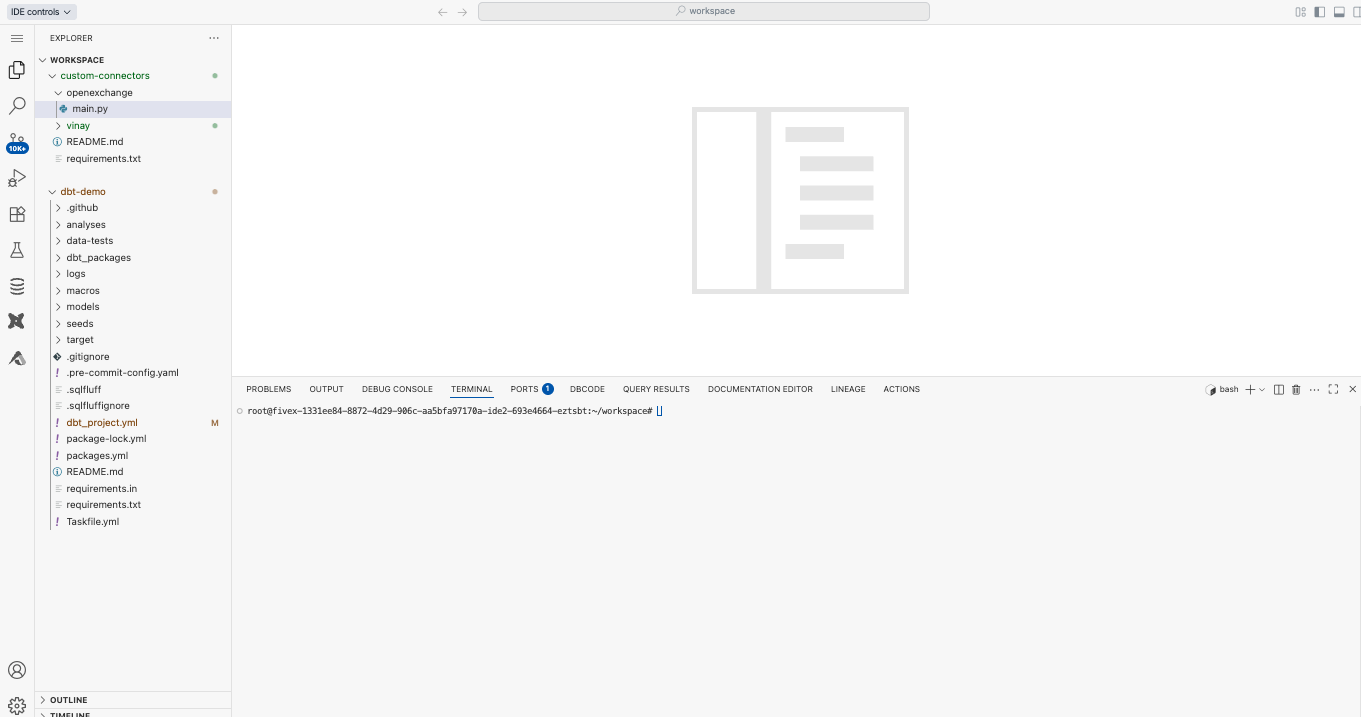 **File explorer**
* Navigate repository file trees and project structures
* Create, edit, and delete files
* Access documentation and config files
* Drag-and-drop organization
**File explorer**
* Navigate repository file trees and project structures
* Create, edit, and delete files
* Access documentation and config files
* Drag-and-drop organization
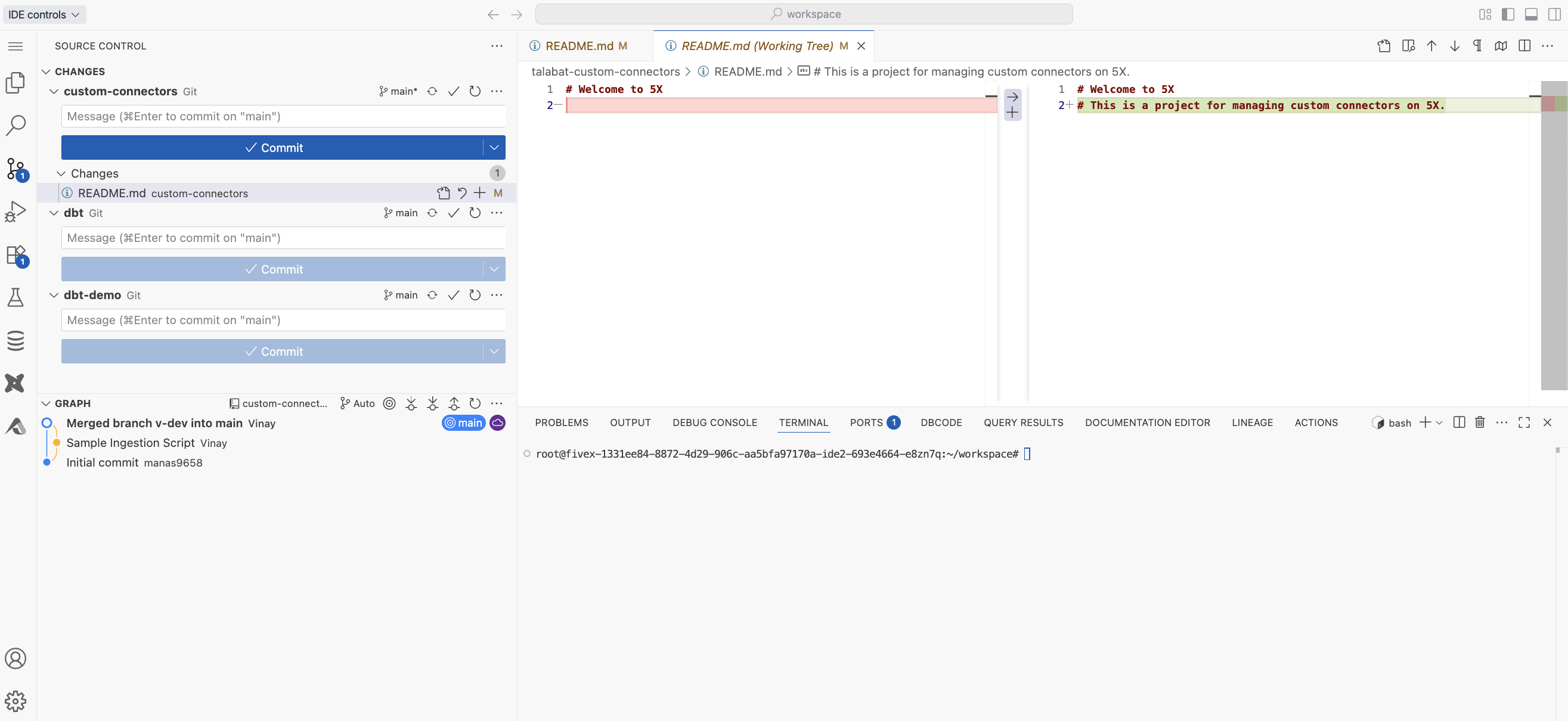 **Source control**
* Commit with descriptive messages
* Create, switch, and merge branches
* Pull and push to remotes
* View diffs and history
* Resolve merge conflicts visually
**Source control**
* Commit with descriptive messages
* Create, switch, and merge branches
* Pull and push to remotes
* View diffs and history
* Resolve merge conflicts visually
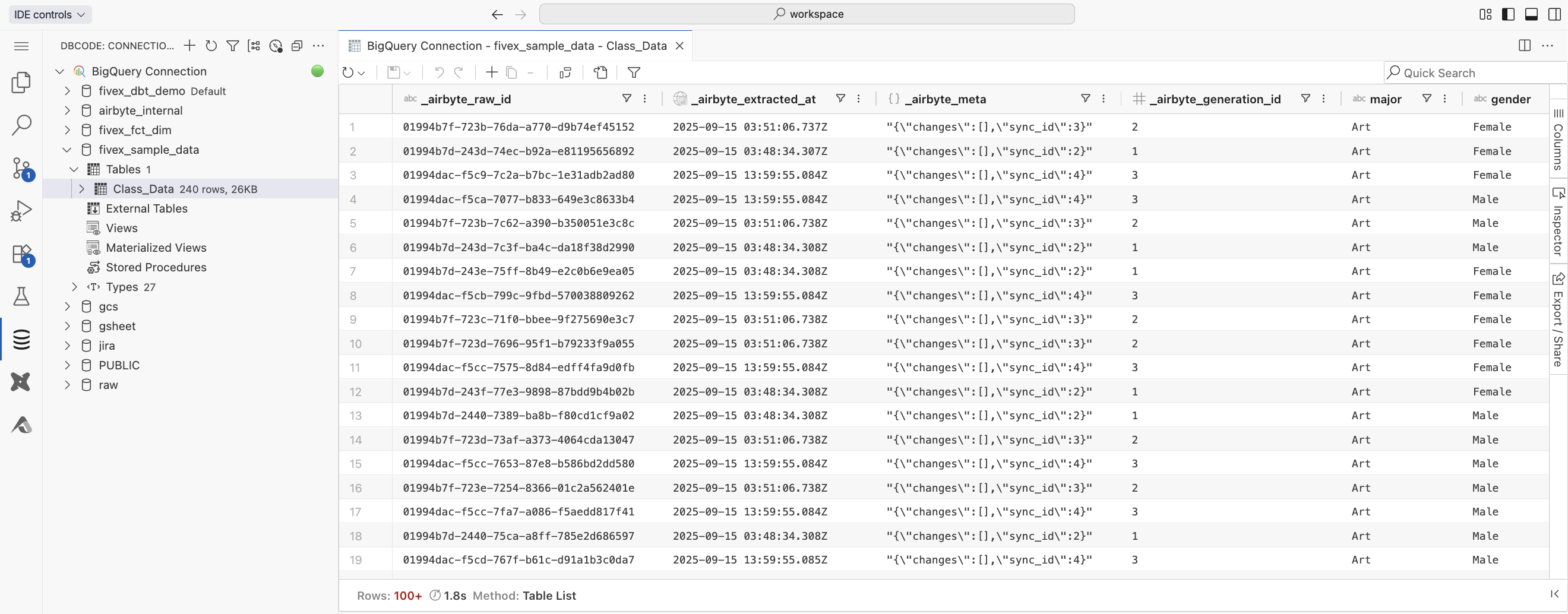 **Database explorer**
* Browse datasets, schemas, and tables
* Execute ad-hoc SQL queries
* Preview table data and schemas
* Export results
* Save frequently used queries
**Database explorer**
* Browse datasets, schemas, and tables
* Execute ad-hoc SQL queries
* Preview table data and schemas
* Export results
* Save frequently used queries
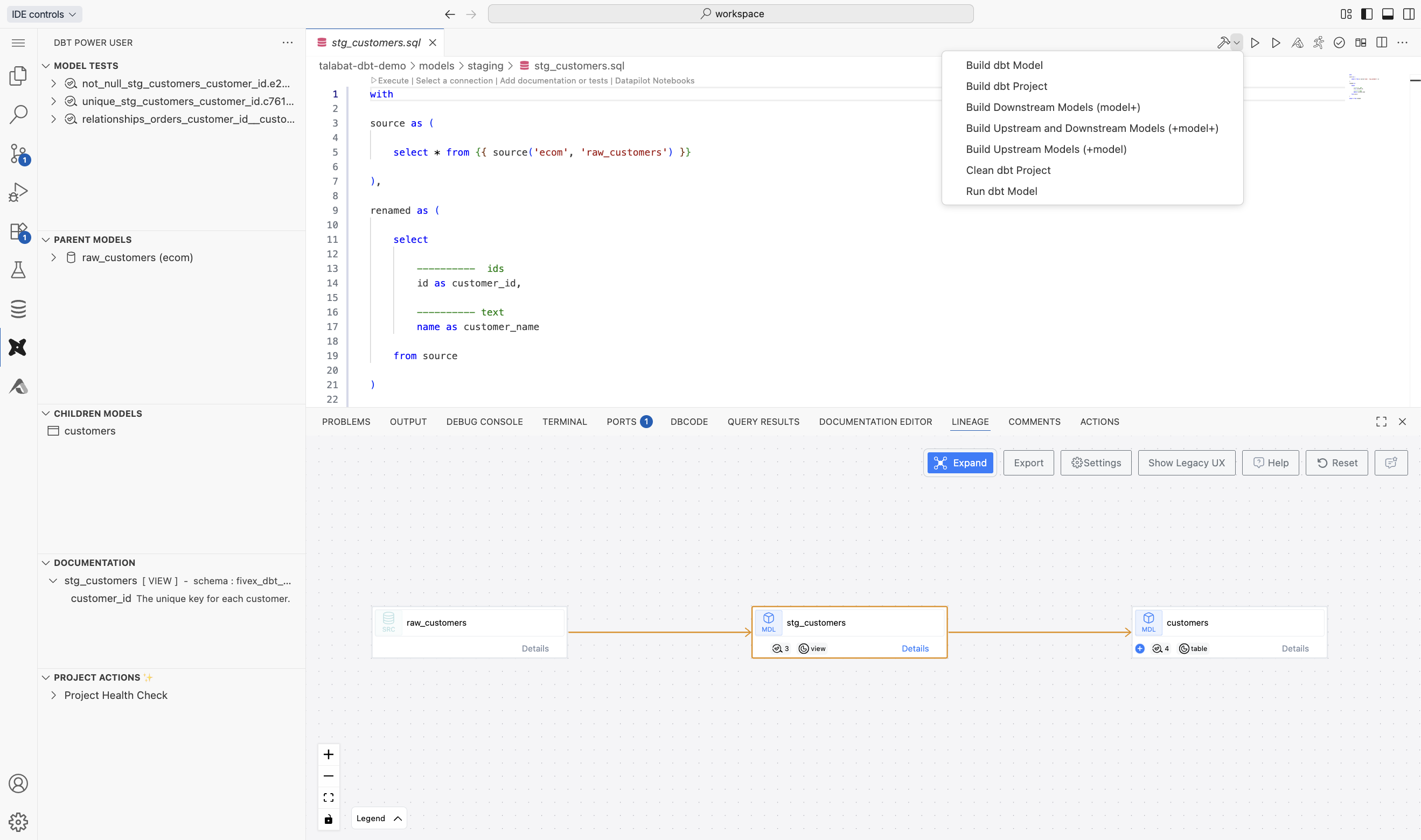 **dbt Power User extension**
* Run models, selections, or entire dbt projects
* Visualize lineage with interactive graphs
* Generate and view dbt docs
* Run dbt tests with detailed results
* Preview compiled SQL
**dbt Power User extension**
* Run models, selections, or entire dbt projects
* Visualize lineage with interactive graphs
* Generate and view dbt docs
* Run dbt tests with detailed results
* Preview compiled SQL
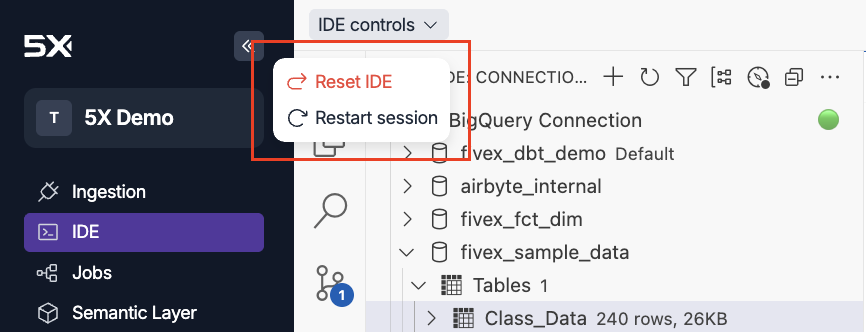 **IDE controls**
* **Restart session** after updating credentials or dbt config, or when IDE becomes sluggish
* **Reset IDE** deletes all custom settings and uncommitted changes; try restart first
***
## Working with Python
### Python environment overview
The IDE comes with multiple Python versions via `pyenv` for compatibility across projects.
**Available versions**
* Python 3.8.20
* Python 3.9.23
* Python 3.10.18
* Python 3.11.13 (default via `PYENV_VERSION`)
* Python 3.12.11
* Python 3.13.4
```bash theme={null}
ls /root/.pyenv/versions
```
### Virtual environment management
Create isolated environments per project.
```bash theme={null}
# Using Python 3.11.13 (default)
/root/.pyenv/versions/3.11.13/bin/python -m venv my_project_env
# Using specific Python version
/root/.pyenv/versions/3.10.18/bin/python -m venv legacy_project_env
```
Activate and manage environments:
```bash theme={null}
# Activate environment
source my_project_env/bin/activate
# Verify active environment (should show your env path)
which python
# Deactivate when finished
deactivate
```
### Dependency management best practices
Maintain dependencies with `requirements.txt` for reproducibility.
```text theme={null}
# Core data processing
pandas==2.0.3
numpy==1.24.3
# API and web requests
requests==2.31.0
urllib3==2.0.4
# Visualization
matplotlib==3.7.2
seaborn==0.12.2
# Development tools
jupyter==1.0.0
pytest==7.4.0
```
Install dependencies:
```bash theme={null}
# Activate environment first
source my_project_env/bin/activate
# Install from requirements file
pip install -r requirements.txt
# Install additional packages and update requirements
pip install scikit-learn==1.3.0
pip freeze > requirements.txt
```
### Terminal usage and shortcuts
The IDE terminal runs in the browser, so shortcuts differ from native terminals.
* **Paste into terminal**: Cmd + Shift + V (Mac) or Ctrl + Shift + V (Windows/Linux)
* **Standard Cmd/Ctrl + V** does not paste into the terminal
* **Copy from terminal**: Select text and use Cmd + C / Ctrl + C
Useful commands:
```bash theme={null}
# Check Python version and location
python --version
which python
# Run Python scripts
python my_script.py
# Start interactive Python shell
python
# Install packages in development mode
pip install -e .
```
***
## Working with dbt
### Dbt Power User extension (recommended)
The extension automatically uses your configured dbt settings from **Settings → Credentials**, including version, connections, and targets.
**Key workflows**
* Execute individual models (`dbt run --select model_name`) or selections
* Test models with the integrated test runner
* Preview compiled SQL before execution
* Generate and view documentation
### Command-line dbt development
Terminal-based workflows are supported with pre-configured virtual environments per dbt version.
```bash theme={null}
# List available dbt environments
ls /root/.venv
# Activate specific dbt version
source /root/.venv/dbt-1.8.9/bin/activate
# Verify dbt installation
dbt --version
```
**Available versions**
* dbt-1.6.18 (`/root/.venv/dbt-1.6.18/`)
* dbt-1.7.19 (`/root/.venv/dbt-1.7.19/`)
* dbt-1.8.9 (`/root/.venv/dbt-1.8.9/`)
* dbt-1.9.10 (`/root/.venv/dbt-1.9.10/`)
Common commands:
```bash theme={null}
# Navigate to your dbt project directory
cd /path/to/your/dbt/project
# Run entire project
dbt run
# Run specific models
dbt run --select staging.stg_customers+
# Test your models
dbt test
# Generate documentation
dbt docs generate
dbt docs serve
```
### Lineage visualization
Understand dependencies and data flow across your project.
**IDE controls**
* **Restart session** after updating credentials or dbt config, or when IDE becomes sluggish
* **Reset IDE** deletes all custom settings and uncommitted changes; try restart first
***
## Working with Python
### Python environment overview
The IDE comes with multiple Python versions via `pyenv` for compatibility across projects.
**Available versions**
* Python 3.8.20
* Python 3.9.23
* Python 3.10.18
* Python 3.11.13 (default via `PYENV_VERSION`)
* Python 3.12.11
* Python 3.13.4
```bash theme={null}
ls /root/.pyenv/versions
```
### Virtual environment management
Create isolated environments per project.
```bash theme={null}
# Using Python 3.11.13 (default)
/root/.pyenv/versions/3.11.13/bin/python -m venv my_project_env
# Using specific Python version
/root/.pyenv/versions/3.10.18/bin/python -m venv legacy_project_env
```
Activate and manage environments:
```bash theme={null}
# Activate environment
source my_project_env/bin/activate
# Verify active environment (should show your env path)
which python
# Deactivate when finished
deactivate
```
### Dependency management best practices
Maintain dependencies with `requirements.txt` for reproducibility.
```text theme={null}
# Core data processing
pandas==2.0.3
numpy==1.24.3
# API and web requests
requests==2.31.0
urllib3==2.0.4
# Visualization
matplotlib==3.7.2
seaborn==0.12.2
# Development tools
jupyter==1.0.0
pytest==7.4.0
```
Install dependencies:
```bash theme={null}
# Activate environment first
source my_project_env/bin/activate
# Install from requirements file
pip install -r requirements.txt
# Install additional packages and update requirements
pip install scikit-learn==1.3.0
pip freeze > requirements.txt
```
### Terminal usage and shortcuts
The IDE terminal runs in the browser, so shortcuts differ from native terminals.
* **Paste into terminal**: Cmd + Shift + V (Mac) or Ctrl + Shift + V (Windows/Linux)
* **Standard Cmd/Ctrl + V** does not paste into the terminal
* **Copy from terminal**: Select text and use Cmd + C / Ctrl + C
Useful commands:
```bash theme={null}
# Check Python version and location
python --version
which python
# Run Python scripts
python my_script.py
# Start interactive Python shell
python
# Install packages in development mode
pip install -e .
```
***
## Working with dbt
### Dbt Power User extension (recommended)
The extension automatically uses your configured dbt settings from **Settings → Credentials**, including version, connections, and targets.
**Key workflows**
* Execute individual models (`dbt run --select model_name`) or selections
* Test models with the integrated test runner
* Preview compiled SQL before execution
* Generate and view documentation
### Command-line dbt development
Terminal-based workflows are supported with pre-configured virtual environments per dbt version.
```bash theme={null}
# List available dbt environments
ls /root/.venv
# Activate specific dbt version
source /root/.venv/dbt-1.8.9/bin/activate
# Verify dbt installation
dbt --version
```
**Available versions**
* dbt-1.6.18 (`/root/.venv/dbt-1.6.18/`)
* dbt-1.7.19 (`/root/.venv/dbt-1.7.19/`)
* dbt-1.8.9 (`/root/.venv/dbt-1.8.9/`)
* dbt-1.9.10 (`/root/.venv/dbt-1.9.10/`)
Common commands:
```bash theme={null}
# Navigate to your dbt project directory
cd /path/to/your/dbt/project
# Run entire project
dbt run
# Run specific models
dbt run --select staging.stg_customers+
# Test your models
dbt test
# Generate documentation
dbt docs generate
dbt docs serve
```
### Lineage visualization
Understand dependencies and data flow across your project.
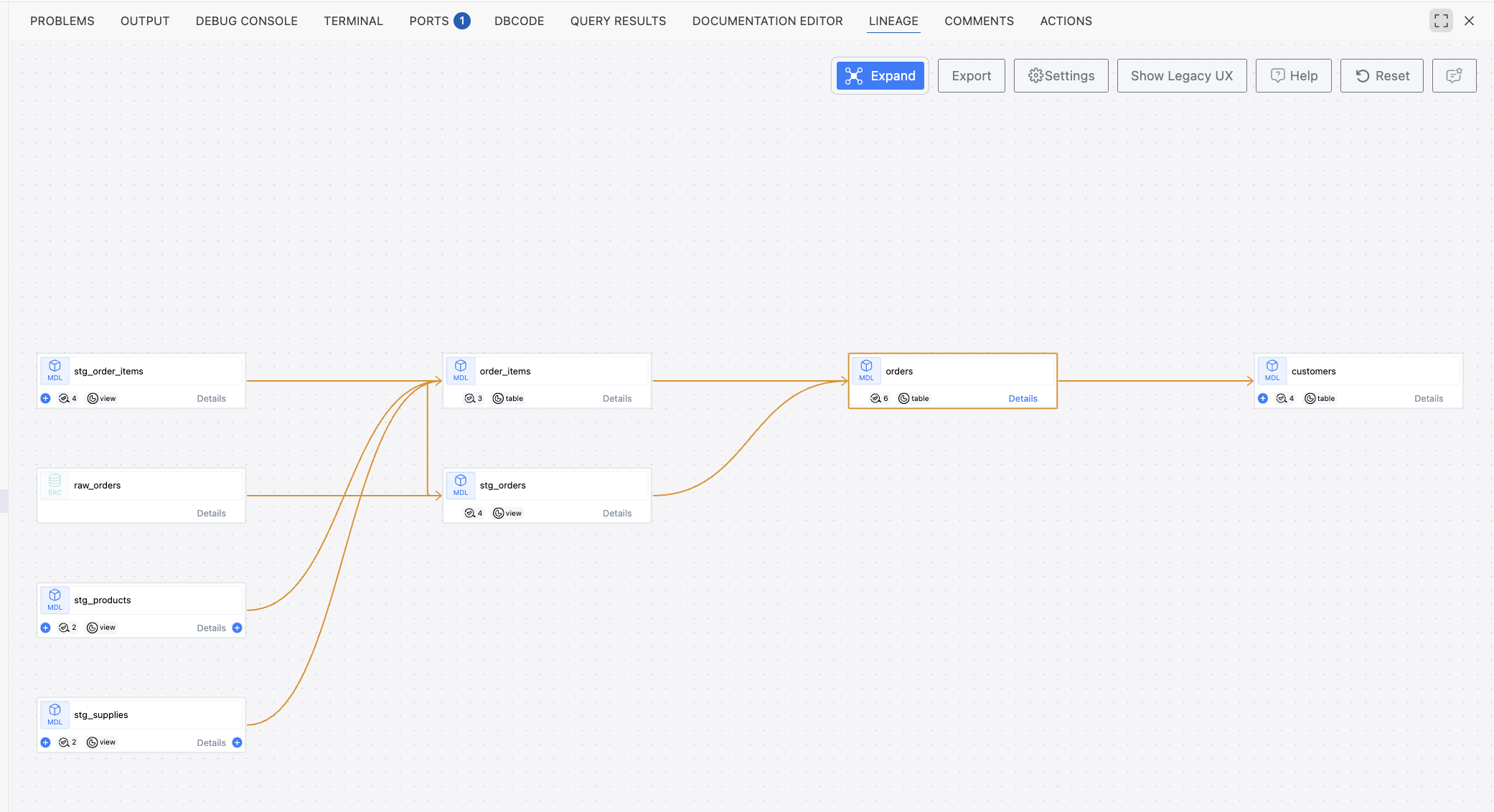 Open any model file in the editor.
Open the **Lineage** tab to explore dependencies.
Click nodes to move between upstream and downstream models.
**Lineage features**
* Interactive navigation between related models
* Control dependency depth
* Impact analysis for change assessment
* Visual debugging to identify circular dependencies
### Dbt development best practices
**Project organization**
* Keep clear folders (e.g., `staging/`, `marts/`)
* Consistent naming conventions
* Focus model files and keep them small
**Testing and validation**
* Run dbt tests frequently during development
* Validate transformed data in the database explorer
* Preview compiled SQL to verify transformations
**Documentation and collaboration**
* Generate docs regularly
* Commit frequently with descriptive messages
* Use branches for features and manage in the source control panel
***
## Tips & troubleshooting
### Environment customization and extensions
You can tailor the environment to your preferences:
* Install additional VS Code extensions from the marketplace
* Configure themes, color schemes, and editor preferences
* Add CLI tools, aliases, and shell preferences
* Customize keyboard shortcuts and workspace settings
### Performance optimization
**Maintain responsiveness**
* Close unused files and tabs
* Limit large query result sets in the database explorer
* Restart sessions periodically during long development sessions
* Monitor resource usage in browser devtools if you notice slowness
**Manage large projects**
* Use dbt selection syntax to run subsets during development
* Consider Git sparse checkout for very large repositories
* Split very large monoliths into smaller, focused repos when possible
### Common issues and resolutions
**IDE session won't start**
* Verify credentials in **Settings → IDE → Credentials**
* Ensure service account has warehouse permissions
* Check repository permissions for imported repos
* Contact support if initialization still fails after verification
**dbt commands failing**
* Activate the appropriate dbt virtual environment
* Verify credential configuration matches your profile requirements
* Ensure target dataset/schema exists and has write permissions
* Review dbt logs for specific errors
**Git operations not working**
* Ensure repository was created via **Settings → IDE → Repositories**
* Verify SSH key configuration for external imports
* Check repository permissions (read/write)
* Confirm repository URL is correct and accessible
**Database connection issues**
* Test credentials with the database explorer
* Verify firewall rules allow connections from the 5X platform
* Check service account key validity and expiry
* Confirm required datasets and tables exist
### Development workflow best practices
**Repository management**
* Always create repositories via **Settings** for full integration
* Commit frequently with meaningful messages
* Use feature branches and merge back to main when complete
* Manage workflows visually in the source control panel
**Data development efficiency**
* Build incrementally rather than full-project runs
* Validate data quickly in the database explorer
* Use lineage visualization to assess impact
* Keep code clean, documented, and consistently formatted
***
## Conclusion
As we continue to enhance the platform based on your feedback, explore the features in this guide and share your experiences. Your insights help us build the best development environment for data professionals.
**Key takeaways**
* Always configure credentials and repositories through **Settings** for full platform integration
* Leverage the pre-installed **dbt Power User** extension for streamlined dbt development
* Use virtual environments and proper dependency management for reliable Python workflows
* Use integrated lineage and database exploration for better understanding and faster debugging
Happy coding with 5X IDE.
Open any model file in the editor.
Open the **Lineage** tab to explore dependencies.
Click nodes to move between upstream and downstream models.
**Lineage features**
* Interactive navigation between related models
* Control dependency depth
* Impact analysis for change assessment
* Visual debugging to identify circular dependencies
### Dbt development best practices
**Project organization**
* Keep clear folders (e.g., `staging/`, `marts/`)
* Consistent naming conventions
* Focus model files and keep them small
**Testing and validation**
* Run dbt tests frequently during development
* Validate transformed data in the database explorer
* Preview compiled SQL to verify transformations
**Documentation and collaboration**
* Generate docs regularly
* Commit frequently with descriptive messages
* Use branches for features and manage in the source control panel
***
## Tips & troubleshooting
### Environment customization and extensions
You can tailor the environment to your preferences:
* Install additional VS Code extensions from the marketplace
* Configure themes, color schemes, and editor preferences
* Add CLI tools, aliases, and shell preferences
* Customize keyboard shortcuts and workspace settings
### Performance optimization
**Maintain responsiveness**
* Close unused files and tabs
* Limit large query result sets in the database explorer
* Restart sessions periodically during long development sessions
* Monitor resource usage in browser devtools if you notice slowness
**Manage large projects**
* Use dbt selection syntax to run subsets during development
* Consider Git sparse checkout for very large repositories
* Split very large monoliths into smaller, focused repos when possible
### Common issues and resolutions
**IDE session won't start**
* Verify credentials in **Settings → IDE → Credentials**
* Ensure service account has warehouse permissions
* Check repository permissions for imported repos
* Contact support if initialization still fails after verification
**dbt commands failing**
* Activate the appropriate dbt virtual environment
* Verify credential configuration matches your profile requirements
* Ensure target dataset/schema exists and has write permissions
* Review dbt logs for specific errors
**Git operations not working**
* Ensure repository was created via **Settings → IDE → Repositories**
* Verify SSH key configuration for external imports
* Check repository permissions (read/write)
* Confirm repository URL is correct and accessible
**Database connection issues**
* Test credentials with the database explorer
* Verify firewall rules allow connections from the 5X platform
* Check service account key validity and expiry
* Confirm required datasets and tables exist
### Development workflow best practices
**Repository management**
* Always create repositories via **Settings** for full integration
* Commit frequently with meaningful messages
* Use feature branches and merge back to main when complete
* Manage workflows visually in the source control panel
**Data development efficiency**
* Build incrementally rather than full-project runs
* Validate data quickly in the database explorer
* Use lineage visualization to assess impact
* Keep code clean, documented, and consistently formatted
***
## Conclusion
As we continue to enhance the platform based on your feedback, explore the features in this guide and share your experiences. Your insights help us build the best development environment for data professionals.
**Key takeaways**
* Always configure credentials and repositories through **Settings** for full platform integration
* Leverage the pre-installed **dbt Power User** extension for streamlined dbt development
* Use virtual environments and proper dependency management for reliable Python workflows
* Use integrated lineage and database exploration for better understanding and faster debugging
Happy coding with 5X IDE.