> ## Documentation Index
> Fetch the complete documentation index at: https://docs.5x.co/llms.txt
> Use this file to discover all available pages before exploring further.
# Connector Setup
> Complete guide to setting up and configuring data connectors with authentication, data selection, and optimization
**Focus:** Learn the complete process of setting up data connectors from initial selection through to active data syncing.
Setting up a new data connection in 5X is designed to be straightforward, but there are many configuration options and best practices to ensure optimal performance and security. This guide covers everything you need to know.
## Setup overview
The connector setup process follows a consistent pattern across all data sources:
### **Setup stages**
1. **Source selection** - Choose your data source and verify compatibility
2. **Authentication** - Securely connect to your data source
3. **Data selection** - Choose which data to sync
4. **Configuration** - Set sync schedules and advanced options
5. **Testing & launch** - Verify setup and start syncing
## Source selection
### **Choose your connector**
5X provides 600+ out-of-the-box connectors presented as a searchable list:
**How to find your connector:**
* **Search by name** - Use the search bar to find your desired source (e.g., "Google Sheets", "Salesforce", "PostgreSQL")
* **Browse the list** - Scroll through the complete list of available connectors
* **Request custom connectors** - If a connector isn't available, you can request it and it's typically delivered within days
**Popular connector types include:**
* **SaaS applications** - Salesforce, HubSpot, NetSuite, Zendesk, Shopify, Stripe
* **Databases** - PostgreSQL, MySQL, MongoDB, Redshift, Snowflake, BigQuery, Oracle
* **Analytics platforms** - Google Analytics, Facebook Ads, Mixpanel, Adobe Analytics
* **File storage** - Google Sheets, Amazon S3, Google Cloud Storage, FTP, SFTP
If a connector is not available in the catalog, you can request custom connectors, which are typically delivered within days. You can also ingest from modern APIs or legacy sources using custom integration blueprints maintained by 5X.
### **Verify compatibility**
Before proceeding, check:
* **Data source version** compatibility
* **Network connectivity** requirements
* **Permission levels** needed
* **Data volume** estimates
### **Destination selection**
Each 5X workspace connects to a single data warehouse. Your destination for ingestion is configured through App Connections:
**How destinations work:**
* **Single warehouse per workspace** - Your workspace connects to one Snowflake account, BigQuery project(s), or Redshift cluster
* **Multiple destinations within warehouse** - Create different App Connections of type "Ingestion" to ingest to different schemas, databases, or locations within your warehouse
* **App Connection setup** - Destinations are created via Settings → App Connections by adding a new connection of type "Ingestion"
**Supported warehouse types:**
* **Snowflake** - Connect to your Snowflake account with different databases and schemas
* **BigQuery** - Import multiple projects during workspace setup, then create destinations for different datasets
* **PostgreSQL** - Connect to your PostgreSQL database with different schemas
* **Redshift** - Connect to your Redshift cluster with different databases and schemas
To set up ingestion destinations, you'll need to create App Connections of type "Ingestion" from Settings → App Connections. Refer to [Step 4: App Connections and Credentials](/quickstart/step-4-app-connections-credentials) for detailed setup instructions.
## Authentication
### **Authentication methods**
5X supports various authentication methods that differ based on your specific data source. Each connector presents the appropriate authentication options during setup:
**OAuth 2.0 (Recommended when available)**
* **Secure authorization** without sharing passwords
* **Automatic token refresh** for uninterrupted access
* **Granular permissions** control what data 5X can access
* **Easy revocation** from the source system
**General approach:**
The OAuth flow redirects you to your source system's authorization page where you grant 5X permission to access your data. The specific fields and permissions will vary based on your data source.
**Benefits:**
* Enhanced security with no password sharing
* Automatic credential management
* Fine-grained access control
* Simple credential revocation
**API Keys & Tokens**
* **Direct API access** using provided keys or tokens
* **Static credentials** that require manual management
* **Simple setup** for API-based services
**General approach:**
You'll need to generate credentials in your source system and provide them to 5X. The specific credential types (API keys, access tokens, bearer tokens, etc.) and required fields vary by source.
**Best practices:**
* Use read-only credentials when possible
* Store credentials securely and rotate them regularly
* Document credential permissions and expiration dates
* Monitor for credential usage and anomalies
**Username & Password**
* **Direct database connection** using standard credentials
* **Connection string** configuration for advanced setups
* **SSL/TLS encryption** for secure connections
**General approach:**
Database connections require connection details (host, port, database name) along with user credentials. The specific connection parameters and security options vary by database type.
**Security considerations:**
* Use dedicated read-only database users
* Restrict network access to 5X's IP ranges
* Enable SSL/TLS encryption for all connections
* Regularly rotate passwords and review permissions
**Service Account Keys**
* **Machine-to-machine** authentication
* **Key files or certificates** for cloud services
* **Role-based access** control
**General approach:**
Service accounts provide programmatic access without user interaction. The credential format (JSON keys, certificates, connection strings) depends on your cloud provider or service.
**Key considerations:**
* Configure minimal required permissions
* Securely manage and rotate key materials
* Monitor service account usage
* Follow your organization's key management policies
## Data selection
### **Schema discovery**
Once authenticated, 5X automatically discovers your data source structure and presents it in an organized schema view:
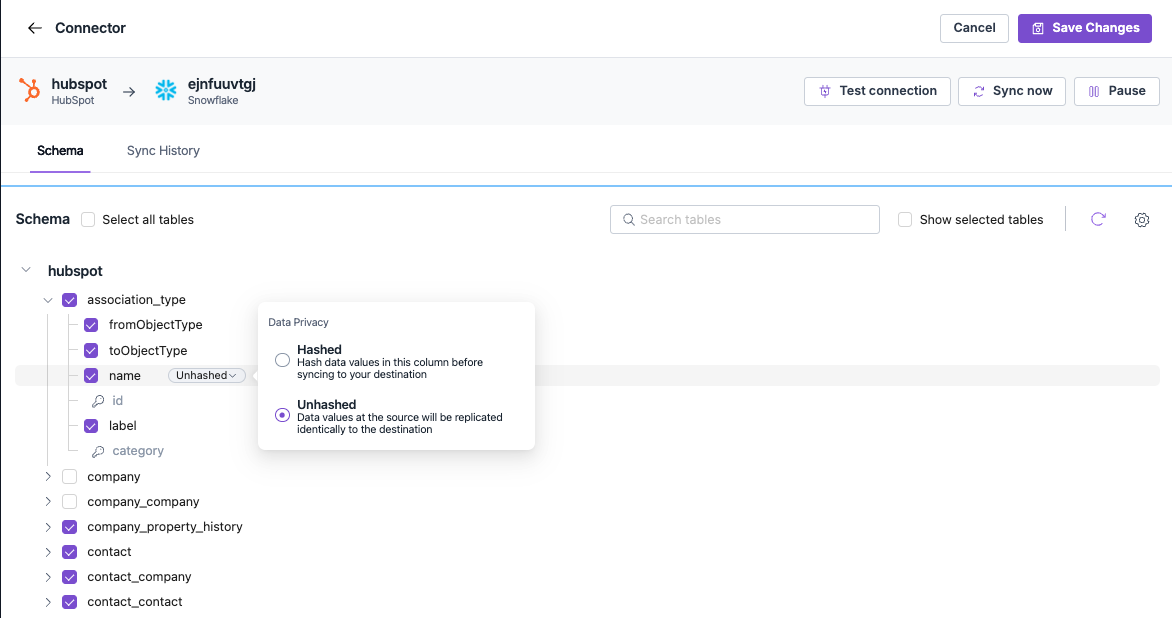 **What you'll see:**
* **Hierarchical structure** - Your data source schema organized in a tree view
* **Tables and fields** - All available tables with their individual columns/fields
* **Selection controls** - Checkboxes to include or exclude specific tables and fields
* **Search functionality** - Find specific tables or fields quickly
* **Data indicators** - Some fields may show additional information (e.g., "Unhashed" for certain data types)
### **Table and field selection**
The schema interface allows you to control exactly what data gets synced:
**Selection controls:**
* **Individual checkboxes** - Select or deselect specific tables and fields
* **Select all tables** - Quickly enable all available tables
* **Show selected tables** - Filter view to only display chosen tables
* **Search tables** - Find specific tables by name
### **Field-level control**
Based on your selections, 5X will sync the chosen tables and fields:
**What gets synced:**
* **Selected tables** - Only tables with checkboxes enabled
* **Selected fields** - Only fields within those tables that are checked
* **Automatic data types** - 5X handles data type mapping automatically
* **Field metadata** - Some fields may include additional context (like hashing status)
The exact fields and data types available depend entirely on your specific data source. 5X presents whatever structure exists in your source system, so the interface will look different for each connector type.
***
## Next steps
**Manage active connectors**
Learn how to monitor, troubleshoot, and optimize your existing connections.
**Set up monitoring**
Configure alerts and monitoring for your data pipelines.
**What you'll see:**
* **Hierarchical structure** - Your data source schema organized in a tree view
* **Tables and fields** - All available tables with their individual columns/fields
* **Selection controls** - Checkboxes to include or exclude specific tables and fields
* **Search functionality** - Find specific tables or fields quickly
* **Data indicators** - Some fields may show additional information (e.g., "Unhashed" for certain data types)
### **Table and field selection**
The schema interface allows you to control exactly what data gets synced:
**Selection controls:**
* **Individual checkboxes** - Select or deselect specific tables and fields
* **Select all tables** - Quickly enable all available tables
* **Show selected tables** - Filter view to only display chosen tables
* **Search tables** - Find specific tables by name
### **Field-level control**
Based on your selections, 5X will sync the chosen tables and fields:
**What gets synced:**
* **Selected tables** - Only tables with checkboxes enabled
* **Selected fields** - Only fields within those tables that are checked
* **Automatic data types** - 5X handles data type mapping automatically
* **Field metadata** - Some fields may include additional context (like hashing status)
The exact fields and data types available depend entirely on your specific data source. 5X presents whatever structure exists in your source system, so the interface will look different for each connector type.
***
## Next steps
**Manage active connectors**
Learn how to monitor, troubleshoot, and optimize your existing connections.
**Set up monitoring**
Configure alerts and monitoring for your data pipelines.