> ## Documentation Index
> Fetch the complete documentation index at: https://docs.5x.co/llms.txt
> Use this file to discover all available pages before exploring further.
# Step 6: Explore Your Data
> Query and explore your ingested data using the integrated SQL editor and schema browser
**Estimated Time:** 10-15 minutes
Use the integrated SQL editor to explore your ingested data and validate that everything was imported correctly.
## Accessing the IDE
Now that your data has been ingested, it's time to explore it using the 5X platform's modern VS Code-based IDE:
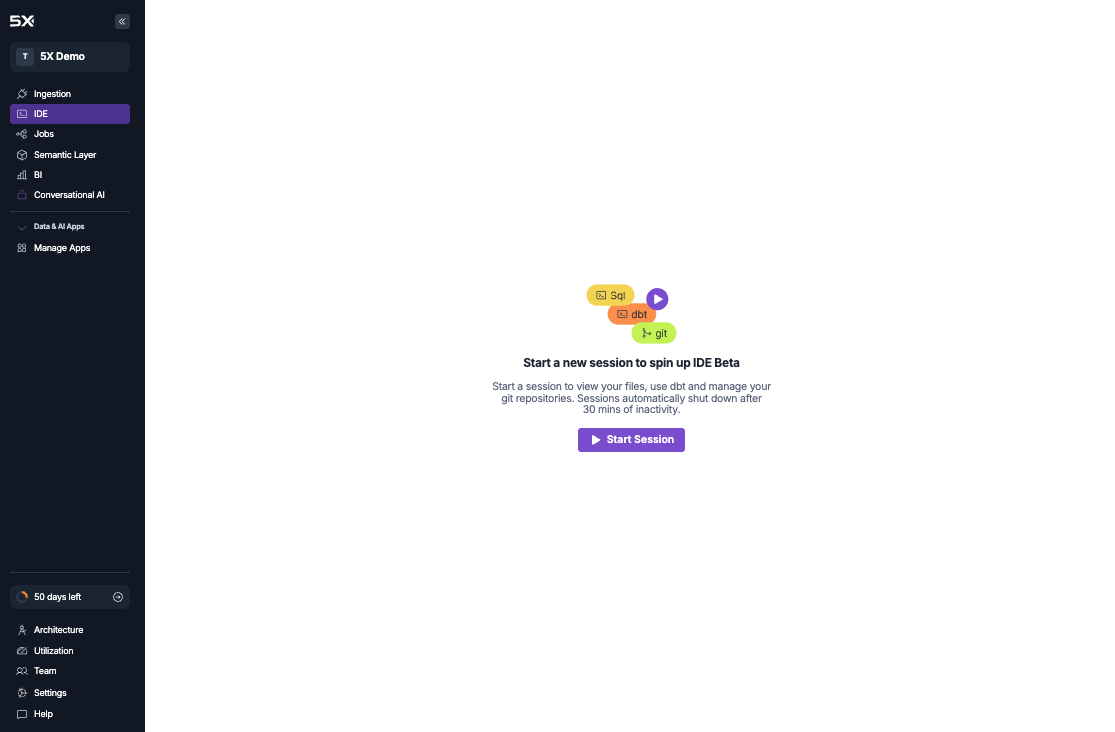
1. **Navigate to IDE**
* Click **"IDE"** in the left sidebar of your workspace
* Click **"Start Session"** to initialize your development environment
* It will take sometime for the environment to fully load
 **For existing warehouse users:** If you connected your own existing warehouse (Snowflake, BigQuery, AWS Redshift, or PostgreSQL) instead of using the 5X managed option, you'll need to configure your IDE credentials in **Settings → IDE → Credentials** before you can query your data. The IDE will guide you through this setup process.
## Exploring your data
Once you have access to the IDE, you can start exploring your ingested data:
### 1. Browse your data sources
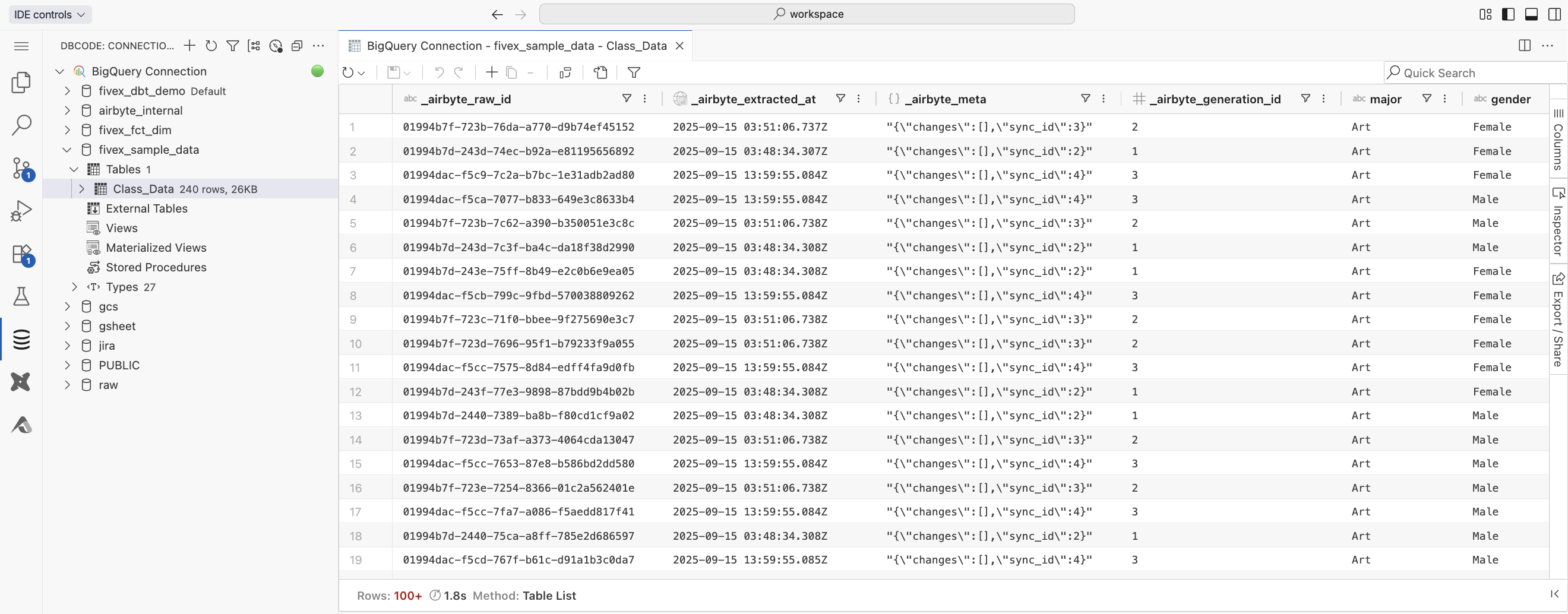
The **Database Explorer** in the IDE sidebar provides direct access to your data warehouse:
* **Browse schemas**: Expand database nodes to see available schemas and datasets
* **Explore tables**: Click on table names to view column structures, data types, and metadata
* **Preview data**: Use the preview functionality to see sample data from your tables
* **Execute queries**: Right-click on tables to generate SELECT statements
**For existing warehouse users:** If you connected your own existing warehouse (Snowflake, BigQuery, AWS Redshift, or PostgreSQL) instead of using the 5X managed option, you'll need to configure your IDE credentials in **Settings → IDE → Credentials** before you can query your data. The IDE will guide you through this setup process.
## Exploring your data
Once you have access to the IDE, you can start exploring your ingested data:
### 1. Browse your data sources
The **Database Explorer** in the IDE sidebar provides direct access to your data warehouse:
* **Browse schemas**: Expand database nodes to see available schemas and datasets
* **Explore tables**: Click on table names to view column structures, data types, and metadata
* **Preview data**: Use the preview functionality to see sample data from your tables
* **Execute queries**: Right-click on tables to generate SELECT statements
 ### 2. Write your first queries
Use the SQL editor to run queries against your data. Here are some useful starter queries:
**Quick data preview:**
```sql theme={null}
-- View the first 10 rows from any table
SELECT *
FROM ..
LIMIT 10;
```
**Check data volume:**
```sql theme={null}
-- See how much data was ingested
SELECT COUNT(*) as total_rows
FROM ..;
```
### 3. Using the VS Code SQL editor
The IDE provides a full-featured VS Code experience with specialized SQL development capabilities:
* **SQL editor**: Write and execute SQL queries with syntax highlighting and IntelliSense
* **Results panel**: View query results in an interactive table format with pagination
* **Multiple tabs**: Work with multiple queries simultaneously using VS Code tabs
* **Auto-completion**: Get intelligent suggestions for table names, columns, and SQL keywords
* **Query execution**: Execute queries directly from the editor with keyboard shortcuts
* **Export functionality**: Download query results in CSV, JSON, or Excel formats
* **Query history**: Access previously executed queries for reuse
**Quick tips:**
* Use `Ctrl+Enter` (Windows/Linux) or `Cmd+Enter` (Mac) to execute queries
* Right-click on tables in the Database Explorer to generate SELECT statements
* Use the integrated terminal for advanced SQL operations and dbt commands
## Troubleshooting common issues
**Possible causes:**
* Browser compatibility issues
* Network connectivity problems
* Platform maintenance
* Selected compute profile is below the minimum requirements
**Solutions:**
* Try refreshing your browser and starting a new session
* Check your internet connection
* Use a supported browser (Chrome, Firefox, Safari, Edge)
* Contact support if issues persist
**Possible causes:**
* Data ingestion may still be in progress
* IDE credentials not configured (for existing warehouse users)
* Schema permissions issues
**Solutions:**
* Check ingestion status in the Ingestion page
* Configure IDE credentials in Settings → IDE → Credentials
* Verify your warehouse permissions
* Try restarting your IDE session
**Common issues:**
* Syntax errors in SQL queries
* Missing permissions for specific tables
* Warehouse connection timeout
**Solutions:**
* Review query syntax carefully
* Check error messages for specific guidance
* Use the Database Explorer to verify table names and schemas
* Try restarting your IDE session if connections seem stale
**Common issues:**
* Slow response times
* High memory usage
* Session timeouts
**Solutions:**
* Close unused files and tabs
* Restart your IDE session using the controls in the top-left
* Limit large query results using LIMIT clauses
* Clear browser cache if issues persist
## What's next?
Great! You've successfully explored your ingested data. Now you're ready to transform it into analysis-ready datasets:
Add teammates and set up permissions for collaborative data work
Discover advanced features when you're ready to go deeper
The IDE is your primary tool for working with data on the 5X platform. Take some time to familiarize yourself with the interface and explore your data before inviting your team to collaborate.
**Next:** Invite your team
Add teammates to your workspace and set up collaboration for your data projects.
***
Return to quickstart guide overview
Step 5: Ingest your data
### 2. Write your first queries
Use the SQL editor to run queries against your data. Here are some useful starter queries:
**Quick data preview:**
```sql theme={null}
-- View the first 10 rows from any table
SELECT *
FROM ..
LIMIT 10;
```
**Check data volume:**
```sql theme={null}
-- See how much data was ingested
SELECT COUNT(*) as total_rows
FROM ..;
```
### 3. Using the VS Code SQL editor
The IDE provides a full-featured VS Code experience with specialized SQL development capabilities:
* **SQL editor**: Write and execute SQL queries with syntax highlighting and IntelliSense
* **Results panel**: View query results in an interactive table format with pagination
* **Multiple tabs**: Work with multiple queries simultaneously using VS Code tabs
* **Auto-completion**: Get intelligent suggestions for table names, columns, and SQL keywords
* **Query execution**: Execute queries directly from the editor with keyboard shortcuts
* **Export functionality**: Download query results in CSV, JSON, or Excel formats
* **Query history**: Access previously executed queries for reuse
**Quick tips:**
* Use `Ctrl+Enter` (Windows/Linux) or `Cmd+Enter` (Mac) to execute queries
* Right-click on tables in the Database Explorer to generate SELECT statements
* Use the integrated terminal for advanced SQL operations and dbt commands
## Troubleshooting common issues
**Possible causes:**
* Browser compatibility issues
* Network connectivity problems
* Platform maintenance
* Selected compute profile is below the minimum requirements
**Solutions:**
* Try refreshing your browser and starting a new session
* Check your internet connection
* Use a supported browser (Chrome, Firefox, Safari, Edge)
* Contact support if issues persist
**Possible causes:**
* Data ingestion may still be in progress
* IDE credentials not configured (for existing warehouse users)
* Schema permissions issues
**Solutions:**
* Check ingestion status in the Ingestion page
* Configure IDE credentials in Settings → IDE → Credentials
* Verify your warehouse permissions
* Try restarting your IDE session
**Common issues:**
* Syntax errors in SQL queries
* Missing permissions for specific tables
* Warehouse connection timeout
**Solutions:**
* Review query syntax carefully
* Check error messages for specific guidance
* Use the Database Explorer to verify table names and schemas
* Try restarting your IDE session if connections seem stale
**Common issues:**
* Slow response times
* High memory usage
* Session timeouts
**Solutions:**
* Close unused files and tabs
* Restart your IDE session using the controls in the top-left
* Limit large query results using LIMIT clauses
* Clear browser cache if issues persist
## What's next?
Great! You've successfully explored your ingested data. Now you're ready to transform it into analysis-ready datasets:
Add teammates and set up permissions for collaborative data work
Discover advanced features when you're ready to go deeper
The IDE is your primary tool for working with data on the 5X platform. Take some time to familiarize yourself with the interface and explore your data before inviting your team to collaborate.
**Next:** Invite your team
Add teammates to your workspace and set up collaboration for your data projects.
***
Return to quickstart guide overview
Step 5: Ingest your data