

Development EnvironmentThe IDE comes pre-configured with multiple Python versions, dbt environments, and development tools. No additional setup required for basic development tasks.
Python development
Python environment overview
The IDE comes pre-installed with multiple Python versions managed through pyenv, providing flexibility for different project requirements and dependency compatibility. Available Python versions:- Python 3.8.20 - Extended legacy support for older projects
- Python 3.9.23 - Legacy support for older projects
- Python 3.10.18 - Stable version with good package compatibility
- Python 3.11.13 - Default version (set by PYENV_VERSION)
- Python 3.12.11 - Latest stable with performance improvements
- Python 3.13.4 - Cutting-edge features and optimizations
Virtual environment management
Python virtual environments provide isolated dependency management for your projects, preventing conflicts between different project requirements. Create a virtual environment:Dependency management best practices
Maintain project dependencies using requirements.txt files for reproducible environments across team members and deployment targets. Create requirements.txt:Python development examples
Data processing script:dbt development
dbt Power User extension (recommended approach)
The dbt Power User extension provides the most integrated development experience, automatically using your configured dbt settings from Settings → Credentials including version selection, database connections, and target configuration.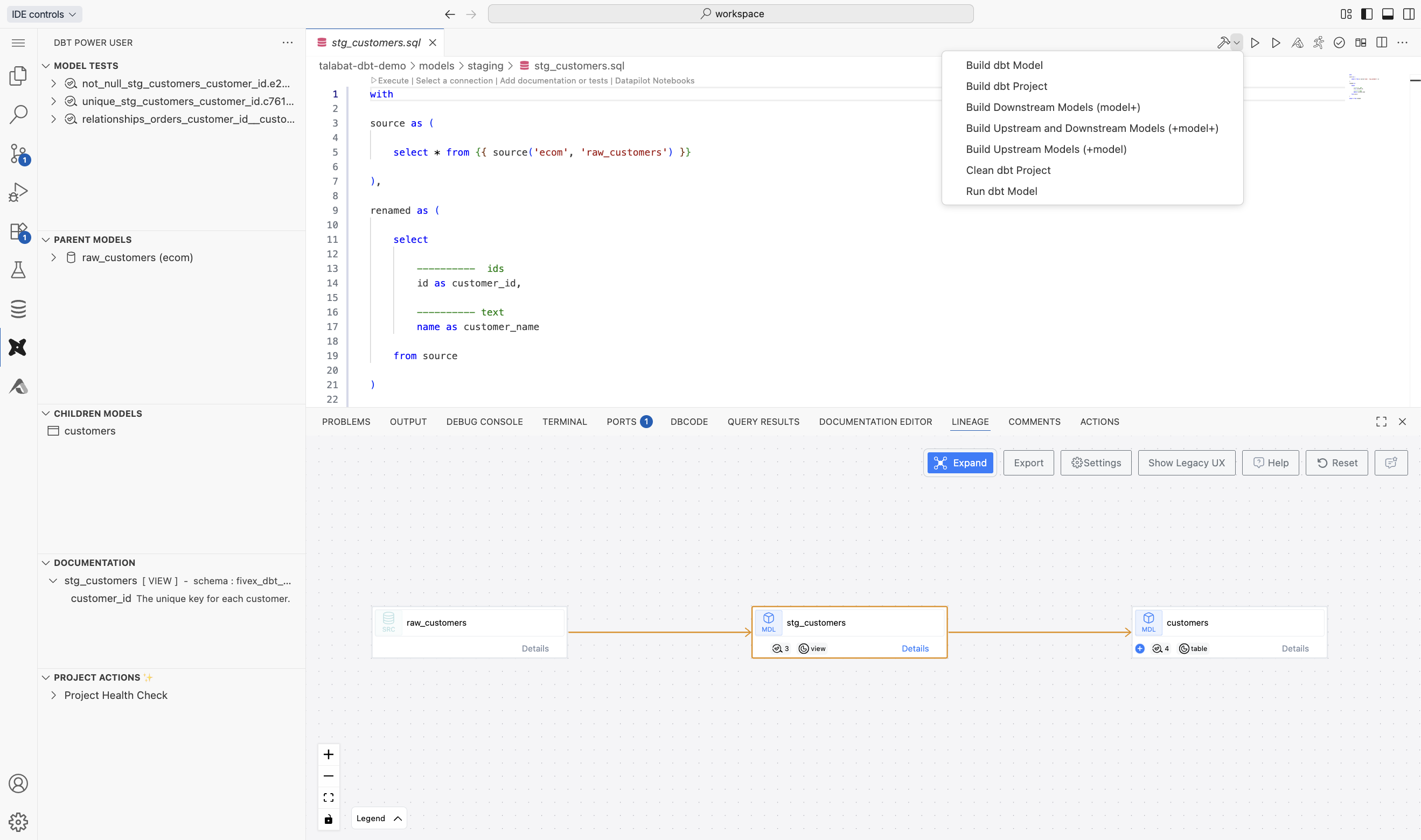
Model execution
Run and test modelsExecute individual models, selections, or entire dbt projects with integrated test runner
Lineage visualization
Understand dependenciesInteractive dependency graphs showing upstream and downstream model relationships
Documentation
Generate docsCreate and view dbt documentation with integrated preview and automatic refresh
SQL compilation
Preview compiled SQLSee the actual SQL that will be executed before running models
Command-line dbt development
For users preferring terminal-based workflows, the IDE provides pre-configured dbt virtual environments for each supported version. Activate dbt environment:- dbt-1.6.18 (
/root/.venv/dbt-1.6.18/) - Legacy support - dbt-1.7.19 (
/root/.venv/dbt-1.7.19/) - Stable version - dbt-1.8.9 (
/root/.venv/dbt-1.8.9/) - Current stable - dbt-1.9.10 (
/root/.venv/dbt-1.9.10/) - Latest features
dbt development workflow
Common dbt commands:Lineage visualization
The IDE provides powerful lineage visualization capabilities that help you understand data flow and model dependencies throughout your dbt project.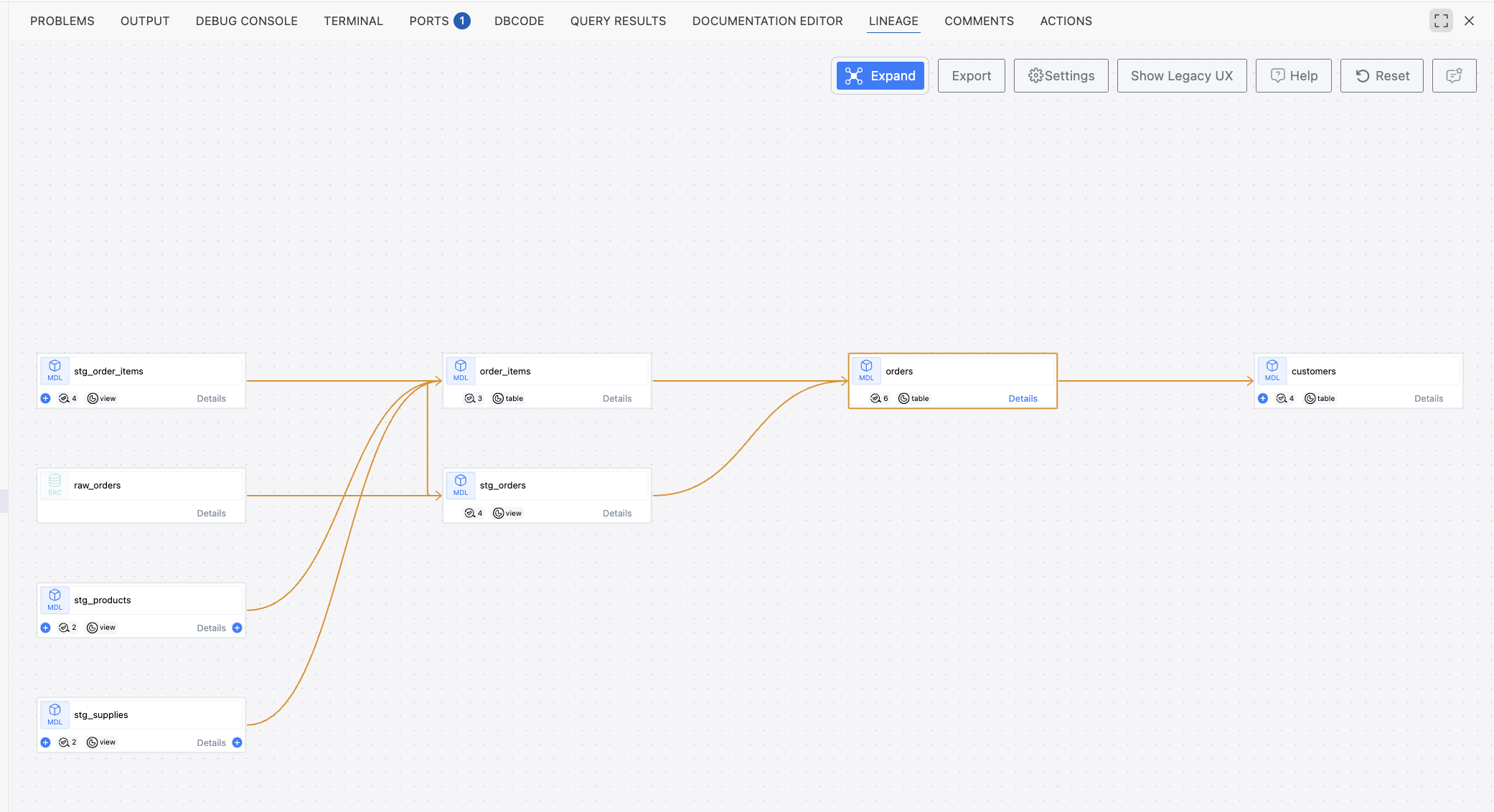
- Open any dbt model file in the editor
- Navigate to the Lineage tab in the IDE interface
- Explore interactive dependency graphs showing:
- Upstream models and sources feeding into current model
- Downstream models consuming current model output
- Cross-project dependencies and external table references
- Interactive navigation - Click nodes to jump between related models
- Dependency depth control - Adjust how many levels of dependencies to display
- Impact analysis - Understand which models will be affected by changes
- Visual debugging - Identify circular dependencies and optimization opportunities
Running dbt commands
Execute dbt commands directly from the IDE for any valid dbt project without leaving your development workspace. To run dbt commands:1
Open dbt project
Open a dbt project folder in the IDE
2
Access dbt command interface
Click on the icon from the top-right status bar
3
Go to terminal and activate dbt environment
4
Enter command
A command input box will appear, allowing you to enter the desired dbt command
5
Execute command
Confirm the command to execute it in the terminal
- Open a new terminal session - Start a fresh terminal for the command
- Continue using existing terminal - Reuse the current terminal session
Cube development
Cube creation
Create new cubes directly from the IDE without leaving your development environment, providing a seamless and integrated experience for managing cube creation. To create a cube:1
Open cubes repository
Open any file within the cubes repository
2
Access cube creation
Click on the icon located on the top-right corner of the status bar
3
Automatic server start
The Cube Server will automatically start, enabling the cube creation process
4
Select schema
A new file tab will open, displaying a list of available schemas. Select the desired schema
5
Define and create
Proceed to define and create cubes as needed
Cube server start
Start the Cube Server for a specific active file tab directly from the IDE toolbar, giving you full control over active Cube Server sessions. To start the Cube Server:1
Open cube file
Open any file within your cubes repository
2
Start server
Click on the icon from the IDE toolbar
3
Access server
Once initiated, the Cube Server will launch and can be accessed locally via
http://localhost:4000- Stop the currently active server and start a new one - Terminate the existing instance and launch a fresh server
- Cancel to retain the current session - Keep the existing server running
Running Streamlit applications and Python files
Running Streamlit applications
Run Streamlit applications directly from the IDE with automatic environment setup and dependency management. To run a Streamlit application:1
Open Streamlit file
Open the
streamlit_app.py file from the Streamlit repository2
Run application
Click on the icon in the IDE toolbar
3
Select Python version
The IDE will prompt you to select the desired Python version for execution
4
Automatic setup
Upon confirmation, a virtual environment will be created automatically
5
Install dependencies
All dependencies listed in the
requirements.txt file will be installed within the environment6
Launch application
Once setup is complete, the Streamlit application will launch successfully
Running Python files
Execute standalone Python scripts with the same streamlined workflow as Streamlit applications. To run a Python file:1
Open Python file
Open any Python file (
.py) in the IDE2
Run script
Click on the icon in the IDE toolbar
3
Select Python version
Choose the desired Python version for execution
4
Environment setup
A virtual environment will be created automatically if needed
5
Install dependencies
Dependencies from
requirements.txt will be installed automatically6
Execute script
The Python file will run successfully with output displayed in the terminal
- Environment consistency - Automatic virtual environment creation ensures consistent execution environments
- Dependency management - Automatic installation of dependencies from
requirements.txtreduces manual setup overhead - Version selection - Choose the appropriate Python version for your project requirements
- Seamless workflow - Run applications and scripts without leaving the IDE or switching contexts