

Prerequisites and setup
Configure access, warehouses, and environment basics.
Add credentials
Connect BigQuery, Snowflake, Redshift, or PostgreSQL securely.
Create repositories
Use 5X-managed or import existing Git repositories.
Navigate the IDE
Learn sessions, panels, and core tools.
Work with Python
Versions, virtualenvs, and dependency management.
Work with dbt
Power User extension and terminal workflows.
Tips and troubleshooting
Performance, extensions, and common fixes.
Prerequisites and setup
Before using the 5X IDE, ensure you have the necessary access and permissions configured. The IDE integrates with your existing data infrastructure but requires initial configuration to establish secure connections. Required access- Developer access to your 5X platform workspace
- Data warehouse privileges (BigQuery, Snowflake, Redshift, PostgreSQL)
- Git repository access (if importing existing repositories)
Adding credentials
Setting up data warehouse connections
The 5X IDE establishes secure connections to your data warehouse using user managed service accounts.1
Open credential settings
Navigate to Settings → IDE → Credentials
2
Add new credential
Click Add New Credential against IDE and select your warehouse.
3
Complete setup wizard
Follow the prompts to provide authentication and dbt configuration.

BigQuery configuration
For BigQuery users, create a service account with appropriate permissions and upload the JSON key file.1
Create service account
Access Google Cloud Console → IAM & Admin → Create service account (e.g., “5x-ide-dev-account”).
2
Assign permissions
Assign the BigQuery Data Editor role.
3
Generate key
Download the JSON key file.
4
Upload to 5X
Upload the key file in Settings → IDE → Credentials.
- Project-level: Provides access across all datasets (recommended for development)
- Dataset-level: Granular access control for sensitive data environments
The BigQuery Data Editor role provides the right balance of functionality and security, allowing read, query execution, table creation, and core development operations.
Dbt development configuration
During credential setup, configure your dbt development environment to ensure commands execute with correct settings.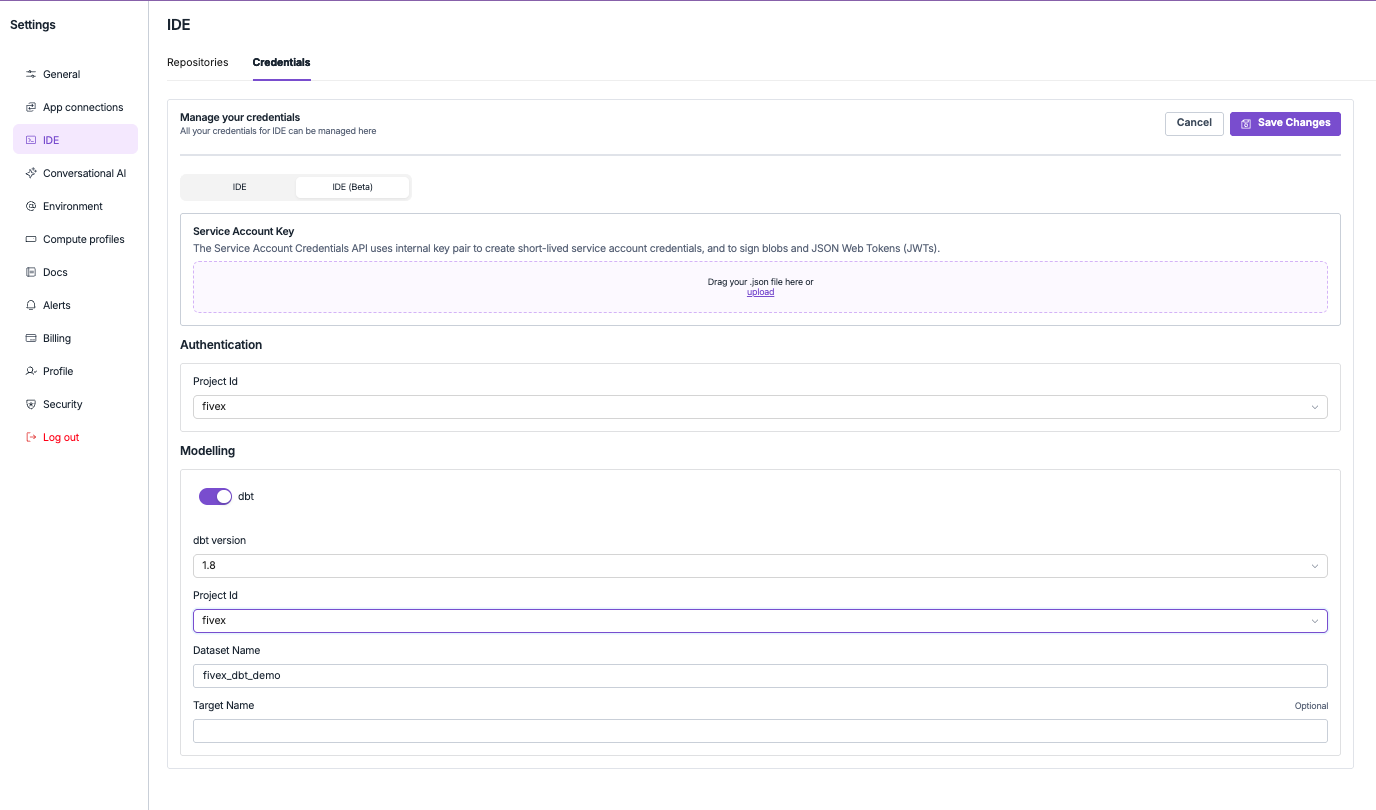
- dbt version: 1.6.18, 1.7.19, 1.8.9, or 1.9.10 (use latest stable)
- project id: Your warehouse project identifier
- dataset name: Target dataset for development workloads (e.g.,
dbt_dev_yourname) - target name: Optional custom target name
Creating git repositories
Repository integration with 5X platform
The 5X platform maintains a registry of repositories accessible within your IDE environment, enabling automatic lineage tracking, documentation, and deployment workflows. Key benefits- Automatic metadata extraction and dependency tracking
- Integration with metrics layer and conversational AI
- Consistent repository access across your workspace
Create new repositories
Navigate to Settings → IDE → Repositories → New Repository to open the repository configuration interface.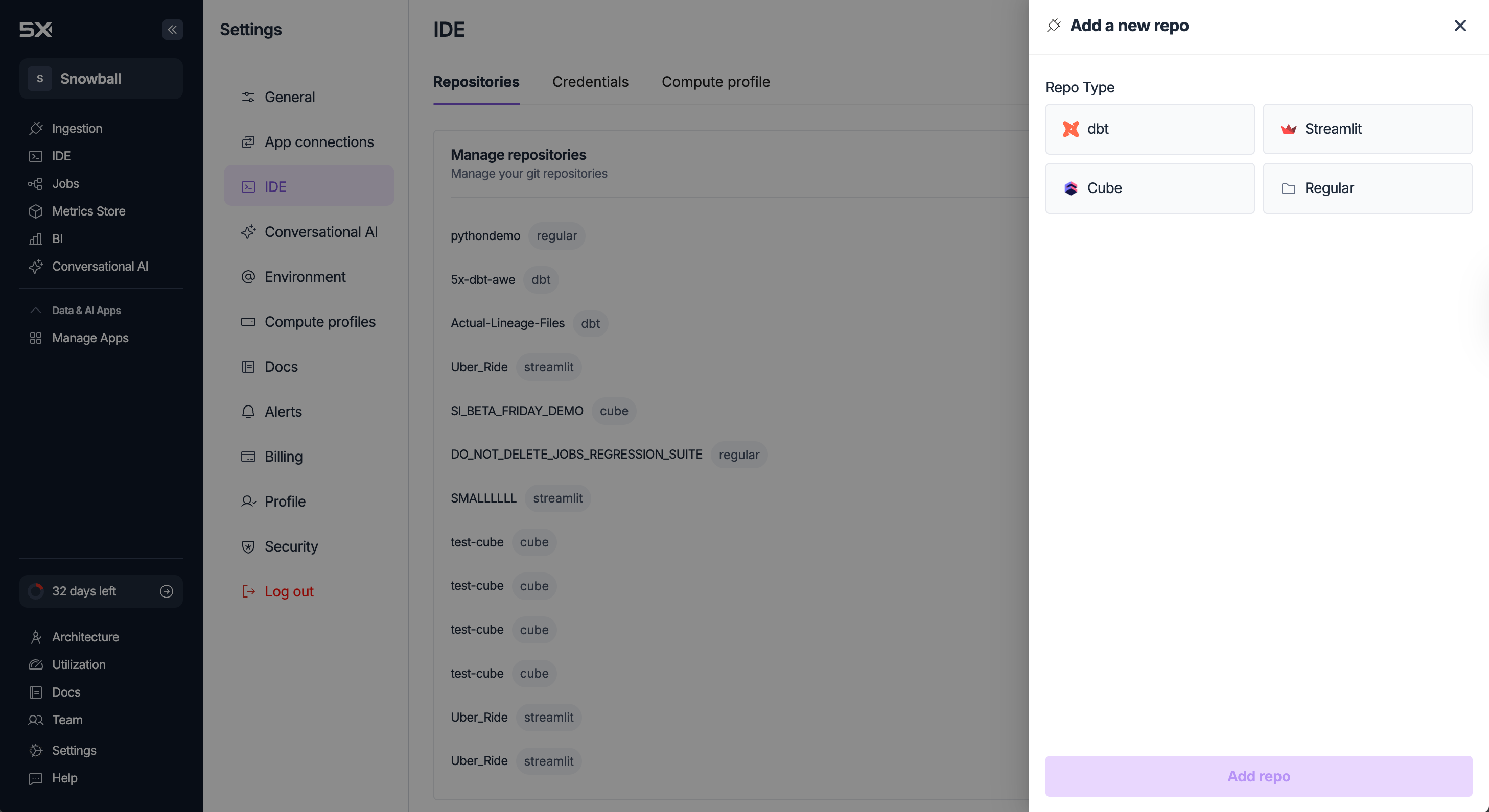
Repository types and templates
dbt repository
Complete dbt project template with sample models and tests. Includes a properly configured
dbt_project.yml and starter macros.general purpose
Flexible template for Python applications or mixed projects with full control over structure.
streamlit repository
Starter Streamlit app with sample visualizations for interactive data apps.
Repository management options
5X managed repository
5X managed repository
Creates a fully managed Git repository within your 5X workspace.
- Automatic backup and integrated version control
- Seamless integration with all 5X platform features
- Platform-managed maintenance and access control
Import existing repository
Import existing repository
Connect external repositories while maintaining provider relationships.
- Requires SSH URL to the existing repository
- Supports public and private repositories with authentication
- Works with GitHub, GitLab, Bitbucket
Navigating the IDE
Starting IDE sessions
The IDE provides a browser-based VS Code environment that initializes with your configured credentials, repositories, and tools.1
Open the IDE tab
Go to the IDE tab in your 5X platform.
2
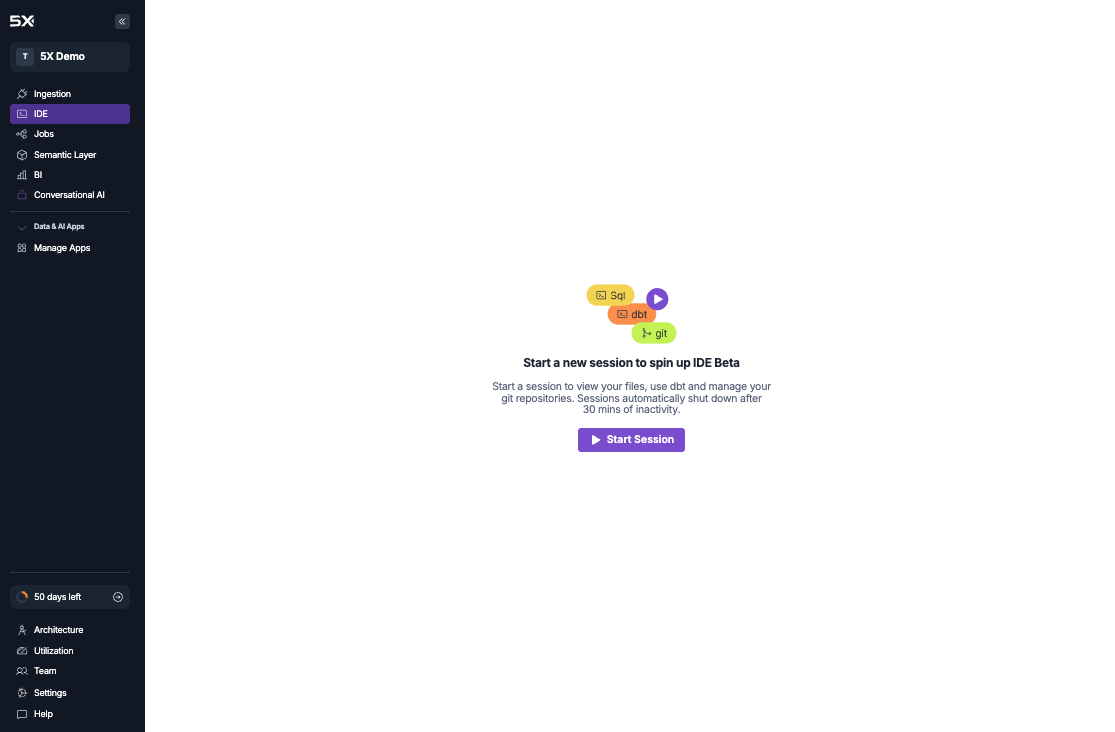
Start session
Click Start Session and wait for some time.
3
Work and persist
Environment configurations, saved changes, and extensions persist between sessions. Sessions auto-terminate after 30 minutes of inactivity.
IDE interface components
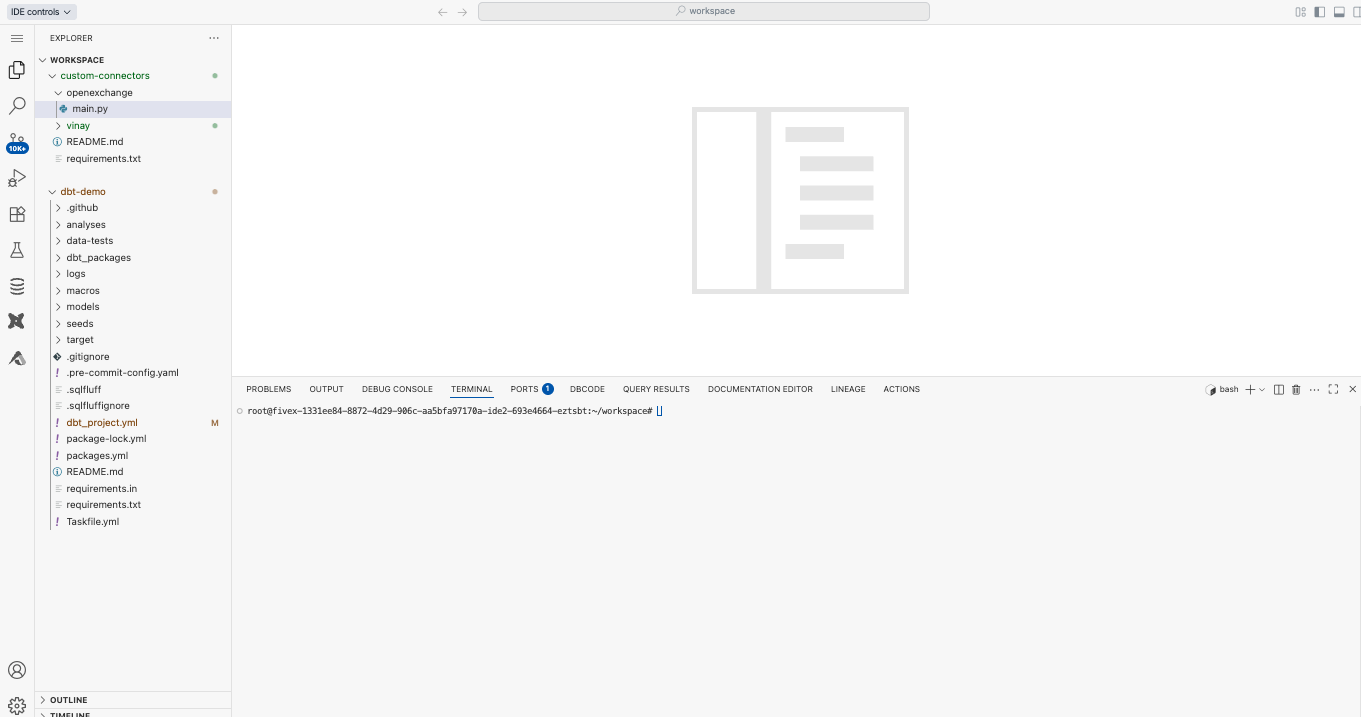
- Navigate repository file trees and project structures
- Create, edit, and delete files
- Access documentation and config files
- Drag-and-drop organization
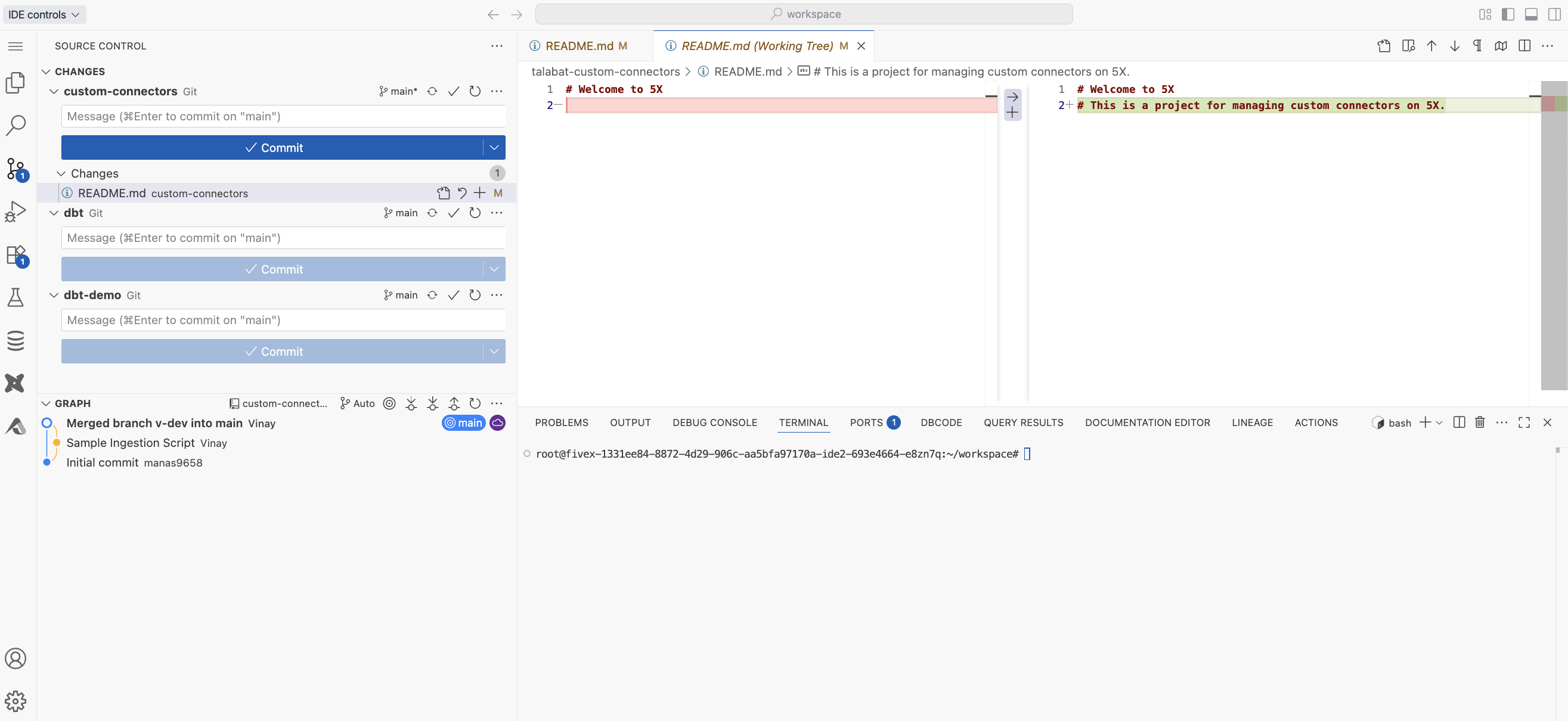
- Commit with descriptive messages
- Create, switch, and merge branches
- Pull and push to remotes
- View diffs and history
- Resolve merge conflicts visually
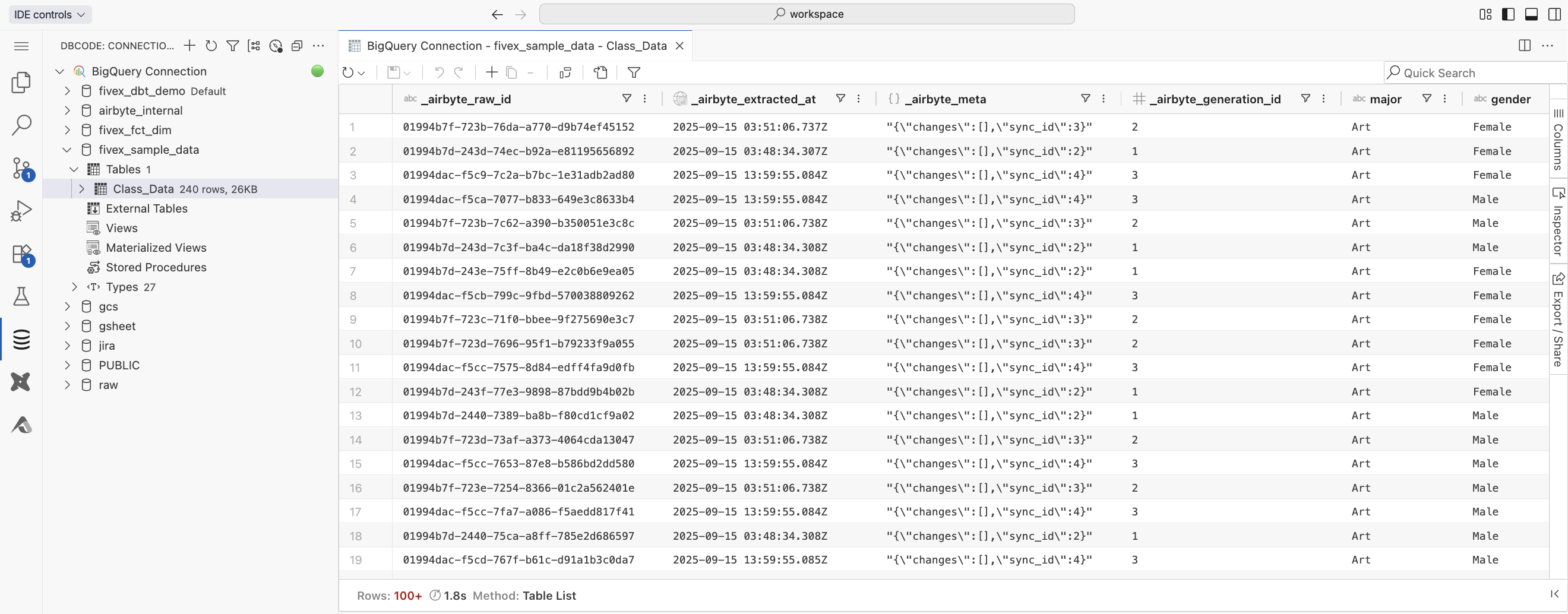
- Browse datasets, schemas, and tables
- Execute ad-hoc SQL queries
- Preview table data and schemas
- Export results
- Save frequently used queries
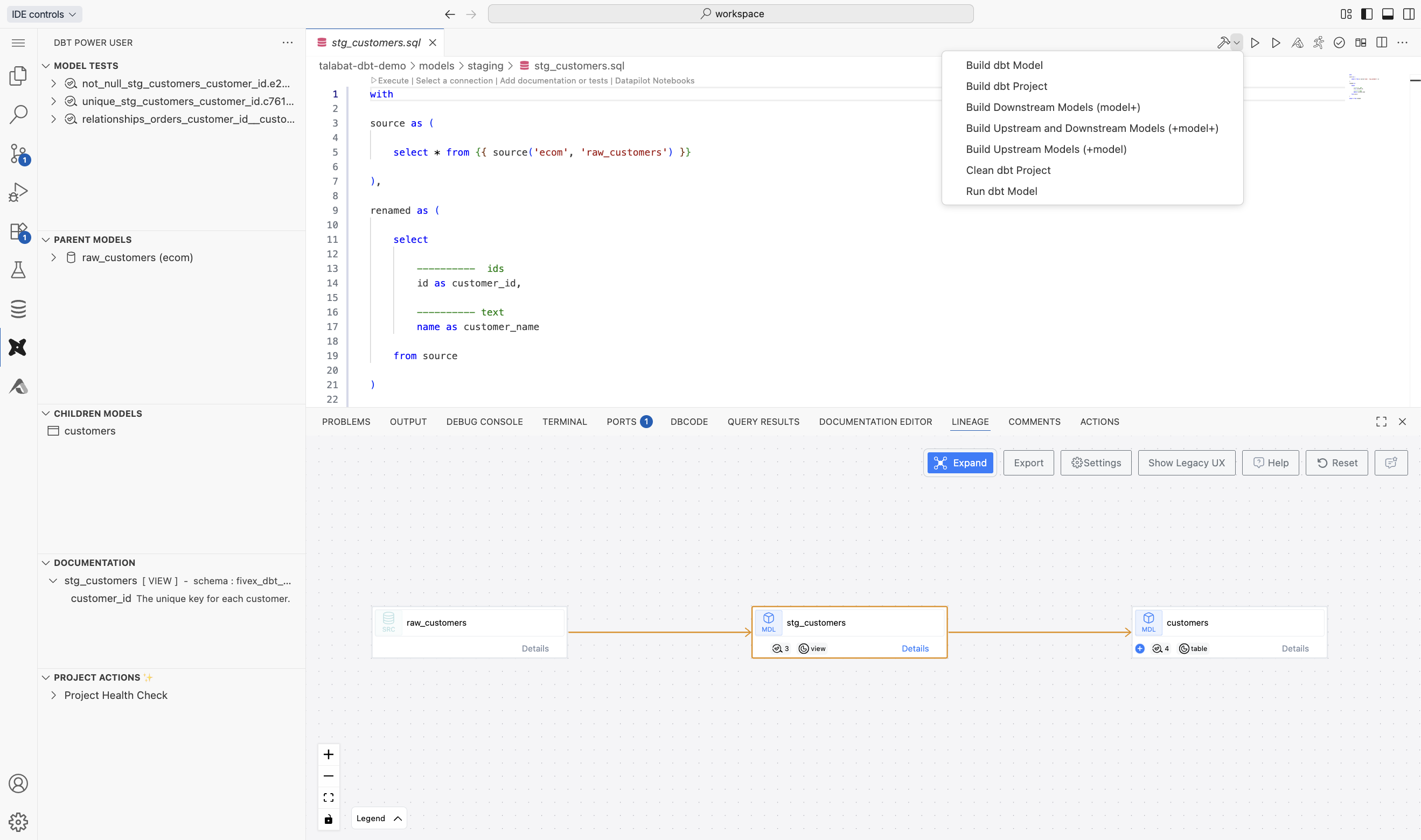
- Run models, selections, or entire dbt projects
- Visualize lineage with interactive graphs
- Generate and view dbt docs
- Run dbt tests with detailed results
- Preview compiled SQL
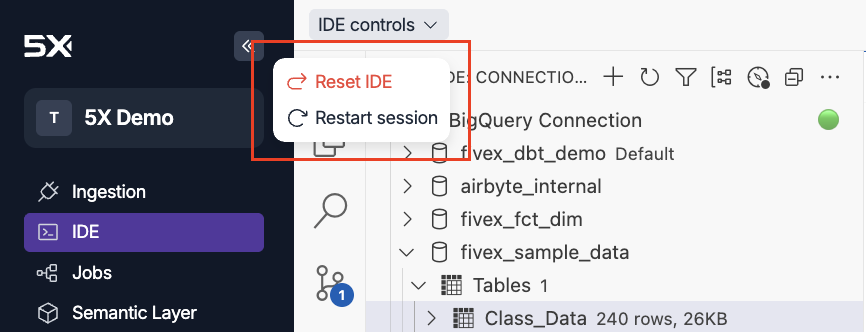
- Restart session after updating credentials or dbt config, or when IDE becomes sluggish
- Reset IDE deletes all custom settings and uncommitted changes; try restart first
Working with Python
Python environment overview
The IDE comes with multiple Python versions viapyenv for compatibility across projects.
Available versions
- Python 3.8.20
- Python 3.9.23
- Python 3.10.18
- Python 3.11.13 (default via
PYENV_VERSION) - Python 3.12.11
- Python 3.13.4
Virtual environment management
Create isolated environments per project.Dependency management best practices
Maintain dependencies withrequirements.txt for reproducibility.
Terminal usage and shortcuts
The IDE terminal runs in the browser, so shortcuts differ from native terminals.- Paste into terminal: Cmd + Shift + V (Mac) or Ctrl + Shift + V (Windows/Linux)
- Standard Cmd/Ctrl + V does not paste into the terminal
- Copy from terminal: Select text and use Cmd + C / Ctrl + C
Working with dbt
Dbt Power User extension (recommended)
The extension automatically uses your configured dbt settings from Settings → Credentials, including version, connections, and targets.- Execute individual models (
dbt run --select model_name) or selections - Test models with the integrated test runner
- Preview compiled SQL before execution
- Generate and view documentation
Command-line dbt development
Terminal-based workflows are supported with pre-configured virtual environments per dbt version.- dbt-1.6.18 (
/root/.venv/dbt-1.6.18/) - dbt-1.7.19 (
/root/.venv/dbt-1.7.19/) - dbt-1.8.9 (
/root/.venv/dbt-1.8.9/) - dbt-1.9.10 (
/root/.venv/dbt-1.9.10/)
Lineage visualization
Understand dependencies and data flow across your project.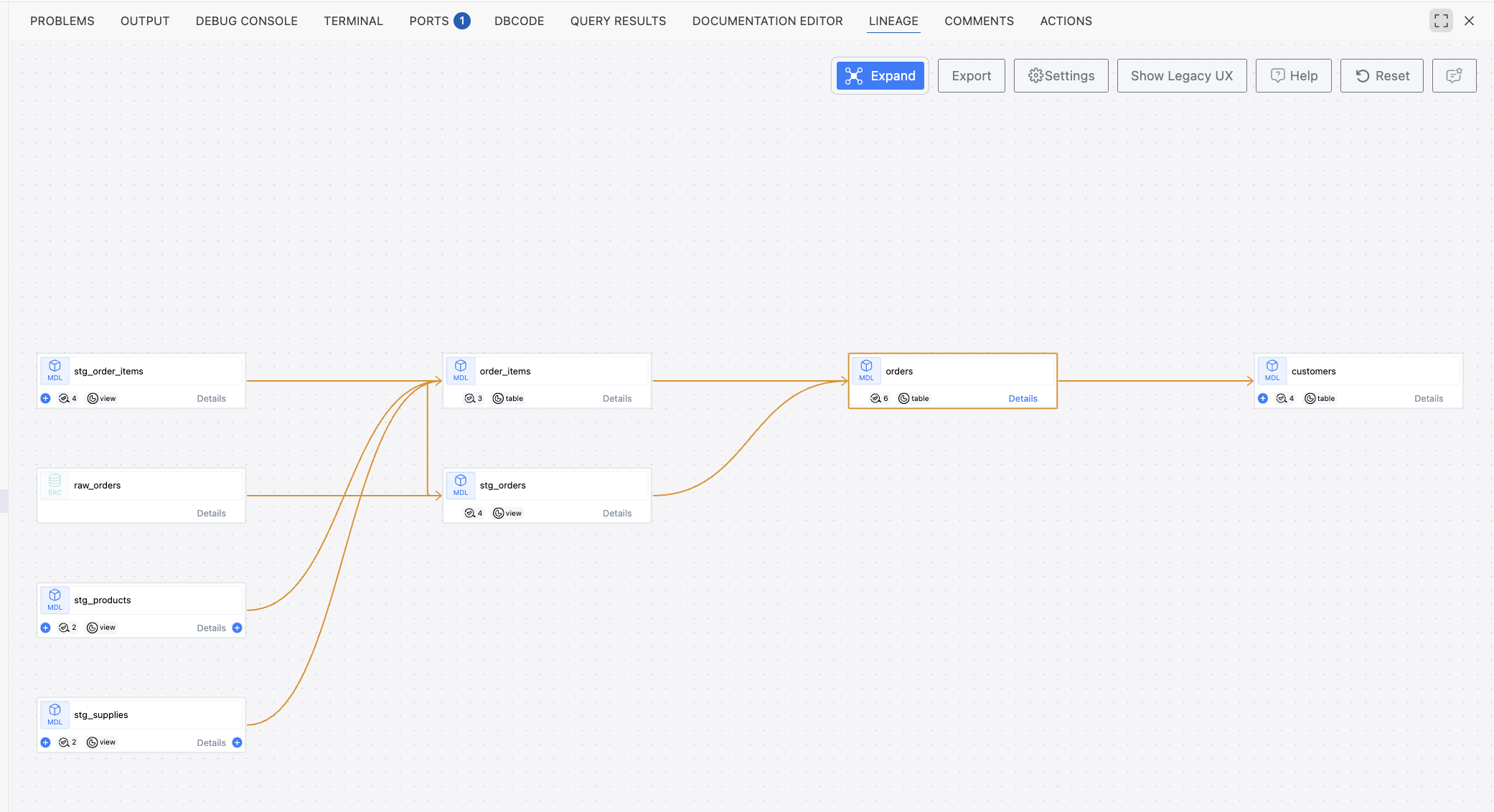
1
Open a dbt model
Open any model file in the editor.
2
View lineage tab
Open the Lineage tab to explore dependencies.
3
Navigate dependencies
Click nodes to move between upstream and downstream models.
- Interactive navigation between related models
- Control dependency depth
- Impact analysis for change assessment
- Visual debugging to identify circular dependencies
Dbt development best practices
Project organization- Keep clear folders (e.g.,
staging/,marts/) - Consistent naming conventions
- Focus model files and keep them small
- Run dbt tests frequently during development
- Validate transformed data in the database explorer
- Preview compiled SQL to verify transformations
- Generate docs regularly
- Commit frequently with descriptive messages
- Use branches for features and manage in the source control panel
Tips & troubleshooting
Environment customization and extensions
You can tailor the environment to your preferences:- Install additional VS Code extensions from the marketplace
- Configure themes, color schemes, and editor preferences
- Add CLI tools, aliases, and shell preferences
- Customize keyboard shortcuts and workspace settings
Performance optimization
Maintain responsiveness- Close unused files and tabs
- Limit large query result sets in the database explorer
- Restart sessions periodically during long development sessions
- Monitor resource usage in browser devtools if you notice slowness
- Use dbt selection syntax to run subsets during development
- Consider Git sparse checkout for very large repositories
- Split very large monoliths into smaller, focused repos when possible
Common issues and resolutions
IDE session won’t start- Verify credentials in Settings → IDE → Credentials
- Ensure service account has warehouse permissions
- Check repository permissions for imported repos
- Contact support if initialization still fails after verification
- Activate the appropriate dbt virtual environment
- Verify credential configuration matches your profile requirements
- Ensure target dataset/schema exists and has write permissions
- Review dbt logs for specific errors
- Ensure repository was created via Settings → IDE → Repositories
- Verify SSH key configuration for external imports
- Check repository permissions (read/write)
- Confirm repository URL is correct and accessible
- Test credentials with the database explorer
- Verify firewall rules allow connections from the 5X platform
- Check service account key validity and expiry
- Confirm required datasets and tables exist
Development workflow best practices
Repository management- Always create repositories via Settings for full integration
- Commit frequently with meaningful messages
- Use feature branches and merge back to main when complete
- Manage workflows visually in the source control panel
- Build incrementally rather than full-project runs
- Validate data quickly in the database explorer
- Use lineage visualization to assess impact
- Keep code clean, documented, and consistently formatted
Conclusion
As we continue to enhance the platform based on your feedback, explore the features in this guide and share your experiences. Your insights help us build the best development environment for data professionals. Key takeaways- Always configure credentials and repositories through Settings for full platform integration
- Leverage the pre-installed dbt Power User extension for streamlined dbt development
- Use virtual environments and proper dependency management for reliable Python workflows
- Use integrated lineage and database exploration for better understanding and faster debugging