

Estimated Time: 10-12 minutesComplete your initial setup from account creation through workspace provisioning in one comprehensive workflow.
Setup overview
This combined setup process will take you through three essential steps:- Create your 5X account (~2 minutes)
- Personal and workspace setup (~2 minutes)
- Configure data warehouse and workspace provisioning (~5-7 minutes)
Step 1: Create your 5X account
Account access: 5X provides private signup links to new customers. You’ll receive a personalized signup link from the 5X team to create your account.Need a signup link? Contact your 5X sales representative or reach out to support@5x.co to get started with your new account and workspace setup.
Account creation options
The 5X Platform offers two convenient ways to create your account using your business email through the private signup link:Corporate Email
Best for: Direct registration with corporate credentials
- Use your business email address
- Create a secure password
- Email verification required
Google Authentication
Best for: Quick setup with existing Google Workspace accounts
- One-click authentication with Google
- Use your business Google account
- Automatic email verification
- Secure OAuth integration
Account creation process
-
Access the private signup link
- Use the private signup link provided by the 5X team
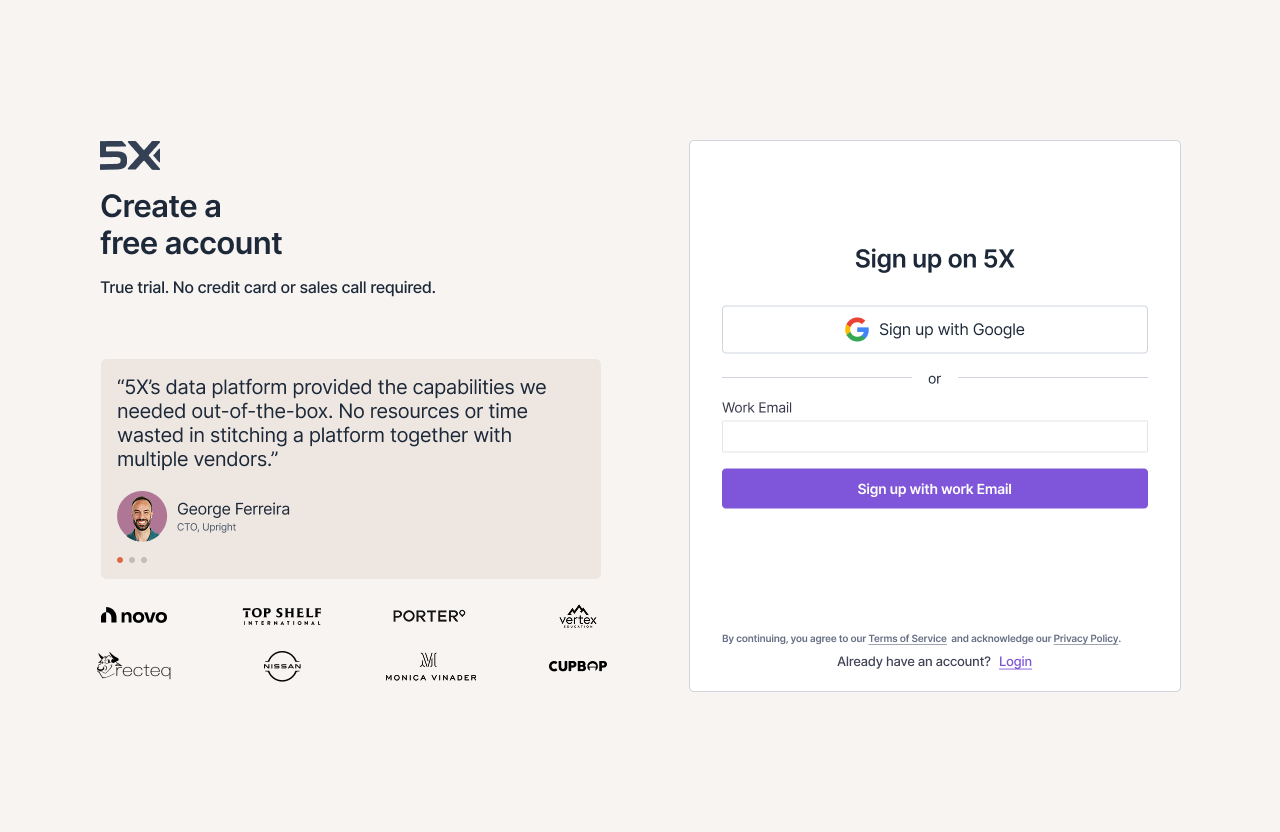
- You’ll see the “Sign up on 5X” page with registration options
-
Choose your registration method
For Google authentication:
- Click “Sign up with Google” button
- Select your business Google account
- Grant necessary permissions
- Email automatically verified
- Click “Or sign up with email”
- Enter your work email address in the “Work Email” field
- Click “Sign up with email” button
-
Email verification (corporate email only)
- Check your inbox for verification email
- Click the verification link. You’ll be redirected back to the platform. Complete the signup process.
Step 2: Personal and workspace setup
Once your account is verified, you’ll complete two quick setup forms.Personal information
Complete your profile with the “Let’s get to know you” form:- Enter your name in the “What should we call you?” field
- Set a secure password that meets the displayed requirements
- Click “Continue” when all checkmarks are green
Workspace setup
Configure your workspace with the “Setup your first workspace” form: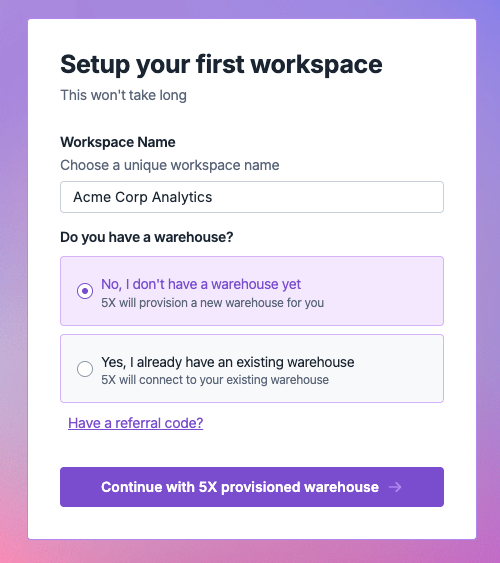
- Enter a workspace name (e.g., “Acme Corp Analytics”)
- Choose your warehouse option:
- “No, I don’t have a warehouse yet” - 5X will create one for you (recommended)
- “Yes, I already have an existing warehouse” - Connect your existing warehouse
- Add referral code (optional)
- Click “Continue with 5X provisioned warehouse”
Step 3: Configure data warehouse and workspace provisioning
Choose your data storage solution based on your organization’s needs. After configuration, your workspace will be automatically provisioned.Warehouse options
5X Managed Warehouse
Recommended for quick evaluations and for users who don’t yet have a warehouse set up
- Fully managed and optimized
- No setup complexity
- Automatic scaling
- Built-in security
Existing Warehouse
For organizations with existing infrastructure
- Connect Snowflake, Google BigQuery, AWS Redshift, or PostgreSQL
- Maintain existing investments
- Custom configurations
Option A: 5X managed warehouse setup
-
Configure your warehouse settings
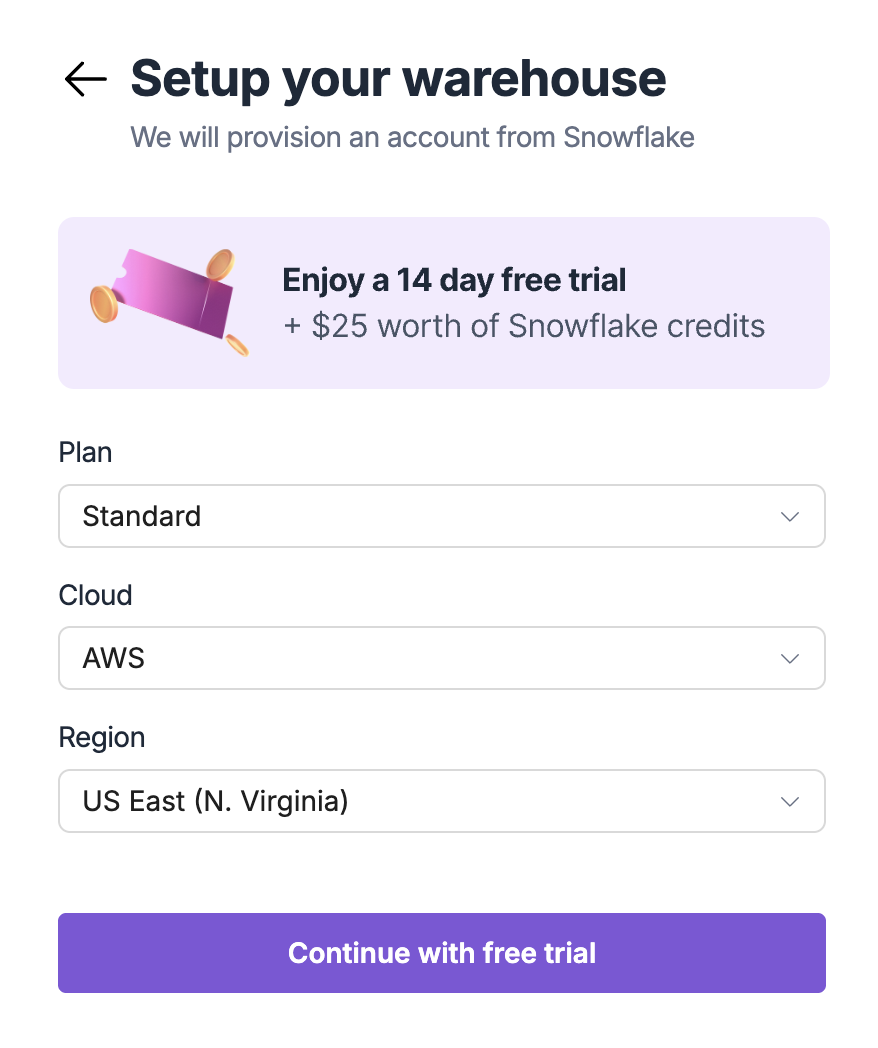
- You’ll see the “Setup your warehouse” screen
-
Select your configuration
- Plan: Choose from available plans (Standard is pre-selected)
- Cloud: Select your preferred cloud provider (AWS, GCP, or Azure)
- Region: Choose the region closest to your users for optimal performance
-
Complete setup and begin provisioning
- Review your selections
- Click “Continue with free trial” to proceed
- Your workspace with a 5X managed snowflake warehouse will be provisioned. The provisioning process will take around 5 minutes.
Option B: Connect existing warehouse
-
Select your warehouse type
Snowflake
Enterprise cloud data warehouseBigQuery
Google Cloud serverless warehouseAWS Redshift
Amazon cloud data warehousePostgreSQL
Open source relational database -
Enter connection details
Snowflake configuration
Step 1: PrerequisitesBefore proceeding, ensure you have:- Required Snowflake roles: ACCOUNTADMIN, SECURITYADMIN, and SYSADMIN
- Network access: If you have network policies on your Snowflake account, allowlist these static IPs:
Step 3: Upload authentication key pairFor secure key-pair authentication:- Generate a private/public key pair (if not already done)
- In the 5X platform, enter:
- Account URL:
https://account_name.region.snowflakecomputing.com - Username:
FIVEX_USER(or your custom username) - Private Key: Paste your private key content
- Passphrase: Only required if your private key is encrypted
- Account URL:
- Run this script to update the RSA public key in Snowflake:
- Default Warehouse:
FIVEX_WAREHOUSE(or your custom warehouse name) - Default Role:
FIVEX_ROLE(or your custom role name) - Plan: Enter your current Snowflake plan/edition
- Cloud: Specify your existing cloud provider (AWS, GCP, or Azure)
- Region: Enter the region where your Snowflake account is hosted
AWS Redshift configuration
Step 1: Pre-requisites- Log in to AWS Console
- Navigate to Amazon Redshift
-
Select your cluster and copy the Endpoint URL (without jdbc:redshift:// prefix)
- Database name is the initial database created with your cluster. You can find this information in your cluster configuration.
- Use username and password authentication for database access. Ensure the user has appropriate permissions for your use case.
- (Optional) Run on Amazon Redshift SQL editor for connection details.
Step 2: Basic connection information- Enter ‘Host’ & ‘Port’ details
- Enter ‘Database’ name
- Enter ‘Username’ & ‘Password’
- Select ‘Cluster Region’
- Click on ‘Next step’ to proceed
- Go to AWS Console > VPC > Security Groups
- Find your Redshift cluster’s security group and Edit inbound rules
- Add a new rule for each IP with Port 5439
- Database name is the initial database created with your cluster. You can find this information in your cluster configuration.
- If your cluster is in a VPC, also ensure:
- Subnet is properly configured
- Route tables allow internet access
- DNS resolution is enabled
PostgreSQL configuration
Step 1: Pre-requisites- Open port 5432 (or your custom port) in your firewall to allow inbound traffic from 5X IP addresses
- Allow 5X’s static IP addresses through your firewall or security group
- The database must be accessible over the internet (or VPN/SSH tunnel)
- You must have SUPERUSER or database owner privileges.
- (Optional) Create a 5X user with SUPERUSER permission
Step 2: Database connection detailsEnter your Postgres connection information- Enter ‘Host’ & ‘Port’ details
- Enter ‘Database’ name
- Enter ‘Username’ & ‘Password’
- Click on ‘Connect’ to finish the process
BigQuery configuration
Step 1 of 4: Enable required APIs in Google Cloud- Go to the Google Cloud Console
- Search for ‘APIs & Services’ and open the APIs & Services page. Click on ‘Enabled APIs & services’ button
- Search and enable:
- BigQuery API
- Cloud Resource Manager API
- In the GCP Console, search for ‘Service Accounts’ and click on Service Accounts
- Click ’+ Create Service Account’
- Fill in the Service account name and add a description if you’d like (For example: 5X_Service_Account)
- Click ‘Create and continue’
- In the second step, ‘Grant this service account access to project’, give the following permissions:
- BigQuery User
- Project IAM Admin (Optional)
- Go to IAM & Admin > Service Accounts, and click on the service account you just created
- Go to the ‘Keys’ tab
- Click “Add Key” > “Create new key”
- Choose JSON and click ‘Create’
- Save the downloaded .json file
- Upload the .json file you just downloaded
- Select all the project ID(s) you want to add to 5X
- Complete the connection process
-
Test and validate connection
- Click “Test Connection”
- Resolve any connection issues
- Confirm successful connection
- Workspace provisioning begins automatically after successful connection test
Alternative: Book a free setup call
If you need assistance with configuring your existing warehouse connection, our team is here to help:Book a free setup call
Get personalized assistance with:
- Warehouse connection configuration
- Permission setup and troubleshooting
- Best practices for your specific environment
- Security and performance optimization
- Click “Book a free setup call” button on the warehouse selection screen
- Choose a convenient time slot from our calendar
- Provide brief details about your current warehouse setup
- Receive calendar invitation with meeting details
Troubleshooting common issues
Account creation issues
Account creation issues
Email verification problems:
- Check spam/junk folder
- Wait 5-10 minutes for delivery
- Request new verification email
- Minimum 8 characters
- Include uppercase, lowercase, number, and special character
- Ensure business domain (not personal email)
- Contact IT if domain is blocked
- Try Google authentication alternative
Data warehouse connection issues
Data warehouse connection issues
Network problems:
- Check firewall settings and IP whitelisting
- Verify VPN connectivity
- Ensure correct ports are open
- Verify credentials in source system
- Check service account permissions
- Ensure credentials haven’t expired
- Review required permissions checklist
- Contact database administrator
- Verify role assignments
Provisioning issues
Provisioning issues
Stuck provisioning:
- Wait additional 5 minutes
- Refresh page for updated status
- Check detailed logs for errors
- Verify warehouse connection stability
- Check cloud provider service status
- Contact support@5x.co
What’s next?
Congratulations! You’ve successfully completed the initial setup of your 5X Platform workspace. Your environment is now ready for data integration and analytics.Continue to Step 4
Next: Configure app connections and credentialsSet up secure connections to your data sources and applications.
Back to overview
Return to quickstart guide overview
Need help?
Contact our support team