

Estimated Time: 5-10 minutesLearn how to configure app connections and credentials to enable seamless integration between 5X capabilities and your data warehouse.Note for 5X managed warehouse users: If you provisioned your workspace with a 5X managed warehouse, default app connections and credentials are automatically configured for all capabilities. You can skip this step and return later if you need to modify, delete, or create additional app connections.
Understanding app connections and credentials
App connections and credentials are fundamental concepts that enable the 5X Platform’s capabilities to securely connect and interact with your data warehouse.What are app connections?
App connections define how each 5X capability (ingestion, modeling, orchestration, BI, and metrics layer) connects to your data warehouse. Think of them as capability-specific connection profiles that contain all the technical details needed for that particular workload to access your warehouse. Each app connection includes:- Service account details - Username and authentication method
- Database configuration - Target database, schema, and warehouse
- Role and permissions - What the connection can access and modify
- Connection parameters - Timeout settings, SSL configuration, etc.
What are credentials?
Credentials are your personal authentication details for accessing the data warehouse through the 5X IDE. Unlike app connections which are shared across your workspace for automated processes, credentials are individual to you and enable interactive development work. Your credentials allow you to:- Execute SQL queries in the 5X IDE
- Run and test dbt models during development
- Browse database schemas and tables
- Perform ad-hoc data analysis
Do you need to configure app connections?
App connections are essential for all 5X workspaces, but your setup approach depends on how you provisioned your workspace:If you’re using a 5X managed warehouse
You can start with defaults and customize later. When you provision a workspace with a 5X managed warehouse, the platform automatically creates default app connections for all core capabilities based on recommended best practices. These defaults allow you to start using 5X immediately. However, you’ll likely want to re-configure/modify app connections as you grow:- Connect to different databases or schemas for specific projects or environments
- Change roles or permissions to match your organization’s security requirements
- Create multiple connections when working with multiple databases or data sources
- Set up environment-specific connections for development, staging, and production workflows
- Customize connection parameters like warehouses, or authentication methods
If you’re using an existing warehouse
You must configure all app connections manually. When you connect an existing Snowflake, BigQuery, AWS Redshift, or PostgreSQL warehouse, no default app connections are created. This makes app connection configuration critical for basic platform functionality. What you need to set up:- Before using any 5X capability, you need to configure its corresponding app connection
- Each capability requires its own connection with appropriate permissions and settings
- Without proper app connections, capabilities like data ingestion, dbt modeling, and BI dashboards won’t function
- Want to ingest data? You need an app connection of type “Ingestion”
- Want to run dbt models or orchestrate workflows? You need an app connection of type “Job”
- Want to create dashboards? You need an app connection of type “Business Intelligence”
- Want to use metrics? You need an app connection of type “Metrics Store”
- Want to use Streamlit-based data apps? You need an app connection of type “Data & AI Apps”
Creating app connections
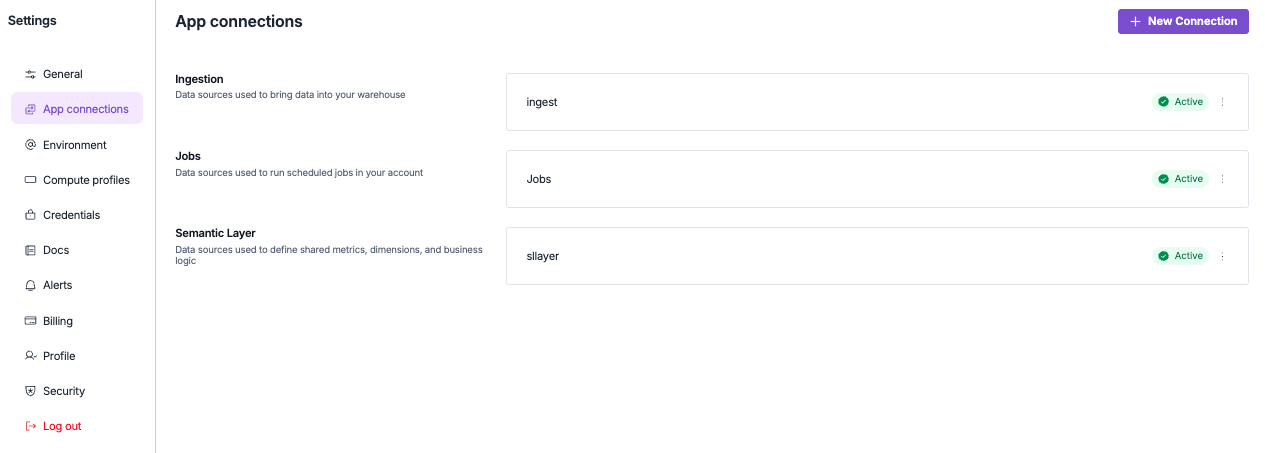
1. Access app connections
-
Navigate to settings
- From your workspace, click “Settings” in the left sidebar
- Select “App connections” from the settings menu
-
Create new connection
- Click ”+ New connection”
- You’ll see the connection configuration form
2. Configure connection details
The configuration fields vary depending on your warehouse type and the capability you’re setting up. Here’s how to configure each field:Snowflake connections
Snowflake connections
Connection types and fields:For all Snowflake connections, you’ll configure: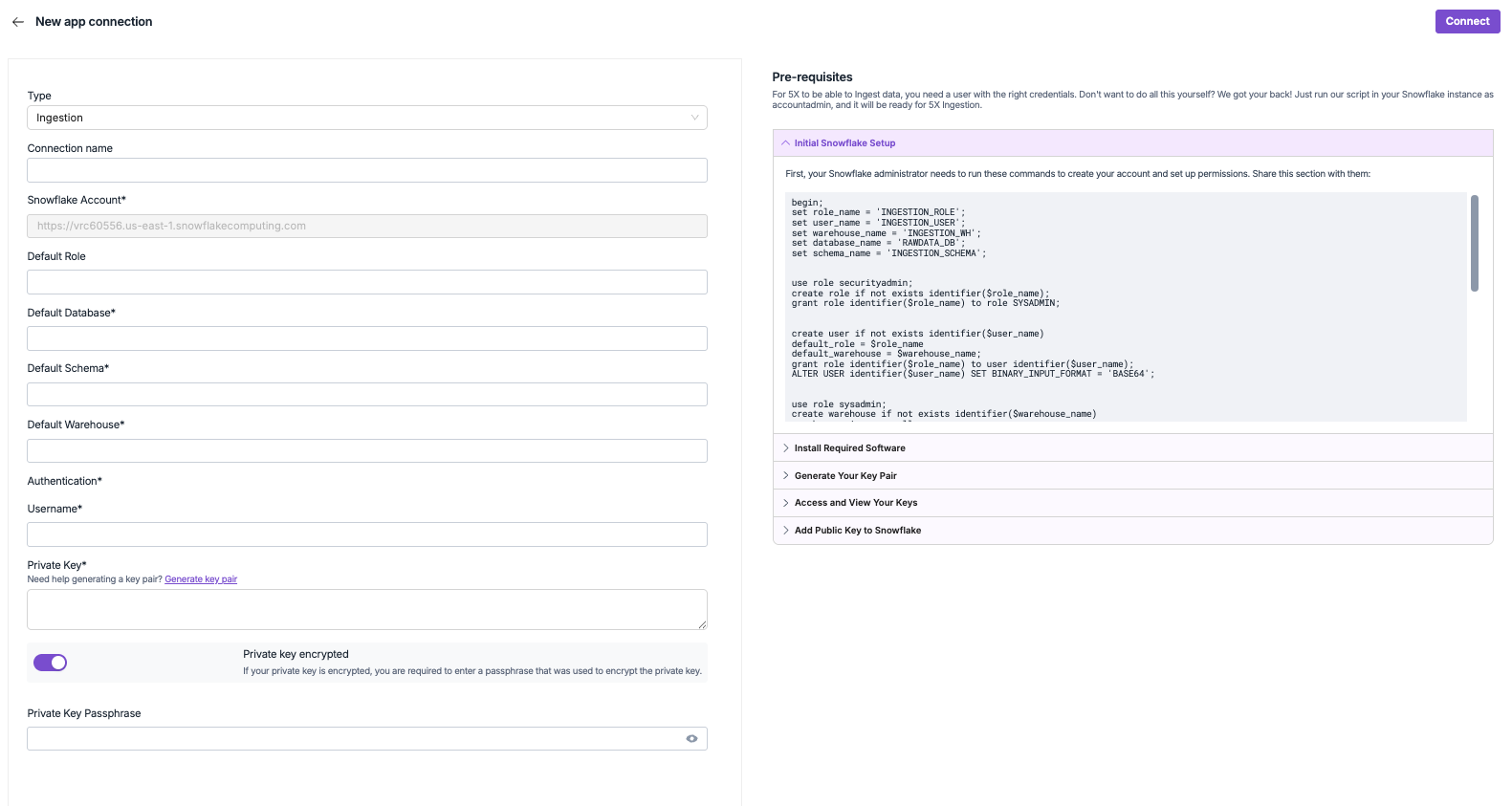
-
Type: Select the capability type
- Ingestion - For data ingestion pipelines
- Job - For dbt modeling and orchestration workflows
- Business Intelligence - For BI dashboards and analytics
- Metrics Store - For metrics layer operations
- Data & AI Apps - For data and AI applications
-
Connection name: Use descriptive names like:
prod_ingestiondev_modelingbi_dashboardmetrics_storedata_apps
-
Snowflake account: Your Snowflake account URL
- Format:
https://[account].snowflakecomputing.com
- Format:
-
Default role: The role this connection will use
- Examples:
INGESTION_ROLE,DBT_ROLE,BI_ROLE
- Examples:
-
Default database: Target database name
- Examples:
ANALYTICS_DB,PROD_DB,DEV_DB
- Examples:
-
Default schema: Default schema for operations
- Examples:
RAW_DATA,TRANSFORMED,MARTS
- Examples:
-
Default warehouse: Compute warehouse to use
- Examples:
INGESTION_WH,TRANSFORM_WH,BI_WH
- Examples:
- Key pair authentication: Service account username with private key (recommended for production)
Pre-requisites and setup: For detailed setup instructions including service account creation, role configuration, and permissions, refer to the “Pre-requisites” section on the app connection setup page as shown in the screenshot.
BigQuery connections
BigQuery connections
Connection types and fields:For all BigQuery connections, you’ll configure: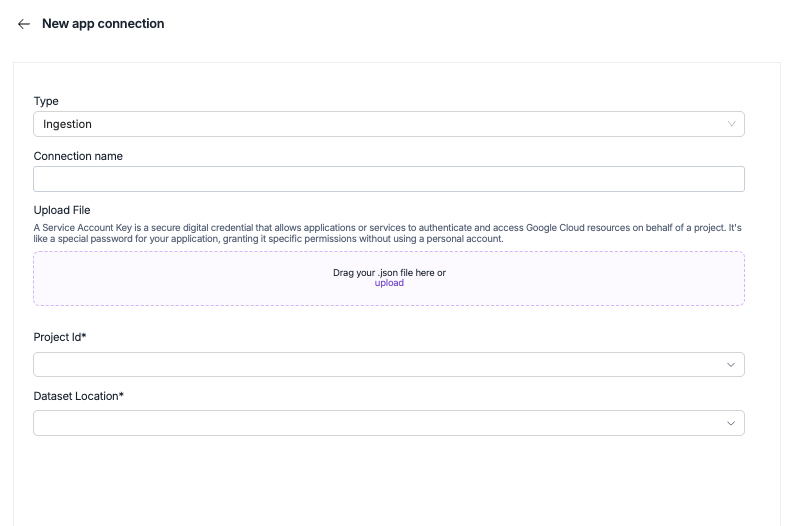
-
Type: Select the capability type
- Ingestion - For data ingestion pipelines
- Job - For dbt modeling and orchestration workflows
- Business Intelligence - For BI dashboards and analytics
- Metrics Store - For metrics layer operations
- Data & AI Apps - For data and AI applications
-
Connection name: Use descriptive names like:
prod_ingestiondev_jobsbi_analyticsdata_apps
-
Upload file: Service account JSON key file
- Download from Google Cloud Console > IAM & Admin > Service Accounts
- Must have appropriate BigQuery permissions
- Project ID: Your Google Cloud project identifier
-
Dataset location: Geographic location of your datasets
- Examples:
US,EU,us-central1
- Examples:
- Dataset name: Target dataset for dbt models
- dbt version: Select your preferred dbt version
Pre-requisites and setup: For detailed setup instructions including service account creation, role assignment, and JSON file generation, refer to the “Pre-requisites” section on the app connection setup page as shown in the screenshots.
- Use service accounts instead of personal credentials for app connections
- Follow least privilege principle - grant only necessary permissions for each capability
- Use descriptive naming to easily identify connection purposes
- Test connections before saving to ensure proper configuration
3. Connect and create app connection
-
Click Connect
- After configuring all required fields, click the “Connect” button
- This will first test your connection configuration automatically
- If the test is successful, the app connection will be created and saved
-
Connection validation
- The system verifies authentication credentials and database access
- Checks that the specified role has necessary permissions
- Ensures all connection parameters are valid
-
Success confirmation
- Once created successfully, the connection will appear in your app connections list
- You can now use this connection for the selected capability
Managing user credentials
1. Access credentials settings
-
Navigate to credentials
- Go to Settings > Credentials
- Click ”+ Add credential” or edit existing credentials

2. Configure personal credentials
Based on your warehouse type, configure your personal access:Snowflake credentials
Snowflake credentials
Required fields:
- Snowflake Account: Your Snowflake account URL
- Format:
https://nnb42337.us-east-1.snowflakecomputing.com
- Format:
- Default Role: Your personal role for queries
- Examples:
ANALYST,DEVELOPER,SYSADMIN
- Examples:
- Default Warehouse: Warehouse for your interactive queries
- Examples:
COMPUTE_WH,DEV_WH,ANALYST_WH
- Examples:
- Authentication Type: Choose your authentication method
- Username & Password: Standard authentication with your Snowflake credentials
- Key Pair: More secure option using private key authentication
-
Enable dbt toggle: Turn on the “dbt” toggle in credentials
- This enables dbt operations in the 5X IDE
-
dbt version: Select your preferred dbt version
- Available versions:
1.6.18,1.7.19,1.8.9,1.9.10
- Available versions:
- Database: Target database for dbt models
- Schema: Schema for dbt transformations
-
(optional field) Target name: Environment identifier for dbt
- Examples:
dev,prod,staging
- Examples:
BigQuery credentials
BigQuery credentials
Required fields:
- Authentication: Sign in with Google
- Click “Sign in with Google” to authenticate with your Google account
- Select the Google account that has access to your BigQuery project
- Grant necessary permissions for 5X to access BigQuery on your behalf
- Project ID: Your Google Cloud project identifier
- Example:
cmp-princestackprovision-czwf
- Example:
-
Enable dbt toggle: Turn on the “dbt” toggle in credentials
- This enables dbt operations in the 5X IDE
-
dbt version: Select your preferred dbt version
- Available versions:
1.6.18,1.7.19,1.8.9,1.9.10
- Available versions:
- Database: Target database for dbt models
- Schema: Schema for dbt transformations
-
(optional field) Target name: Environment identifier for dbt
- Examples:
dev,prod,staging
- Examples:
Best practices
Naming conventions
App connections
Recommended naming:
[Environment]_[Capability]_Connection- Examples:
Prod_Ingestion_ConnectionDev_Modeling_ConnectionStaging_BI_Connection
Service accounts
Recommended naming:
[CAPABILITY]_[ENVIRONMENT]_USER- Examples:
INGESTION_PROD_USERDBT_DEV_USERBI_STAGING_USER
Security guidelines
Troubleshooting common issues
Connection test failures
Connection test failures
Common causes:
- Incorrect connection details
- Invalid credentials or expired passwords
- Network connectivity issues
- Insufficient permissions for the specified role
- Verify the configured credentials
- Check role permissions in your warehouse
- Ensure network access and correct firewall settings
- Test credentials directly in your warehouse console
Permission errors
Permission errors
Common causes:
- Role lacks necessary database permissions
- Warehouse access restrictions
- Schema or table-level permission issues
- Review and grant necessary permissions to the role
- Check warehouse access policies
- Verify schema and table permissions
- Contact your database administrator for access issues
Authentication issues
Authentication issues
Common causes:
- Incorrect private key format
- Missing or incorrect passphrase
- Expired or revoked credentials
- Verify private key format (PEM format required)
- Check passphrase accuracy
- Regenerate keys if expired
- Ensure proper key pair setup in warehouse
What’s next?
With your app connections and credentials configured, you’re ready to start using the 5X Platform’s capabilities.Continue to Step 5
Next: Ingest your dataConfigure your first data ingestion pipeline using the app connections you just set up.
Back to overview
Return to quickstart guide overview
Previous step
Steps 1-3: Account setup and workspace provisioning